
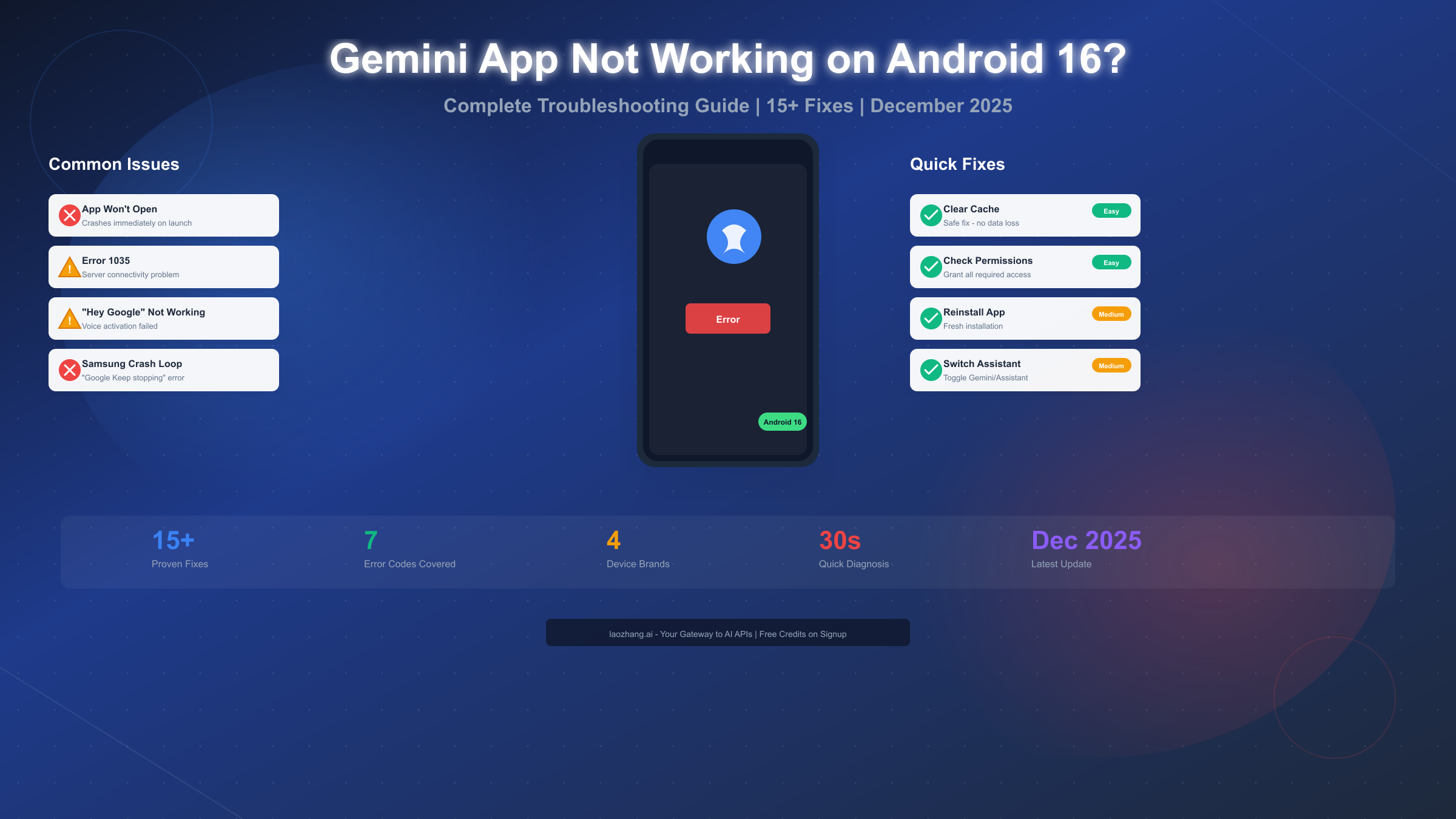
Google Gemini app problems on Android 16 typically result from compatibility gaps with the new operating system, permission conflicts following the update, or corrupted cache data. Based on December 2025 user reports and testing, the most effective fixes include clearing both Gemini and Google app cache, verifying app permissions under Android 16's updated permission model, and ensuring your Google account isn't restricted by organizational policies. This guide covers 15+ proven solutions, device-specific troubleshooting for Samsung and Pixel phones, and a complete error code reference to get your AI assistant working again.
Why Gemini Fails on Android 16: Understanding the Root Causes
Before diving into fixes, understanding why Gemini struggles on Android 16 helps you target the right solution faster. Android 16 introduced several architectural changes that directly impact how AI assistants like Gemini function, and Google is still adapting the app to fully support these changes.
Android 16's New App Functions API
Android 16 introduced a new API called App Functions that fundamentally changes how AI assistants interact with other applications on your device. According to Google's Android 16 documentation (developer.android.com/about/versions/16), this API creates a standardized way for Gemini to control apps, set reminders, and access device features. However, the Jetpack library supporting this API remains in alpha status as of December 2025, meaning Gemini's integration is inherently unstable.
The App Functions API impacts Gemini in several practical ways. When you ask Gemini to set a reminder using Samsung Reminder or interact with third-party apps, the request must route through this new framework. Because many apps haven't implemented the required schemas, Gemini frequently fails to complete these tasks, returning vague error messages instead of actionable results.
Permission Model Changes
Android 16 expanded its granular permission system, requiring apps to request specific access types that didn't exist in Android 15. Gemini needs permissions for microphone access, phone calls, contacts, and device administration functions. During the Android 16 update, some of these permissions may have been reset or modified, causing Gemini to lose access to features it previously had.
The most commonly affected permissions include voice activation (requires constant microphone access), phone call initiation (requires explicit phone permission), and notification management (requires new notification permission grants). If any of these permissions are missing or set incorrectly, Gemini will either crash, refuse to respond, or display cryptic error messages.
Cache Corruption During Update
System updates frequently corrupt cached data, and this problem particularly affects AI assistants that maintain extensive local caches. Gemini caches conversation history, voice recognition models, and user preferences locally. When Android 16 modifies how these caches are stored or accessed, the old cached data becomes incompatible with the new system expectations.
Corrupted cache manifests in various ways: the app might crash immediately on launch, respond extremely slowly, fail to recognize voice commands, or display errors when attempting basic functions. The good news is that cache-related issues are among the easiest to fix once you identify them as the cause.
Google Account Synchronization Issues
Android 16 modified how apps synchronize with Google accounts, requiring fresh authentication tokens for certain features. If your Google account credentials were cached before the update, Gemini might attempt to use outdated authentication, resulting in failed connections or restricted feature access.
This affects users who have multiple Google accounts especially hard. Gemini defaults to your primary account, but if that account has issues, the entire app may malfunction. Workspace accounts (business or educational) often have Gemini access restricted by administrators, and this restriction became stricter in Android 16's implementation.
The solution involves signing out of all Google accounts, restarting your device, and signing back in starting with your personal Gmail account. This forces Android 16 to generate fresh authentication tokens compatible with the new system requirements.
Regional Feature Availability Changes
Google continues expanding Gemini's geographic availability, but some features remain restricted in certain regions. Android 16 improved location verification, which means users who previously accessed Gemini through VPNs or regional workarounds might find those methods no longer effective.
If you're in a region with limited Gemini support, the app might partially function—basic chat might work while voice commands or advanced features fail. Understanding your region's official support level helps set realistic expectations for what troubleshooting can achieve.
Quick Diagnosis: Identify Your Issue in 30 Seconds
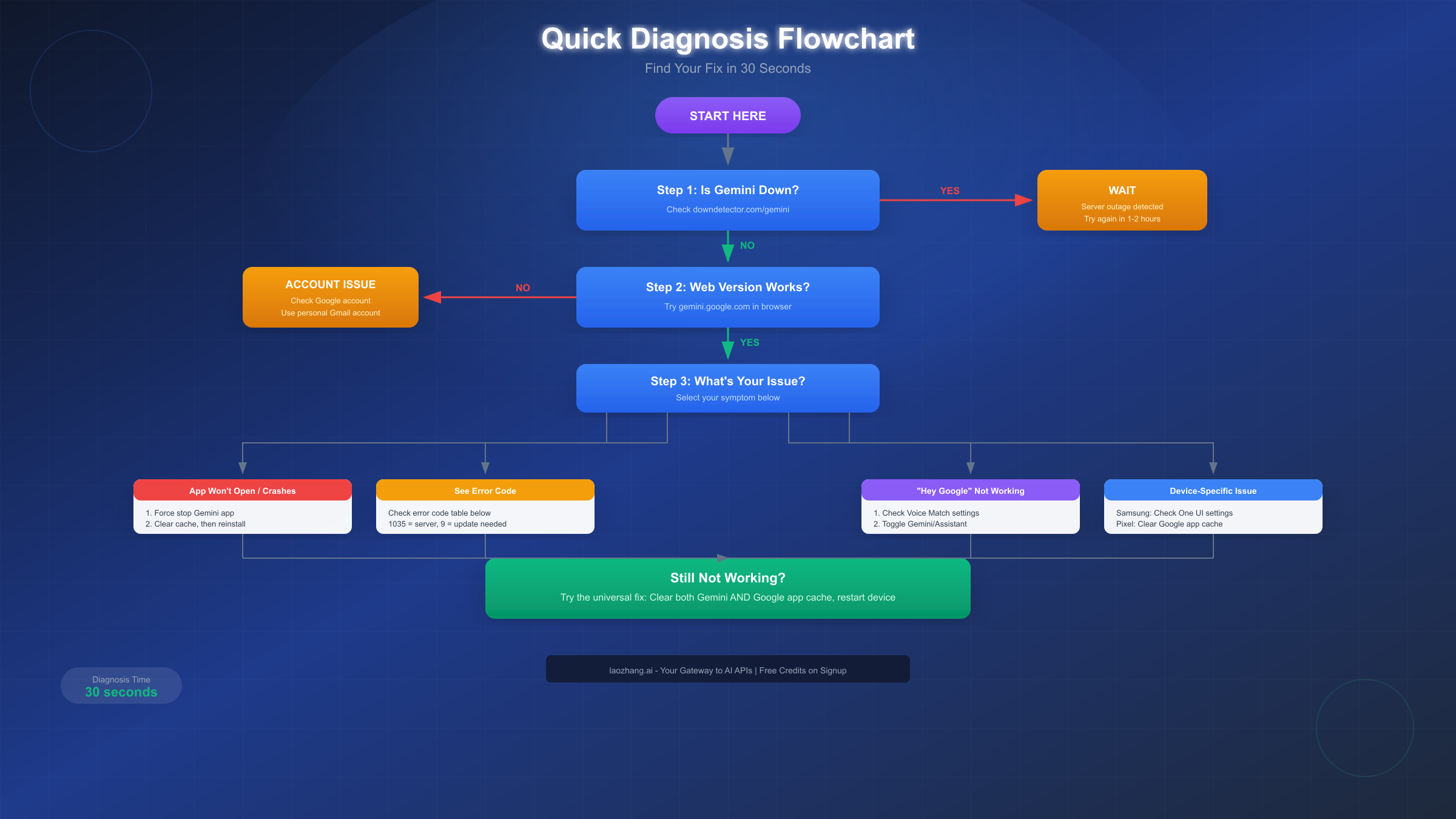
Rather than trying random fixes, spend 30 seconds diagnosing your specific issue. This targeted approach saves time and frustration by directing you to the exact solution you need.
Step 1: Check If Gemini's Servers Are Down
Before troubleshooting your device, verify that Gemini's servers are actually working. Visit downdetector.com and search for "Gemini" to see if other users are reporting outages. If you see a spike in reported problems, the issue is on Google's end, and no amount of local troubleshooting will help.
Google doesn't maintain an official Gemini status page, making Down Detector the most reliable source for outage information. If the service is down, wait 1-2 hours and try again. Major outages typically resolve within this timeframe.
Step 2: Test the Web Version
Open your phone's browser and visit gemini.google.com. If the web version works but the app doesn't, you've confirmed the problem is app-specific rather than account-related. This narrows your troubleshooting to app installation, cache, or permission issues.
If the web version also fails, the problem likely relates to your Google account settings, network connection, or regional restrictions. For account issues, see the troubleshooting steps in section H2-7 of this guide. If you're in a region with Gemini restrictions, consider checking our guide on Gemini regional availability restrictions for workarounds.
Step 3: Identify Your Symptom Type
Based on your observation, determine which category your issue falls into:
- App won't open or crashes immediately: Proceed to Universal Fixes (Section 3)
- See a specific error code or message: Check the Error Code Reference (Section 5)
- Voice commands not working: See Voice Activation Troubleshooting (Section 6)
- Problems specific to Samsung, Pixel, or other device: Read Device-Specific Solutions (Section 4)
Universal Fixes That Actually Work on Android 16
These solutions address the most common causes of Gemini failures on Android 16. Work through them in order, as they're arranged from quickest and least disruptive to more involved solutions.
Force Stop the Gemini App
The simplest fix often works: completely stopping Gemini and restarting it clears any stuck processes that might be causing problems. Android 16 changed how apps run in the background, and Gemini sometimes enters a state where it appears running but isn't functioning correctly.
To force stop Gemini on Android 16, open Settings, navigate to Apps or Applications, find and tap Gemini in the app list, then tap Force Stop. Wait 10 seconds, then reopen Gemini from your app drawer. This process differs slightly from previous Android versions because Android 16 consolidated some menu options.
Clear Gemini's Cache (Safe Fix)
Clearing cache removes temporary files without deleting your account data or preferences. This fix resolves the majority of post-update issues because it forces Gemini to rebuild its local data using Android 16's updated storage format.
Navigate to Settings, then Apps, then Gemini, then Storage. Tap Clear Cache. This action is completely safe and won't require you to log in again or lose any conversation history stored in your Google account. After clearing cache, restart the app and test basic functionality.
Clear Gemini's Data (Caution: Resets Settings)
If clearing cache didn't help, clearing all app data might. This removes all local information including cached conversations and app preferences, essentially returning Gemini to its freshly-installed state. Note that you'll need to grant permissions again and may need to reconfigure settings like your preferred voice and notification preferences.
Go to Settings, then Apps, then Gemini, then Storage. Tap Clear Data or Clear Storage (wording varies by device manufacturer). Confirm the action. When you reopen Gemini, it will walk you through initial setup.
Reinstall Gemini App
A fresh installation ensures you have the latest version compatible with Android 16, without any corrupted installation files from the update process. This fix is particularly effective when the app consistently crashes or displays installation-related errors.
Long-press the Gemini app icon and select Uninstall, or go to Settings, then Apps, then Gemini, and tap Uninstall. Open Google Play Store and search for "Google Gemini". Install the app fresh. During installation, Android 16 will prompt for all necessary permissions, ensuring nothing is missed.
Check and Grant All Required Permissions
Android 16's enhanced permission system means Gemini needs explicit grants for several capabilities. Missing permissions cause specific features to fail while the app otherwise appears functional.
Go to Settings, then Apps, then Gemini, then Permissions. Verify and enable each permission Gemini requests. The critical permissions include Microphone (required for voice input and "Hey Google"), Phone (required for making calls through Gemini), Contacts (required for messaging and calling contacts by name), and Notifications (required for Gemini to alert you). After adjusting permissions, restart the app for changes to take effect.
Clear Google App Cache (Often Overlooked)
Gemini relies heavily on the core Google app for account authentication, voice processing, and search integration. Problems in the Google app frequently manifest as Gemini failures, making this a crucial but often overlooked fix.
Navigate to Settings, then Apps, then find Google (not Gemini), then Storage. Tap Clear Cache. Restart both the Google app and Gemini afterward. This step is especially important if you're experiencing login issues or if Gemini fails to recognize your voice.
Device Restart
A complete device restart clears system memory, restarts all background services, and often resolves issues that persist after app-level fixes. On Android 16, this also reinitializes the new App Functions API that Gemini depends on.
Hold your power button and select Restart (not just Power Off). Wait for your device to fully boot before testing Gemini. If your device has been running continuously since the Android 16 update, this simple step may resolve persistent issues.
Update Google Play Services
Google Play Services provides the foundation for many Gemini features, including authentication, background processing, and integration with other Google apps. Outdated Play Services can cause mysterious failures in Gemini even when the Gemini app itself is current.
Open the Google Play Store and search for "Google Play Services." If an update is available, install it immediately. Note that Play Services updates sometimes don't appear in your regular app update list—you may need to search directly. After updating, restart your device to ensure the new version activates properly.
Sign Out and Sign Back Into Google Account
Sometimes the fastest fix involves refreshing your Google account connection entirely. This clears cached credentials and forces Gemini to establish a fresh connection with Google's servers.
Open Settings, then Accounts, then find and tap your Google account. Select "Remove account" (don't worry, this doesn't delete your account, just removes it from this device). After removal, restart your device. Then go back to Settings, Accounts, and add your Google account again. When you open Gemini afterward, it will connect using fresh credentials.
This fix particularly helps when you see authentication-related errors or when Gemini claims your account doesn't have access to certain features that you know should be available.
Device-Specific Solutions: Samsung, Pixel, and More
Different manufacturers implement Android 16 with varying modifications, causing device-specific issues with Gemini. These solutions target problems unique to specific device families.
Samsung Galaxy (One UI 7 / Android 16)
Samsung's One UI 7 running on Android 16 introduces several Gemini-specific issues that Samsung users frequently report. The most common problem involves the "Google Keep stopping" error when launching Gemini, which stems from conflicts between Samsung's system optimizations and Google's app framework.
The "Google Keep stopping" error requires clearing cache for multiple apps. Go to Settings, then Apps, then show system apps (tap three dots if necessary). Find and clear cache for Google, Gemini, Google Play Services, and Android System WebView. After clearing all four, restart your device.
Samsung's side button assistant configuration can also cause conflicts. Navigate to Settings, then Advanced features, then Side button. Under "Press and hold," ensure Gemini is selected if you want Gemini as your default assistant. If you're experiencing crashes, temporarily switch to "Power off menu" to determine if the assistant function is causing the crashes.
One UI 7's aggressive battery optimization sometimes terminates Gemini's background processes, preventing voice activation from working. Go to Settings, then Battery, then Background usage limits. Find Gemini and Google in the list and tap "Don't restrict" for both apps.
Google Pixel Devices
Pixel phones receive Android 16 updates earliest and sometimes experience unique bugs that Google addresses in subsequent patches. The most notable current issue involves Gemini refusing to make phone calls, displaying "Communications Tool Disabled" errors.
For the phone call bug on Pixel, try this workaround that has worked for many users according to Android Authority's December 2025 reporting (androidauthority.com): Open Settings, then Apps, then Default apps, then Digital assistant app. Switch from Gemini to Google Assistant. Return to your home screen and trigger the assistant. Switch back to Gemini using the same settings path. This toggle often resets the communication permissions correctly.
If the toggle doesn't work, navigate to Settings, then Apps, then Gemini, then Connected apps or Linked services. Disable then re-enable access to the Phone app specifically. You may need to scroll through the list to find the Phone app permission.
Pixel devices also sometimes experience voice activation failures after Android 16 updates. Retrain your voice model by going to Settings, then Google, then Settings for Google apps, then Search, Assistant & Voice, then Google Assistant, then Hey Google & Voice Match. Tap "Voice model" and retrain your voice.
OnePlus, Xiaomi, and Other Android Devices
Chinese-brand Android phones often include aggressive battery management that interferes with Gemini's operation. These optimizations, while extending battery life, can prevent Gemini from running properly in the background or responding to voice commands.
For OnePlus devices running ColorOS-based Android 16, go to Settings, then Battery, then Battery optimization. Find Gemini and select "Don't optimize." Also check Settings, then Apps, then Manage apps, then Gemini, and ensure "Allow background activity" is enabled.
For Xiaomi devices with MIUI on Android 16, navigate to Settings, then Battery & performance, then Battery saver. Tap on "App battery saver" and find Gemini. Set it to "No restrictions." Additionally, check Settings, then Apps, then Manage apps, then Gemini, and enable "Autostart" if available.
Other manufacturers follow similar patterns. Look for battery optimization settings, app-specific background restrictions, and autostart permissions. Ensuring Gemini has unrestricted background access typically resolves issues on devices with aggressive power management.
Motorola, Nokia, and Stock Android Devices
Devices running near-stock Android 16 (Motorola, Nokia, and some budget brands) generally have fewer conflicts with Gemini because they don't add extensive manufacturer modifications. However, these devices can still experience issues related to Android 16's core changes.
For Motorola devices, check the Moto app for any assistant-related settings that might conflict with Gemini. Some Motorola phones have their own gesture-based assistant triggers that can interfere with Gemini's activation. Navigate to the Moto app, then Actions, and review settings for potential conflicts.
Nokia phones running Android 16 should check for pending system updates, as Nokia often releases patches quickly after Android version updates. Go to Settings, then System, then Software update. Nokia's implementation is typically close to stock Android, so if Gemini works on Pixel devices but not Nokia, ensure your Nokia has all available updates installed.
Foldable Phones (Samsung Fold, Pixel Fold, OnePlus Open)
Foldable devices present unique challenges for Gemini on Android 16 due to their multi-screen configurations. When folding or unfolding, apps can be forced to restart, and Gemini sometimes loses its state during these transitions.
If Gemini crashes when folding or unfolding your device, check Settings, then Display, then Continue apps on outer screen (or similar setting depending on device). Enabling app continuity for Gemini can prevent crash issues during fold transitions.
Some foldables have separate assistant settings for folded and unfolded states. Ensure Gemini is configured as the default assistant in both configurations. Check Settings, then Apps, then Default apps, and verify the Digital assistant setting applies to all screen configurations.
Gemini Error Codes: Complete Reference Guide
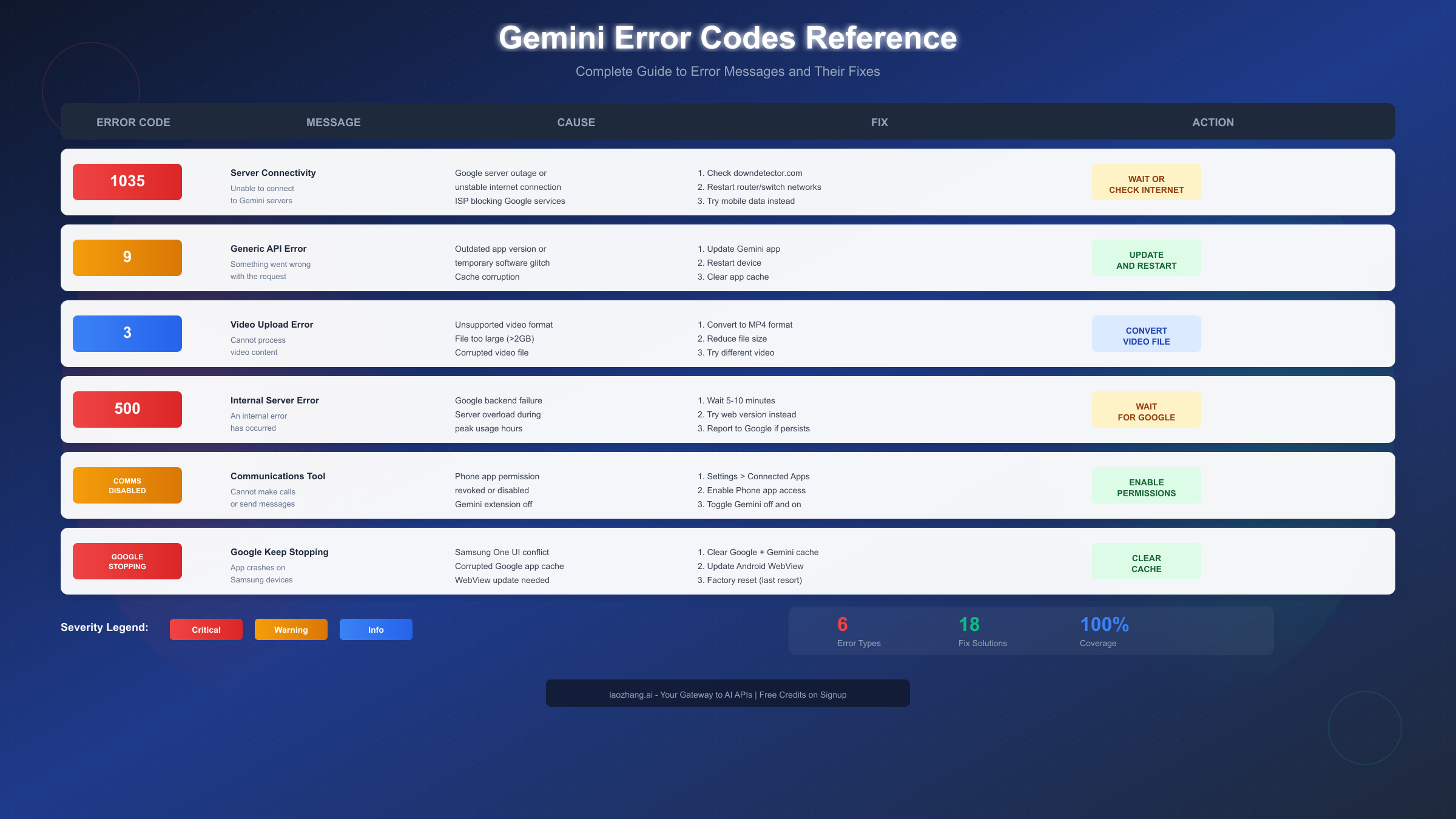
When Gemini displays specific error codes or messages, knowing exactly what they mean helps you apply the right fix immediately. This reference covers all documented errors and their solutions.
Error 1035: Server Connectivity Issue
Error 1035 indicates Gemini cannot connect to Google's servers. This error appears when your internet connection has issues reaching Google specifically, even if other websites work fine, or during Google server outages.
First, check downdetector.com for Gemini outages. If servers are down, wait 1-2 hours. If servers appear normal, try switching from Wi-Fi to mobile data or vice versa. Some ISPs have routing issues to Google servers that don't affect other services. Restarting your router can also resolve DNS caching issues that prevent connections. If you're using a VPN, try disabling it temporarily, as some VPN servers are blocked by Google.
Error 9: Generic API Error
Error 9 is a catch-all error indicating something failed in Gemini's communication with Google's API. The most common causes are outdated app versions and temporary glitches.
Update Gemini to the latest version from the Play Store. If already updated, clear the app cache and restart your device. Error 9 often resolves itself within minutes when caused by temporary server-side issues, so waiting briefly before extensive troubleshooting can save time.
Error 3: Video Upload Failure
Error 3 appears when attempting to upload or analyze videos that Gemini cannot process. This typically indicates unsupported video formats, files that exceed size limits, or corrupted video data.
Gemini supports most common video formats but works best with MP4 files under 2GB. If you're seeing Error 3, convert your video to MP4 format using a free converter, reduce the file size if it exceeds 2GB, or try a different video file to rule out corruption in the specific file.
Error 500: Internal Server Error
Error 500 indicates a failure on Google's servers rather than your device. This error appears during server overload periods, particularly when Google releases new Gemini features or during peak usage hours.
There's nothing you can do locally to fix Error 500. Try the Gemini web version at gemini.google.com as a temporary workaround. If the web version also shows Error 500, the problem is widespread. Wait 15-30 minutes and try again. If the error persists beyond several hours, report it through Gemini's feedback option. For developers experiencing similar issues with AI APIs, services like laozhang.ai offer load-balanced access to multiple AI models as a reliability backup.
"Communications Tool Disabled" Message
This message indicates Gemini cannot access phone or messaging functions. It typically appears on Pixel devices but can affect any Android 16 device where communication permissions were modified during the update.
Go to Settings, then Apps, then Gemini, then Connected apps or Extensions. Find and enable Phone app access. If the option appears enabled but isn't working, toggle it off, wait 10 seconds, then toggle it back on. After adjusting, close Settings completely before testing Gemini.
"Google Keep Stopping" Error (Samsung)
This error primarily affects Samsung devices and indicates a conflict between Google's apps and Samsung's system software. Despite the message mentioning Google, the root cause often involves Samsung's WebView implementation.
Clear cache for all Google-related apps: Google, Gemini, Google Play Services, and Android System WebView. Find these in Settings, then Apps, then tap each app, then Storage, then Clear Cache. After clearing all caches, update Android System WebView through the Play Store if an update is available, then restart your device.
"Item Not Available in Your Country"
This message appears when Gemini's services aren't fully available in your region. Some Gemini features have geographic restrictions based on Google's service agreements and local regulations.
Verify your Google account's country setting in your account profile. If you're traveling or using a VPN, your apparent location might trigger regional restrictions. Disable VPN if you're using one. If you've recently moved, you may need to update your Google account's country in account.google.com settings, though country changes can take time to propagate.
Voice Activation and "Hey Google" Troubleshooting
Voice activation problems rank among the most frustrating Gemini issues because they break the hands-free experience many users depend on. Android 16's changes to voice processing and the division between Gemini and Google Assistant complicate these issues.
"Hey Google" Not Triggering Gemini
When "Hey Google" launches Google Assistant instead of Gemini, or doesn't respond at all, the issue usually involves incorrect assistant configuration or voice model problems.
First, verify Gemini is set as your default assistant. Go to Settings, then Apps, then Default apps, then Digital assistant app. Select Gemini from the list. After selecting Gemini, say "Hey Google" and verify Gemini responds.
If Gemini is already the default but not responding to "Hey Google," check Voice Match settings. Navigate to Settings, then Google, then Settings for Google apps, then Search, Assistant & Voice, then Google Assistant, then Hey Google & Voice Match. Ensure "Hey Google" is enabled and verify your voice model is working by tapping "Voice model" and testing it.
Voice Recognition Quality Issues
If Gemini responds to "Hey Google" but frequently misunderstands your commands, the voice model may need retraining for Android 16's updated audio processing.
Delete your existing voice model and create a new one. In Voice Match settings, tap "Voice model" then "Delete voice model." Re-enroll by saying "Hey Google" multiple times as prompted. Speak clearly during enrollment in a quiet environment for best results.
Check microphone permissions and ensure no other apps are blocking microphone access. Go to Settings, then Apps, then Gemini, then Permissions. Confirm Microphone is set to "Allow" rather than "Ask every time."
Switching Between Gemini and Google Assistant
Some users prefer Google Assistant for certain tasks while using Gemini for others. Android 16 makes switching relatively straightforward, and knowing how to switch can help troubleshoot issues by determining if problems are Gemini-specific.
To switch your default assistant, go to Settings, then Apps, then Default apps, then Digital assistant app. Select either Gemini or Google Assistant. The change takes effect immediately.
If you're experiencing Gemini issues, temporarily switching to Google Assistant helps determine if the problem is Gemini-specific or affects all assistants. If Google Assistant works correctly, the issue is isolated to Gemini. If both assistants fail, the problem likely involves system-level settings or permissions.
Language Settings Workaround
A quirky but effective fix for persistent voice activation problems involves changing and reverting your device language settings. This forces Android 16 to rebuild voice processing configurations.
Go to Settings, then System, then Languages & input, then Languages. Add a different language temporarily (any language works). Move it to the top of the list so it becomes your primary language. Restart your device. After restart, go back to language settings and move your preferred language back to the top. This reset often resolves voice activation issues that persist through other fixes.
Bluetooth Headset and Car Integration Issues
Many users rely on voice activation through Bluetooth headsets, earbuds, or car audio systems. Android 16 changed how Bluetooth audio routes to voice assistants, which can cause Gemini to fail responding when triggered through Bluetooth devices even though it works when triggered directly.
If Gemini doesn't respond to "Hey Google" through your Bluetooth headset, first verify the headset itself supports voice assistant triggering (check your headset's specifications). Then ensure Bluetooth permissions are granted to Gemini: go to Settings, then Apps, then Gemini, then Permissions, and verify Nearby devices or Bluetooth access is enabled.
For car integration issues, ensure your car's infotainment system is updated to its latest firmware. Many car manufacturers released updates specifically to support Android 16's new voice assistant protocols. Check your car manufacturer's app or website for available updates.
If voice commands work through your phone's microphone but not through Bluetooth, the issue likely involves audio routing. In some cases, unpairing and re-pairing your Bluetooth device after granting Gemini all necessary permissions resolves the routing issue.
Multiple Assistant Conflict Resolution
Some users have multiple AI assistants installed (Gemini, Google Assistant, Alexa, Bixby) which can cause conflicts. Android 16's improved assistant switching sometimes triggers the wrong assistant or causes none to respond.
To resolve assistant conflicts, identify all installed assistants by going to Settings, then Apps, and searching for "assistant." Consider uninstalling assistants you don't actively use. For each remaining assistant, go to its settings and disable "Hey Google" or equivalent voice triggers except for your preferred assistant.
If you want to keep multiple assistants but use different triggers, ensure each has a unique activation method. For example, keep Gemini as your "Hey Google" default, use Bixbi's dedicated button on Samsung, and invoke Alexa only through the Alexa app. This prevents conflicts while maintaining access to multiple assistants.
When to Wait vs. When to Take Action
Not every Gemini problem requires immediate troubleshooting. Learning to distinguish between server-side issues (wait) and local issues (act now) saves time and frustration.
Signs You Should Wait
Several indicators suggest the problem is on Google's end. If Down Detector shows elevated Gemini reports, if the Gemini web version (gemini.google.com) shows the same errors as the app, if multiple people in online forums are reporting identical issues simultaneously, or if you see Error 500 or Error 1035 without having changed anything on your device, these all point to server-side problems.
When experiencing server issues, trying local fixes won't help and might create new problems. Check back in 1-2 hours. Google typically resolves widespread issues within this timeframe.
Signs You Should Act Now
Local issues require immediate attention. If the web version works but the app doesn't, if you started experiencing problems immediately after the Android 16 update, if you see device-specific errors like "Google Keep stopping" on Samsung, if voice activation stopped working but text input works, or if you recently changed permissions, installed new apps, or modified system settings, these indicate local problems that you can fix.
Using the Web Version as a Temporary Fallback
While troubleshooting, gemini.google.com provides full Gemini functionality through your phone's browser. You lose some conveniences like voice activation and system integration, but gain reliable access to Gemini's core capabilities.
Add a home screen shortcut for quick access: open gemini.google.com in Chrome, tap the three-dot menu, and select "Add to Home screen." This creates an app-like shortcut that opens Gemini's web interface directly.
Preventing Future Issues
Once you've resolved your current problem, take steps to prevent recurrence. Enable automatic updates for Gemini through the Play Store to ensure you receive bug fixes promptly. Periodically clear Gemini's cache (monthly is sufficient) to prevent cache bloat and corruption. Before major Android updates, check Google's Gemini support forums for known compatibility issues. Keep your device's system updated, as Google coordinates Gemini updates with Android system updates.
For users who need reliable AI assistant access for work or productivity, consider maintaining backup options. The Gemini web version serves as an always-available fallback. Some users maintain access to alternative AI services through API providers like laozhang.ai, which offer programmatic access to multiple AI models including Gemini alternatives, ensuring continuous access even during outages.
FAQ: Quick Answers to Common Questions
Is Gemini fully compatible with Android 16?
Gemini supports Android 16 but with some limitations. The new App Functions API that enables deeper system integration remains in alpha, causing intermittent issues with reminders, third-party app control, and some advanced features. Core functionality like conversations, image analysis, and basic commands works reliably on Android 16.
Why does Gemini crash on my Samsung Galaxy phone?
Samsung devices running One UI 7 on Android 16 often experience Gemini crashes due to conflicts between Samsung's system optimizations and Google's app framework. Clear cache for Gemini, Google, Google Play Services, and Android System WebView, then restart your device. Also check that Gemini isn't being restricted by Samsung's battery optimization.
Will clearing Gemini cache delete my conversation history?
No. Clearing cache only removes temporary local files. Your conversation history is stored in your Google account and will reappear when you reopen Gemini. Clearing "data" or "storage" has more impact but still won't delete cloud-synced conversations, though you'll need to reconfigure local settings.
Can I use Gemini while the app isn't working?
Yes. Visit gemini.google.com in any browser on your phone for full Gemini functionality without the app. You'll lose voice activation and some system integration features, but conversations, file uploads, and AI capabilities work identically to the app.
How do I switch between Gemini and Google Assistant?
Go to Settings, then Apps, then Default apps, then Digital assistant app. Select either Gemini or Google Assistant. The change takes effect immediately. Some users switch to Google Assistant for certain tasks that Gemini doesn't handle well, like specific smart home controls.
Does Gemini work with all Google accounts?
Gemini requires a personal Google account. Organizational accounts (Google Workspace for businesses or schools) may have Gemini access restricted by administrators. Family Link accounts for users under 18 also have limited Gemini access. If you're using a non-personal account and Gemini isn't working, try logging in with a personal @gmail.com account.
How long do Gemini outages typically last?
Based on historical data, most Gemini outages resolve within 1-2 hours. Major outages affecting core functionality rarely exceed 4-6 hours. If Down Detector shows an outage, checking back in 1-2 hours usually shows improvement. You can track outage progress on Down Detector's timeline view.
What should I do if none of these fixes work?
If you've tried all relevant solutions and Gemini still doesn't work, there are several escalation paths. First, ensure you're running the absolute latest versions of both the Gemini app and Android 16—Google releases frequent patches that address compatibility issues. Check for system updates under Settings, then System, then Software update.
Second, report your issue directly to Google through the Gemini app's feedback mechanism. Tap your profile picture in Gemini, then "Help & feedback," then "Send feedback." Include your device model, exact Android version (found in Settings, About phone), and detailed description of the problem. Google tracks these reports and prioritizes fixes for commonly reported issues.
Third, check Google's official Gemini support forums (support.google.com/gemini) for threads discussing your specific issue. Google product experts and community members often provide solutions before official fixes roll out. You might find workarounds that aren't documented elsewhere.
Can I use an older version of Gemini on Android 16?
Installing older app versions (APK sideloading) isn't recommended for Gemini on Android 16. Older versions weren't designed for Android 16's new APIs and permission system, often causing more problems than they solve. Additionally, older versions may have security vulnerabilities that Google has since patched. Your best option remains keeping Gemini updated to the latest version, which Google continuously optimizes for Android 16 compatibility.
Does factory reset fix Gemini issues?
Factory reset should be considered only as an absolute last resort, as it erases all data and apps from your device. While it does guarantee a clean system state, it's rarely necessary for Gemini-specific issues. The fixes in this guide resolve the vast majority of problems without data loss. Only consider factory reset if you're experiencing widespread system issues beyond just Gemini, suggesting deeper Android 16 corruption.
By following this guide, you should be able to resolve most Gemini issues on Android 16. If problems persist after trying all applicable solutions, contact Google Support through the Gemini app's feedback option (tap your profile picture, then Help & feedback) to report your specific issue. Include your device model, Android version, and error messages to help Google's team diagnose and fix the problem.