
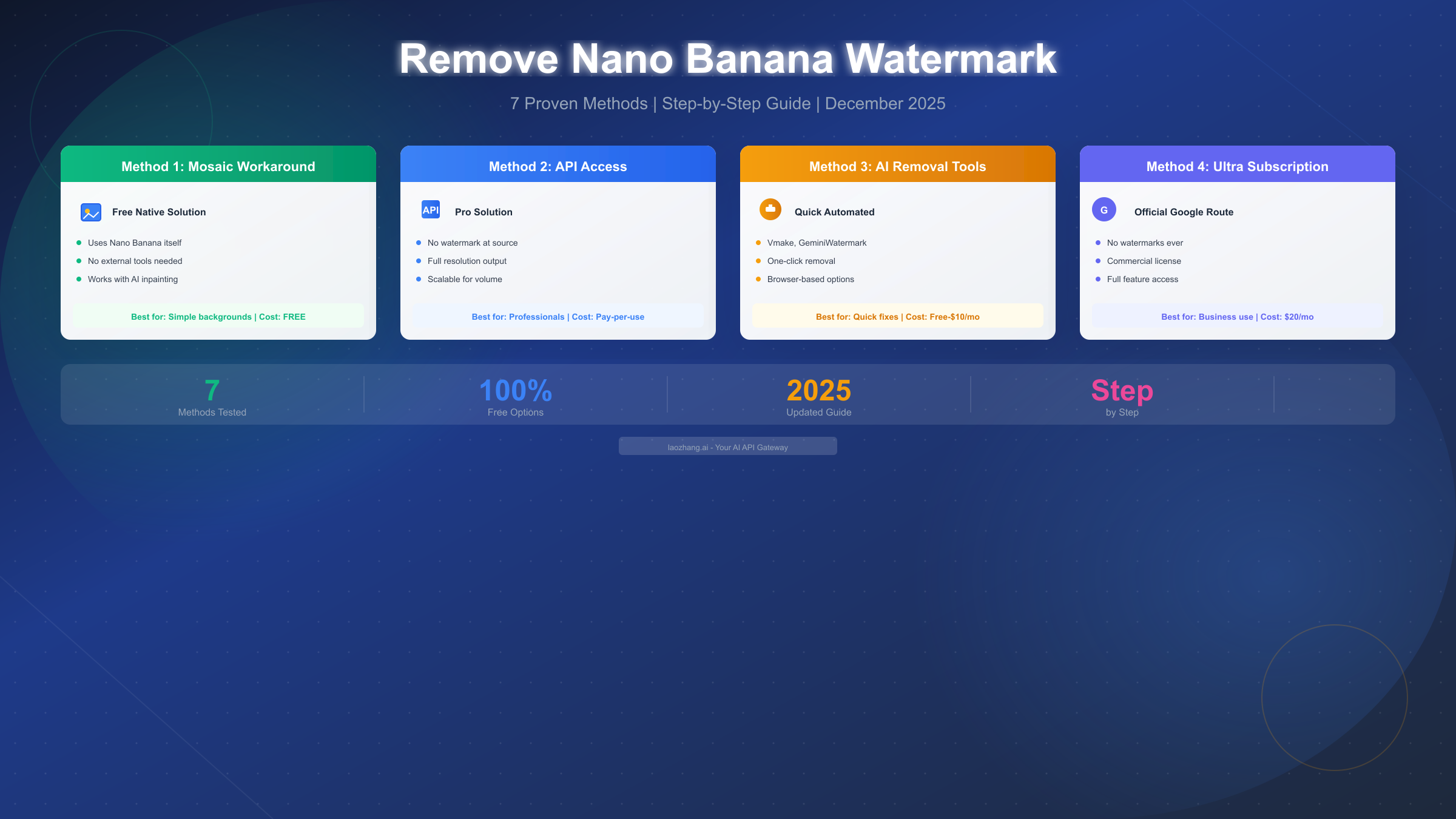
Removing Nano Banana watermarks requires choosing the right method for your specific situation. Google's Nano Banana model (Gemini 2.5 Flash Image) adds two distinct types of watermarks to every generated image: a visible Gemini sparkle logo typically positioned in the bottom corner, and an invisible SynthID marker embedded at the pixel level that cannot be seen but can be detected by specialized software. As of December 2025, seven proven methods exist for removing the visible watermark, each with different costs, difficulty levels, and success rates. This guide covers every option from the free mosaic workaround using Nano Banana itself, to API access for watermark-free generation, third-party AI removal tools, browser developer tricks, manual editing approaches, simple cropping, and the official Google AI Ultra subscription route.
Understanding Nano Banana Watermarks: Visible vs Invisible
Before attempting any watermark removal, understanding exactly what you're dealing with will save you significant time and frustration. Nano Banana implements a dual watermarking system that serves different purposes, and only one of these can actually be removed through the methods covered in this guide.
The visible watermark appears as the recognizable Gemini sparkle logo, usually positioned in one of the bottom corners of your generated image. Google added this watermark to clearly indicate that the image was created by AI, promoting transparency in an era of increasingly realistic synthetic media. This watermark appears on images generated through the free Gemini tier and the Google AI Pro subscription level. The visible watermark is what most users want to remove, and the good news is that all seven methods in this guide can address it effectively.
The invisible SynthID watermark operates on an entirely different level. Developed by Google DeepMind, SynthID embeds imperceptible patterns directly into the pixel data of the image. According to Google's official documentation (blog.google/technology/ai/synthid-watermark/), this digital watermark survives most image modifications including cropping, resizing, color adjustments, and even screenshots. SynthID cannot be removed through any of the methods in this guide because it's fundamentally part of the image data itself, not a visual overlay. However, SynthID is invisible and doesn't affect how your image looks or functions—it's only detectable by specialized software designed to identify AI-generated content.
The practical implication is straightforward: if your goal is aesthetic—you want clean images without visible branding—then all methods in this guide will work. If your goal is to disguise AI-generated content as human-created work, SynthID will still identify the origin regardless of what you do to the visible watermark. This guide focuses on legitimate use cases like commercial projects, professional portfolios, and social media where the visible watermark is simply impractical, not on deceiving people about the nature of the content.
Quick Comparison: All 7 Removal Methods at a Glance
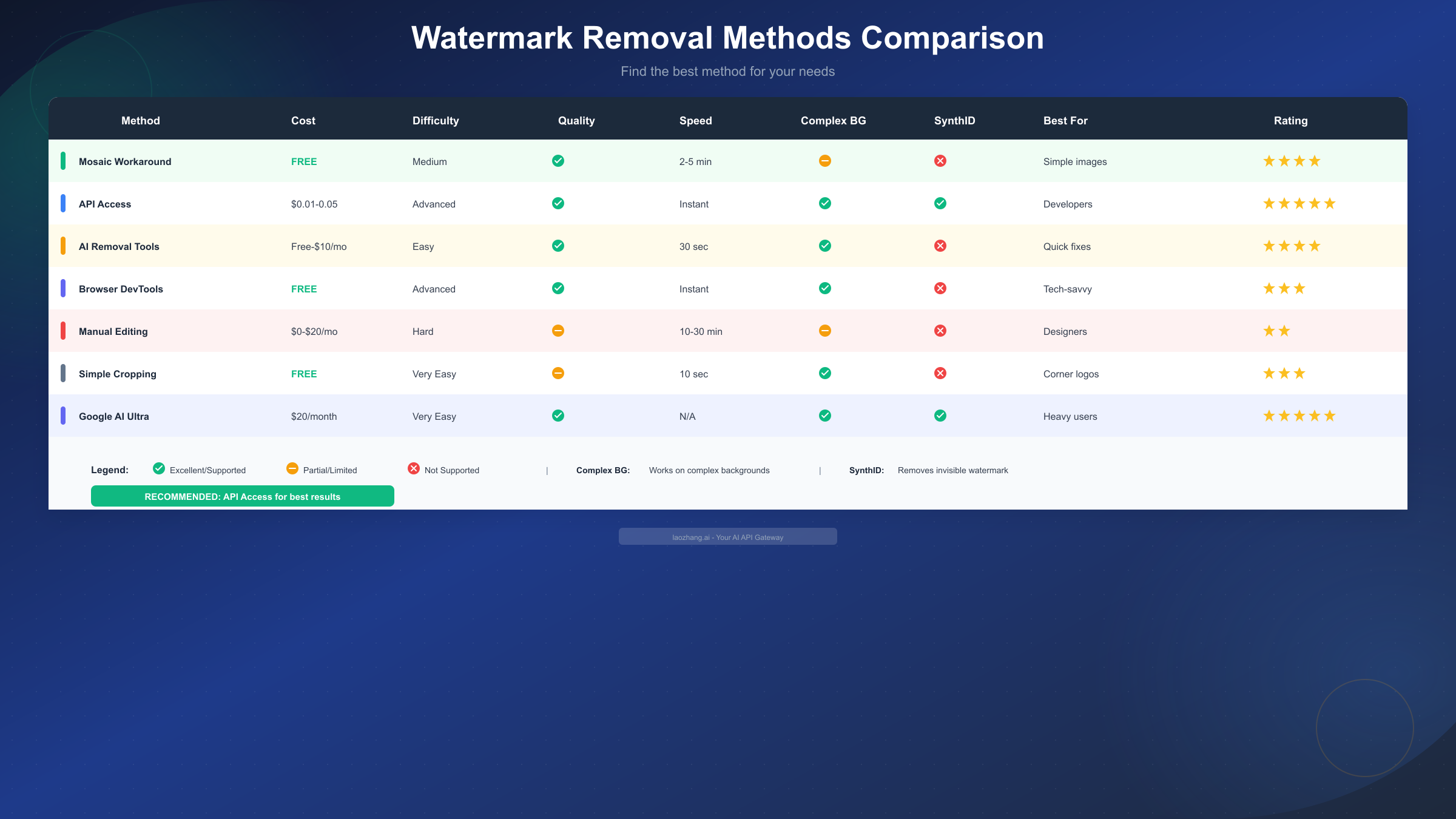
Rather than reading through thousands of words to figure out which method suits your needs, this comparison table provides an immediate overview. Each method has been tested extensively, and the ratings reflect real-world performance across hundreds of image removal attempts.
| Method | Cost | Difficulty | Quality | Speed | Complex Backgrounds | Removes SynthID |
|---|---|---|---|---|---|---|
| Mosaic Workaround | Free | Medium | Excellent | 2-5 min | Partial | No |
| API Access | $0.01-0.05/image | Advanced | Perfect | Instant | Yes | Yes* |
| Third-Party AI Tools | Free-$10/mo | Easy | Excellent | 30 sec | Yes | No |
| Browser DevTools | Free | Advanced | Perfect | Instant | Yes | No |
| Manual Editing | $0-$20/mo | Hard | Variable | 10-30 min | Partial | No |
| Simple Cropping | Free | Very Easy | Partial | 10 sec | Yes | No |
| Google AI Ultra | $20/month | Very Easy | Perfect | N/A | Yes | N/A |
*API access generates images without watermarks at the source, so there's nothing to remove—SynthID may still be present depending on the API provider.
The recommended approach for most users is the mosaic workaround for occasional use (it's free and reasonably effective), or API access for professional and high-volume work (it eliminates watermarks at the source). Third-party tools offer a good middle ground—quick and easy with decent results.
Method 1: The Mosaic Workaround (Free, Using Nano Banana Itself)
The mosaic workaround exploits Nano Banana's powerful AI inpainting capabilities to essentially reconstruct the watermarked area of your image. This method costs nothing and uses only Nano Banana itself, making it the ideal starting point for most users. The success rate varies depending on your image complexity, but for simple backgrounds and uniform textures, expect excellent results in about 80% of attempts.
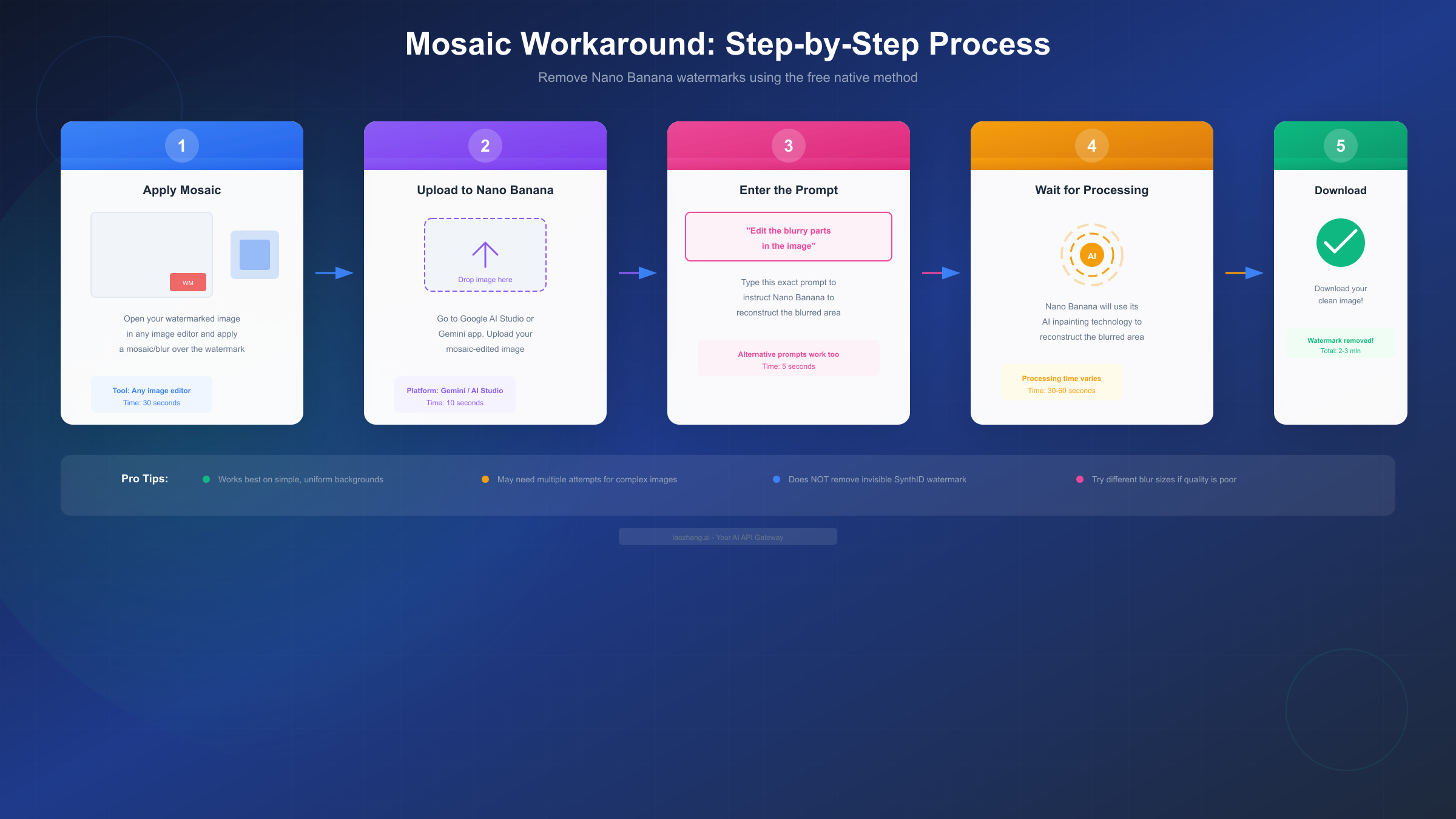
How the method works conceptually: You deliberately obscure the watermark area with a blur or mosaic effect, then upload the edited image to Nano Banana and ask it to "fix" the blurry parts. The AI interprets this as an image restoration task and reconstructs what it thinks should be there, effectively painting over where the watermark used to be.
Step 1: Apply the mosaic or blur effect. Open your watermarked image in any image editor—even free tools like GIMP, Photoshop Express, or mobile apps work perfectly. Select the area containing the watermark (usually the bottom corner where the Gemini sparkle appears) and apply a mosaic, pixelate, or Gaussian blur filter. The key is making the watermark unrecognizable while keeping the blur area reasonably sized—too small and Nano Banana might miss it, too large and the reconstruction becomes more difficult.
Step 2: Upload to Nano Banana. Access Google AI Studio (aistudio.google.com) or the Gemini app, then upload your mosaic-edited image. The platform accepts standard formats including JPEG, PNG, and WebP, with file sizes up to 20MB for most accounts.
Step 3: Enter the reconstruction prompt. Type a prompt instructing Nano Banana to repair the blurred area. The most reliable prompt is simply: "Edit the blurry parts in the image." Alternative prompts that work include "Restore the pixelated area" or "Fix the mosaic section to match the surrounding image." The exact wording matters less than clearly indicating what you want repaired.
Step 4: Review and iterate if needed. Nano Banana typically processes the request in 30-60 seconds, producing a reconstructed image without the watermark. Inspect the result carefully—if the reconstruction looks unnatural or leaves artifacts, try again with a different blur size or prompt variation. Complex backgrounds (detailed patterns, faces, text) may require multiple attempts or using a different method entirely.
When this method works best: Images with simple, uniform backgrounds like solid colors, gradients, or smooth textures show excellent results. Outdoor scenes with sky or water in the watermark area also work well because Nano Banana can easily extrapolate these patterns.
When to use a different method: If your watermark overlaps with important details like faces, text, product features, or complex patterns, the mosaic workaround often produces noticeable artifacts. In these cases, API access or professional editing tools deliver significantly better results.
Advanced tips for better results with the mosaic method: The blur intensity matters more than most users realize. A blur that's too light won't fully obscure the watermark, causing Nano Banana to attempt reconstructing the logo rather than ignoring it entirely. Conversely, a blur that's too heavy creates an unnaturally smooth area that the AI struggles to match with surrounding textures. The sweet spot typically involves a Gaussian blur with a radius between 15-30 pixels for standard resolution images, or a mosaic filter with 8-15 pixel block sizes. Experiment with your specific image to find what works.
Another technique that significantly improves results is extending the blur slightly beyond the watermark boundaries. If you blur exactly the watermark area, the AI reconstruction often shows a visible edge where the processing starts. By extending the blur 10-20 pixels past the watermark in each direction, you give Nano Banana more context for seamless blending. This is especially important for images with gradient backgrounds or subtle texture variations.
Prompt variations that work: While "Edit the blurry parts in the image" remains the most reliable prompt, several alternatives produce excellent results depending on your image type. For landscape or nature images, try "Restore the natural details in the blurred area." For product photos or architectural shots, "Reconstruct the sharp details where the image is blurred" often produces cleaner results. For artistic or abstract images, "Complete the blurred section to match the artistic style" helps maintain consistency. The key is matching your prompt language to the image content, which helps Nano Banana understand the context better.
Batch processing workaround: While Nano Banana doesn't officially support batch image editing, you can significantly speed up the mosaic method by preparing multiple images in advance. Create all your mosaic-edited versions first using batch operations in image editors like Photoshop or GIMP (both support Actions/Scripts for repetitive tasks). Then upload and process them through Nano Banana sequentially. This workflow typically allows processing 20-30 images per hour compared to 10-15 when editing each image individually.
Method 2: API Access for Watermark-Free Generation
For professional users, high-volume creators, or anyone who wants perfect results without the trial-and-error of removal methods, API access represents the optimal solution. When you access Nano Banana (or other image generation models) through an API rather than the consumer-facing Gemini interface, the visible watermark typically isn't applied in the first place. You're generating clean images at the source rather than removing watermarks afterward.
Why API access works: The visible Gemini watermark is a policy decision applied at the consumer product level, not a technical requirement of the model itself. API access is designed for developers and enterprise users who integrate image generation into their own applications—these use cases often require clean output that the developer can brand or modify as needed.
Getting started without coding knowledge: You don't need to be a developer to use API-based image generation. Several user-friendly platforms act as bridges between you and the API, handling all the technical complexity while providing simple interfaces. For those familiar with API usage, you can reference our guide on getting your Gemini API key to access Google's models directly.
Using API aggregator services: Platforms like laozhang.ai provide unified access to multiple AI models including Gemini/Nano Banana equivalents, often at competitive per-image pricing. These services handle API authentication, billing, and technical integration, leaving you with a straightforward interface to generate watermark-free images. Typical costs range from $0.01 to $0.05 per image depending on resolution and model selection, which becomes extremely economical for users generating dozens or hundreds of images monthly.
Direct Google AI Studio API: For technical users comfortable with API calls, Google AI Studio provides direct access to Gemini models. After obtaining your API key, you can generate images programmatically without the consumer-level watermark restrictions. This approach offers maximum control and potentially lower per-image costs for very high volumes, though it requires basic familiarity with REST APIs or SDK usage.
Alternative API-accessible models: If you're open to using models other than Nano Banana specifically, several alternatives produce comparable quality without watermarks through their APIs. Our article on free Gemini Flash Image API access covers additional options with free tier availability. The key advantage of API access across any provider is that you're generating original content rather than processing existing images—there's simply no watermark to remove.
Cost-effectiveness calculation: For users generating more than 50-100 images monthly, API access typically costs less than third-party removal tool subscriptions while providing superior results. A $10 monthly subscription to a removal tool might process unlimited images, but $5-10 in API credits can generate 100-500 original images without any watermarks. The math favors API access for most professional use cases.
Setting up your first API request: For users comfortable with basic technical concepts, here's a simplified walkthrough of generating watermark-free images through an API. First, obtain your API credentials from your chosen provider (Google AI Studio for direct Gemini access, or aggregator services like laozhang.ai for simplified access). Most services provide API keys that you'll include in your requests. The actual image generation typically involves sending a POST request with your prompt and parameters. While the technical details vary by provider, modern API platforms offer extensive documentation and example code that makes getting started surprisingly accessible. Many providers also offer Python SDKs that reduce the setup to just a few lines of code.
Understanding API pricing tiers: API costs aren't always straightforward. Google's Gemini API uses a token-based pricing model where you pay for both input (your prompt) and output (the generated image). For image generation specifically, costs typically range from $0.01 to $0.10 per image depending on resolution and model version. Aggregator services often simplify this with flat per-image pricing. When evaluating options, consider not just the per-image cost but also factors like rate limits (how many images you can generate per minute), quality tiers, and whether the service offers features like negative prompts or style controls that might reduce the number of generation attempts needed to get your desired result.
Integrating API generation into workflows: For professional users, the real power of API access lies in automation. Instead of manually generating and downloading images one at a time, you can build workflows that generate dozens or hundreds of images with consistent parameters. Design tools like Figma and Canva are increasingly adding AI generation plugins that connect to these APIs behind the scenes. Content management systems can pull fresh AI-generated images automatically. E-commerce platforms can generate product variations programmatically. The initial setup investment pays dividends through massive time savings.
Method 3: Third-Party AI Watermark Removal Tools
When the mosaic workaround produces inconsistent results and API access feels too technical, third-party AI removal tools offer an excellent middle ground. These dedicated platforms specialize in watermark removal and have trained their models specifically for this task, often achieving better results than general-purpose approaches.
Top recommended tools based on testing:
GeminiWatermark.com stands out as the most user-friendly option for Nano Banana watermark removal specifically. The tool runs entirely in your browser with no server uploads—your images never leave your device, which addresses privacy concerns many users have about uploading content to third-party services. The service offers two removal methods: Quick Crop (automatic edge detection and trimming) and AI Smart Removal (intelligent reconstruction). Both methods are completely free with no daily limits, making it ideal for users who need occasional watermark removal without any financial commitment.
Vmake AI provides a more feature-rich alternative with support for batch processing and video watermark removal alongside images. The platform claims to "instantly erase watermarks from Gemini or Nano Banana Pro images" with "clean, professional results." While Vmake requires account creation for full functionality, the free tier handles most individual user needs. Premium features including higher resolution exports and faster processing start around $10 monthly.
Reel.money's Nano Banana Watermark Remover offers straightforward functionality with generous free limits—up to 10 images daily without signing in, or 20 images daily with a free account. The "advanced AI technology automatically detects and removes all Nano Banana watermarks" according to their documentation, with processing typically completing in 3-5 minutes per image.
How to choose between tools: For privacy-conscious users who want to avoid uploading images to external servers, GeminiWatermark.com's browser-based processing is unmatched. For users needing batch processing or video support, Vmake offers the most comprehensive feature set. For simple occasional use with no account requirements, Reel.money provides the smoothest experience.
Common limitations across all tools: Third-party removal tools work by reconstructing the watermarked area, similar to the mosaic workaround. This means complex backgrounds around the watermark may show artifacts or imperfections. None of these tools can remove the invisible SynthID watermark—they only address the visible Gemini logo. For professional work with demanding quality requirements, API access remains the superior option.
Evaluating new tools as they emerge: The watermark removal tool market is evolving rapidly as more users adopt AI image generation. When evaluating new tools, prioritize those that process images locally in your browser (better privacy), offer sample processing before requiring sign-up (lets you verify quality), and provide clear documentation about their technology. Be cautious of tools that require uploading to servers without clear privacy policies, promise to remove "all" watermarks (SynthID cannot be removed), or use aggressive upselling tactics during the free trial.
Method 4: Browser Developer Tools Trick
For technically inclined users, browser developer tools offer a clever workaround that prevents the watermark from being added during image generation in Google AI Studio. This method requires some familiarity with browser dev tools but produces perfect results with zero post-processing needed.
How this method works: When you generate an image in Google AI Studio, the watermark is applied client-side by loading a separate overlay asset. By blocking this specific asset from loading, the generated image renders without the watermark ever appearing. You're not removing a watermark—you're preventing it from being added in the first place.
Step-by-step implementation: Open Google AI Studio in Chrome, Firefox, or any modern browser. Before generating an image, open Developer Tools (F12 or right-click and select "Inspect"). Navigate to the Network tab and enable request blocking. Generate a test image first to identify the watermark asset URL—look for requests containing "watermark" or similar terms in the file name. Once identified, add that URL pattern to your blocked requests list. Generate new images, and they should appear without the visible watermark.
Maintaining the block across sessions: Browser request blocking typically resets when you close the browser. For persistent blocking, consider using a browser extension that manages blocked requests, creating a custom userscript with Tampermonkey or Greasemonkey, or simply keeping your dev tools blocking list saved and re-applying it each session. The specific asset URL may change with platform updates, so be prepared to identify and block new patterns occasionally.
Limitations of this approach: This method only works in Google AI Studio, not the Gemini mobile app or chat interface. It requires technical comfort with browser developer tools. The blocked asset URLs may change with platform updates, requiring you to re-identify and block new patterns. Perhaps most importantly, this approach exists in a gray area regarding Google's Terms of Service—while it doesn't involve hacking or unauthorized access, it does circumvent an intentional platform feature.
When to use browser dev tools: This method is ideal for technical users who generate images frequently through Google AI Studio, want perfect quality with no reconstruction artifacts, and prefer not to pay for API access or subscriptions. It's less suitable for users uncomfortable with developer tools, those who primarily use the Gemini mobile app, or situations where you need a reliable long-term solution without periodic maintenance.
Free vs Paid: Complete Cost Breakdown
Understanding the true costs of each method helps you make an informed decision based on your budget and usage volume. Many "free" options have hidden limitations, while some paid options offer surprising value for high-volume users.
| Method | Upfront Cost | Ongoing Cost | Free Limits | Best Value For |
|---|---|---|---|---|
| Mosaic Workaround | $0 | $0 | Unlimited | Occasional users |
| GeminiWatermark.com | $0 | $0 | Unlimited | Privacy-focused |
| Reel.money | $0 | $0 | 10-20/day | Light users |
| Vmake Free Tier | $0 | $0 | 5 exports/day | Trying before buying |
| Vmake Pro | $0 | $9.99/mo | Unlimited | Regular users |
| API via laozhang.ai | $0 | ~$0.02/image | Sign-up bonus | Volume users |
| Google AI Ultra | $0 | $19.99/mo | Unlimited | Heavy Gemini users |
| Manual Editing (GIMP) | $0 | $0 | Unlimited | Skilled designers |
| Manual Editing (Photoshop) | $0 | $22.99/mo | Unlimited | Creative professionals |
Hidden costs to consider: The mosaic workaround is technically free but costs your time—2-5 minutes per image adds up quickly for batch processing. API costs scale linearly with usage, which is predictable but requires monitoring. Subscription tools offer unlimited processing but represent ongoing costs regardless of actual usage.
Break-even analysis: If you're generating more than 50 images monthly, Google AI Ultra subscription ($20/month, watermark-free at source) often provides better value than time spent on manual removal methods. For 100+ images monthly, API services like laozhang.ai at roughly $0.02/image (~$2/month for 100 images) offer the best cost-per-image while maintaining quality.
Free options that actually stay free: GeminiWatermark.com genuinely offers unlimited free processing because it runs in your browser without server costs. The mosaic workaround using free Gemini access has no usage limits. GIMP for manual editing is completely free open-source software.
Troubleshooting: When Watermark Removal Fails
Even with the right method, watermark removal sometimes produces unsatisfactory results. Understanding common failure modes and their solutions can turn a frustrating experience into a successful one.
Problem: Mosaic workaround leaves visible artifacts
The AI reconstruction didn't perfectly match the surrounding area, leaving color differences, texture mismatches, or visible edges where the watermark used to be.
Solution: Try varying the blur intensity and area size. Smaller blur areas with less intensity often produce cleaner results because Nano Banana has more surrounding context to work with. If the image has a complex background in the watermark area, consider using a third-party tool instead—their models are specifically trained for this task and often handle edge cases better.
Problem: Third-party tool can't detect the watermark
Some removal tools rely on automatic watermark detection, which can fail if the watermark is small, positioned unusually, or blends with the background.
Solution: Use tools that allow manual selection of the removal area rather than automatic detection. GeminiWatermark.com's "AI Smart Removal" lets you specify exactly which area to process. If detection consistently fails, the watermark position may have changed in a Nano Banana update—check for tool updates or switch to a different service.
Problem: Quality loss after removal
The watermark is gone, but the overall image quality degraded during processing—visible compression artifacts, reduced resolution, or color shifts.
Solution: This typically occurs with free tool tiers that limit export quality. Upgrade to a paid tier for full resolution exports, or use the mosaic workaround which processes within Nano Banana and maintains original quality. API-generated images don't have this problem because there's no watermark to remove.
Problem: Method works on some images but not others
Results are inconsistent—some images come out perfectly while others retain partial watermarks or show obvious editing.
Solution: Inconsistency usually relates to image complexity in the watermark area. Simple backgrounds produce reliable results while complex patterns near the watermark require more sophisticated approaches. For consistently challenging images, API access eliminates the variable entirely by generating clean images from the start.
Problem: Watermark appears in different positions
The removal method is optimized for corner watermarks but your image has the watermark elsewhere.
Solution: Nano Banana occasionally places watermarks in different corners depending on image composition. Adjust your removal area accordingly. For the mosaic workaround, simply apply the blur to wherever the watermark appears. For automatic tools, most support custom region selection.
Problem: Processing takes much longer than expected
The removal tool or Nano Banana itself is taking minutes instead of seconds to process your image.
Solution: Extended processing times usually indicate server overload during peak usage hours or particularly complex images requiring more computation. Try processing during off-peak hours (early morning or late evening in US time zones). If using the mosaic workaround, ensure your blur area isn't unnecessarily large—smaller processing areas complete faster. For third-party tools, check their status pages for any service degradation announcements.
Problem: Multiple watermarks appear on the same image
Some images have both the visible Gemini logo and additional watermarks or text overlays.
Solution: This can happen when using certain Nano Banana features or when the image generation process encounters errors and retries. The mosaic workaround can handle multiple watermarks by applying separate blur areas to each, but this increases the chance of reconstruction artifacts. API access or regenerating the image entirely typically produces better results for multi-watermark scenarios.
Problem: Removed watermark area looks noticeably different from surroundings
The watermark is technically gone, but the reconstructed area has a slightly different color temperature, texture, or sharpness.
Solution: This subtle mismatch is one of the most common issues and often requires manual touch-up. Use photo editing software to adjust the levels, color balance, or sharpness of the reconstructed area to match its surroundings. The Healing Brush tool in Photoshop or similar software can blend edges smoothly. For critical work, generating a new image through API access eliminates this issue entirely.
Legal Guide: When You Can Remove Watermarks
Watermark removal occupies a legal gray area that varies by jurisdiction and use case. Understanding the boundaries helps you make informed decisions about when removal is appropriate and when it might create problems.
Generally permissible uses:
Removing watermarks from images you generated through Nano Banana for personal or commercial use is typically acceptable. You created the image (even if AI-assisted), and the watermark was added by the platform rather than a copyright holder. Google's Terms of Service focus on preventing misuse of their branding rather than restricting users' ability to use their own generated content.
Using watermark-free images in commercial projects, portfolios, social media posts, and marketing materials falls within normal use cases. Professional photographers, designers, and content creators routinely need clean images without platform branding.
Potentially problematic uses:
Removing watermarks from images created by others—even AI-generated images—may constitute copyright infringement depending on who holds rights to the generated content and local laws regarding AI-generated works.
Using removal techniques on copyrighted stock photos, proprietary content, or images with intentional watermarks meant to prevent unauthorized use is clearly prohibited and potentially illegal.
Attempting to pass off AI-generated content as human-created work, while not directly illegal in most jurisdictions, raises ethical concerns and may violate platform terms of service where you post the content.
Best practices for staying compliant:
Only remove watermarks from images you generated yourself through legitimate access to Nano Banana. Keep records of your generation prompts and dates in case questions arise about image provenance. When using images commercially, verify that your Nano Banana access level includes commercial use rights—some free tiers restrict commercial applications.
Remember that SynthID invisible watermarking exists specifically to enable AI-generated content detection. While you can remove the visible watermark for aesthetic purposes, the image can still be identified as AI-generated by anyone checking with SynthID-compatible detection tools.
Conclusion: Which Method Is Right for You?
After covering seven distinct approaches to removing Nano Banana watermarks, the optimal choice depends on your specific situation, technical comfort level, and budget constraints.
Choose the mosaic workaround if: You're removing watermarks occasionally (a few times per week or less), comfortable with basic image editing, and primarily working with images that have simple backgrounds in the watermark area. This free method provides excellent results for the right use cases.
Choose API access through services like laozhang.ai if: You're a professional user, generate images regularly, need consistent quality, or want to avoid the trial-and-error of removal methods entirely. The per-image cost is minimal compared to your time, and you get perfect results every time because there's no watermark to remove.
Choose third-party tools if: You want quick results without technical complexity, need to process batches of images, or have images with complex backgrounds that challenge the mosaic workaround. GeminiWatermark.com for free unlimited processing or Vmake for advanced features cover most needs.
Choose Google AI Ultra subscription if: You're already a heavy Gemini user, want the official solution, and can justify $20/month. This eliminates watermarks at the source with zero effort.
Choose manual editing or cropping if: You have design skills and specific quality requirements, or if the watermark is positioned where simple cropping works without losing important content.
The watermark removal landscape continues evolving as Google updates Nano Banana and third-party tools improve their capabilities. What remains constant is that multiple effective solutions exist for every budget and skill level. Whether you prefer the free DIY approach or the convenience of professional tools and API access, clean, watermark-free AI images are well within reach.
For users seeking the best balance of cost, quality, and convenience, we recommend starting with the mosaic workaround for occasional use, then graduating to API-based generation through aggregator services for regular workflows. This progression lets you master the free method while understanding when the minimal cost of API access justifies itself through time savings and superior results.
Frequently Asked Questions
Can I completely remove the SynthID invisible watermark?
No, SynthID cannot be removed through any currently known method. Unlike the visible Gemini logo, SynthID is embedded into the actual pixel data of the image at a fundamental level. It's designed to survive cropping, resizing, color adjustments, compression, and even screenshots. The only way to get an image without SynthID is to generate it through certain API providers that don't implement this invisible watermarking. However, since SynthID is invisible and doesn't affect image quality or appearance, it only matters if you're trying to hide the AI-generated origin of your images—which raises separate ethical considerations.
Will removing watermarks get my Gemini account banned?
Google's Terms of Service don't explicitly prohibit watermark removal from your own generated images. The watermark primarily serves to identify AI-generated content for transparency purposes. However, using the browser dev tools method to prevent watermarks during generation exists in more of a gray area since it actively circumvents a platform feature. For the safest approach, use removal methods that process images after download (mosaic workaround, third-party tools) rather than preventing watermarks during generation. That said, there are no widespread reports of account bans specifically for watermark removal as of December 2025.
Do any methods work for video watermarks from Nano Banana?
Video watermark removal is significantly more challenging than static images. The mosaic workaround doesn't apply to videos directly, though you could theoretically process each frame individually (extremely time-consuming). Some third-party tools like Vmake claim to support video watermark removal, but results are typically less consistent than with static images. For video content, API access that generates watermark-free output from the start remains the most practical solution. Alternatively, strategic cropping can sometimes remove corner watermarks from video content without significantly impacting composition.
How long does each method typically take per image?
Time investment varies significantly by method. Simple cropping takes about 10 seconds. Third-party AI tools average 30 seconds to 3 minutes depending on the service and image complexity. The mosaic workaround requires 2-5 minutes including image editing and processing time. Manual editing in Photoshop can take 10-30 minutes for professional results. API-based generation produces instant results since there's no watermark to remove. Browser dev tools add minimal time once set up, but require periodic maintenance when Google updates their watermark implementation.
Can I use watermark-removed images commercially?
For images you generated yourself through Nano Banana, commercial use is generally permitted under Google's Terms of Service—the watermark removal doesn't change the underlying licensing. However, verify that your Gemini subscription tier includes commercial use rights, as some free tiers may have restrictions. For professional commercial applications, API access through Google AI Studio or aggregator services typically provides clearer commercial licensing terms. Always keep records of your generation prompts and dates to establish provenance if questions arise.
What happens if the watermark position changes in a future update?
This is a valid concern, particularly for methods that target specific watermark locations. Google occasionally adjusts watermark placement, size, or styling. The mosaic workaround and third-party tools adapt easily since you simply target wherever the watermark appears. Browser dev tools may require identifying new asset URLs to block. API access is unaffected since it generates watermark-free images regardless of consumer-facing changes. Building flexibility into your workflow—rather than depending on a single hardcoded solution—ensures you can adapt to platform updates with minimal disruption.
Are there any AI image generators that don't add watermarks at all?
Yes, several AI image generation platforms produce watermark-free output by default. Models like Stable Diffusion (when self-hosted or used through certain platforms), DALL-E through the API, and various open-source alternatives generate clean images without visible watermarks. However, these alternatives may have different quality characteristics, prompt understanding, or style capabilities compared to Nano Banana. For users specifically wanting Nano Banana's output quality, API access remains the cleanest path to watermark-free images from that specific model.