
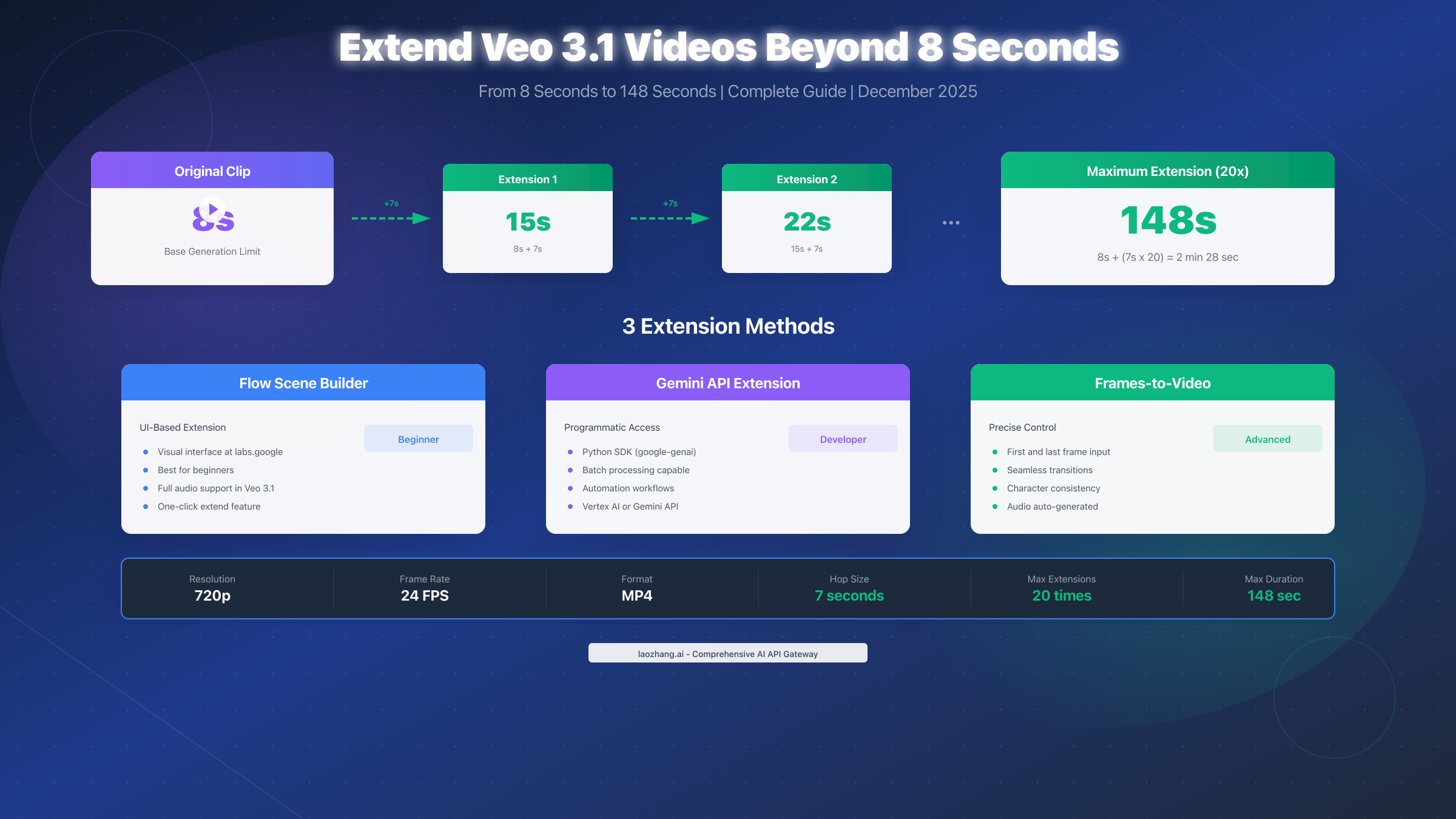
Veo 3.1 videos can be extended from the default 8-second limit to up to 148 seconds using three proven methods: Flow Scene Builder at labs.google (beginner-friendly UI), Gemini API extension (for developers), and Frames-to-Video (for precise control). Each extension hop adds 7 seconds, with a maximum of 20 extensions allowed. As of December 2025, video extension requires 720p resolution, MP4 format, and 24fps frame rate. This comprehensive guide covers all three methods with step-by-step instructions, copy-paste prompt templates, and solutions for common issues.
Understanding the 8-Second Limitation
Google's Veo 3.1 generates stunning AI videos with native audio, but many users hit a frustrating wall immediately: the 8-second maximum duration. This limitation exists for important technical reasons that affect how you approach video extension.
The computational reality behind short clips is significant. Each second of AI-generated video requires massive processing power. Google's servers must calculate motion, maintain consistency, generate synchronized audio, and ensure visual coherence across hundreds of frames. Extending this to longer durations multiplies the computational cost exponentially, not linearly.
Memory constraints also play a crucial role. The AI model must maintain context about every element in the scene—character appearances, lighting conditions, background details, audio continuity. As video length increases, the memory requirements grow substantially, making longer generation times impractical for a consumer-facing product.
Quality assurance becomes challenging at longer durations. Short clips allow Google to maintain the high visual quality that distinguishes Veo 3.1 from competitors. Each additional second introduces more opportunities for inconsistencies, artifacts, and quality degradation. The 8-second limit represents a balance between capability and reliability.
Despite these constraints, Google has built robust extension mechanisms into the Veo ecosystem. Rather than fighting the 8-second limit, the platform embraces it through a modular approach: generate excellent short clips, then chain them together using sophisticated extension tools that maintain quality across the entire sequence.
The extension system works by analyzing the final second (24 frames) of your existing clip and generating new content that seamlessly continues the action, style, and audio. This approach transforms the limitation into a creative workflow that actually gives you more control over your final video than a single long generation would provide.
Three Ways to Extend Veo 3.1 Videos
Before diving into detailed tutorials, understanding which method suits your needs saves significant time and frustration. Each approach has distinct advantages depending on your technical skill level, project requirements, and access to tools. If you're exploring AI video generation more broadly, our comprehensive comparison of AI video models provides context on where Veo 3.1 fits in the current landscape.
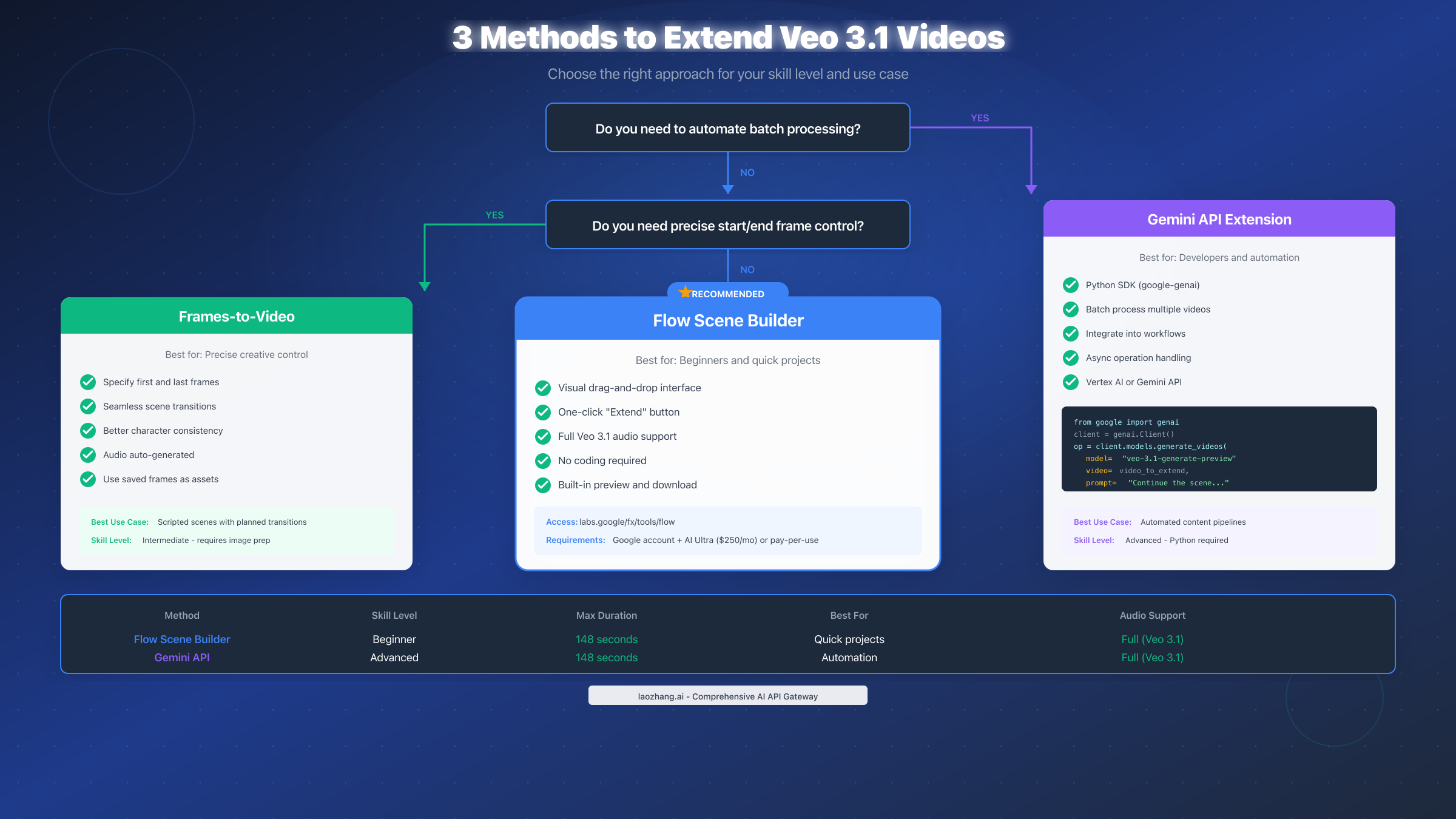
Flow Scene Builder represents the most accessible option for most users. This browser-based tool at labs.google provides a visual interface for extending clips without any coding required. You simply click buttons, enter prompts, and let the system handle the technical details. The Extend feature in Flow uses Veo 3.1's full capabilities, including audio generation, making it the recommended starting point for newcomers.
The Gemini API method appeals to developers and automation scenarios. If you need to extend multiple videos programmatically, integrate video generation into existing workflows, or have specific requirements that the UI can't address, the API provides complete control. You'll write Python code using the google-genai SDK, handle asynchronous operations, and manage your own storage—but you gain unlimited flexibility in return.
Frames-to-Video offers the most creative control at the cost of complexity. Instead of extending from the end of a clip, you specify both the starting and ending frames, and Veo 3.1 generates the transition between them. This method excels when you have a specific vision for how scenes should connect or when maintaining perfect consistency matters more than convenience.
| Method | Skill Level | Best For | Audio Support | Max Duration |
|---|---|---|---|---|
| Flow Scene Builder | Beginner | Quick projects, experimentation | Full (Veo 3.1) | 148 seconds |
| Gemini API | Advanced | Automation, batch processing | Full (Veo 3.1) | 148 seconds |
| Frames-to-Video | Intermediate | Precise transitions, scripted scenes | Full (Veo 3.1) | 148 seconds |
The choice often comes down to a simple question: Do you need to automate the process? If yes, learn the API method. If no, Flow Scene Builder handles everything you need with minimal learning curve. Frames-to-Video becomes relevant when you have specific artistic requirements that neither of the other methods can satisfy.
Flow Scene Builder Method (Step-by-Step)
Flow Scene Builder at labs.google provides the most intuitive path to extending Veo 3.1 videos. This section walks through every step from initial generation to final download, including the exact clicks and settings needed for success.
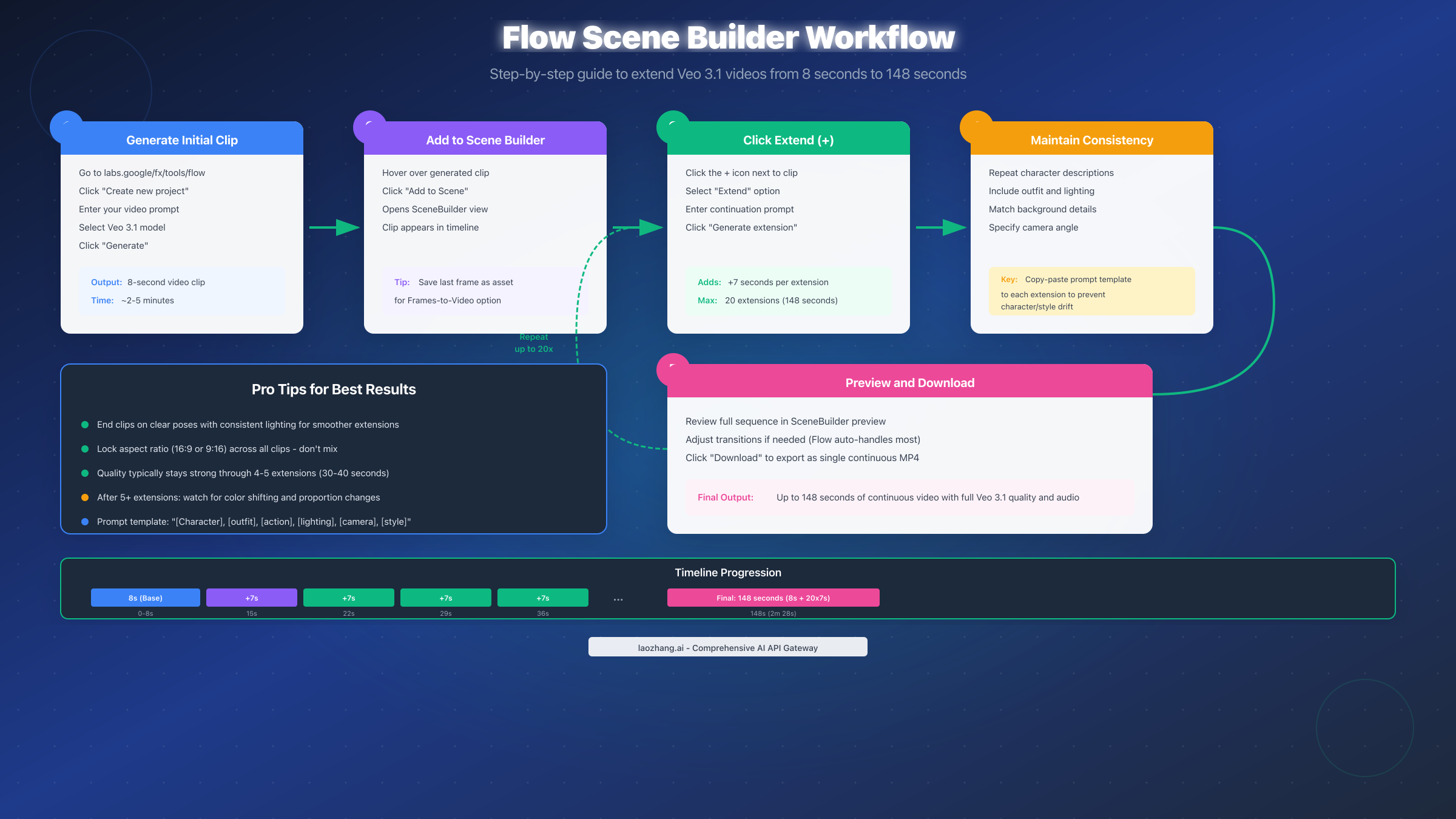
Getting started requires accessing the Flow interface. Navigate to labs.google/fx/tools/flow in your browser. You'll need a Google account and either an AI Ultra subscription ($250/month) or pay-per-use billing enabled. Once logged in, click "Create new project" to begin.
Generating your initial 8-second clip establishes the foundation. In the prompt field, describe your desired video with specific details about characters, actions, setting, and style. Veo 3.1 responds best to detailed prompts that include visual descriptions, camera movement, and mood. Click "Generate" and wait approximately 2-5 minutes for your clip to render.
Adding your clip to Scene Builder unlocks extension capabilities. Hover over your generated video thumbnail and click "Add to Scene." This transfers your clip to the SceneBuilder view where timeline-based editing becomes available. You'll see your clip represented as a segment on the timeline.
The Extend button initiates each 7-second extension. Click the + icon that appears next to your clip in the timeline. From the dropdown menu, select "Extend." A new prompt field appears where you describe how the video should continue. Be specific about maintaining consistency with your original prompt while describing the new action or progression.
Crafting effective extension prompts prevents quality degradation. The key insight that separates successful extensions from failed ones involves repeating essential details. Every extension prompt should include:
- Character descriptions (appearance, clothing, features)
- Environmental details (lighting, background, time of day)
- Style specifications (cinematic, documentary, animated)
- Camera information (angle, movement, framing)
- Audio context (ambient sounds, music style, dialogue if any)
Here's a template that works consistently:
Continue the scene with [CHARACTER NAME], a [physical description] wearing [outfit details].
The [action/movement] continues in the [environment] with [lighting conditions].
Camera [movement type], maintaining [style].
[Audio description: ambient sounds, music, etc.]
Repeat the extension process up to 20 times for maximum duration. Each successful extension adds 7 seconds to your total video length. After 20 extensions, you reach the 148-second maximum (8 + 7×20 = 148 seconds). Monitor quality after each extension—most users find that quality remains excellent through 4-5 extensions, with gradual degradation becoming noticeable beyond that point.
Downloading your completed video exports everything as one file. Once satisfied with your extended sequence, click the download icon in SceneBuilder. Flow automatically stitches all clips together with proper transitions, generating a single continuous MP4 file. The export process typically takes 1-3 minutes depending on total duration.
Saving intermediate frames as assets enables advanced workflows. Before moving to the next extension, hover over the last frame of your current clip and click the small plus icon to save it as an asset. This preserved frame can be used later for Frames-to-Video generation if you need to branch your story or create alternate versions.
Technical Specifications & Limits
Understanding the exact technical parameters for video extension prevents failed generations and wasted credits. These specifications come directly from Google's December 2025 documentation and represent the current state of the system. For a detailed breakdown of costs, see our Veo 3 API pricing guide.
| Parameter | Specification | Notes |
|---|---|---|
| Input Video Format | MP4 only | Other formats must be converted |
| Input Duration | 1-30 seconds | Original clip length for extension |
| Input Frame Rate | 24 fps | Must match exactly |
| Input Resolution | 720p or 1080p | Affects output quality |
| Aspect Ratio | 16:9 or 9:16 | Must remain consistent |
| Extension Length | 7 seconds fixed | Cannot be customized |
| Maximum Extensions | 20 per video | Hard limit |
| Maximum Total Duration | 148 seconds | 8s base + 20×7s extensions |
| Output Resolution | 720p | Extensions limited to 720p |
| Output Frame Rate | 24 fps | Matches input requirement |
| Audio | Native generation | Veo 3.1 creates matching audio |
Resolution limitations deserve special attention. While you can input 1080p source videos, all extensions output at 720p. This means mixing resolutions in a single extended video creates quality inconsistencies. For best results, generate your initial clip at 720p to match extension output.
Aspect ratio consistency proves essential. Once you choose 16:9 or 9:16 for your initial clip, all extensions must use the same ratio. Attempting to switch mid-sequence causes generation failures. Plan your final output format before generating the first clip.
Storage considerations affect API users significantly. Generated videos remain on Google's servers for only 2 days before automatic deletion. Download your completed videos within this window or risk losing your work. For ongoing projects, establish a workflow that includes immediate download and local backup.
Token consumption follows predictable patterns. Each extension request consumes tokens based on the output duration and model tier selected. Veo 3.1 standard and Veo 3.1 Fast have different consumption rates, with the Fast version using fewer resources but potentially sacrificing some quality. Budget approximately 10-15% more tokens than initial estimates for retry attempts and quality adjustments.
Regional restrictions affect certain features. Users in the EU, UK, Switzerland, and MENA regions face limitations on personGeneration settings. In these locations, the API only allows allow_adult mode rather than the full range of options available elsewhere. Content policies also vary by region.
Maintaining Visual Consistency
The biggest challenge when extending Veo 3.1 videos isn't technical—it's creative. Character drift, color shifting, and style changes accumulate across extensions, turning what started as a cohesive video into a disjointed sequence. These proven techniques maintain consistency through multiple extensions.
The last frame sets everything for the next extension. Veo 3.1 analyzes the final 24 frames (one second) of your source clip to establish context. Clips that end on clear, stable compositions with consistent lighting extend more reliably than those ending mid-action or with complex transitions. Plan your initial generation to end on a "pause point" where extending feels natural.
Prompt repetition prevents drift more than any other technique. Every extension prompt should repeat at least 80% of the information from your original prompt. Characters need complete descriptions each time—not just names, but physical features, clothing, and positioning. Backgrounds require the same treatment. The AI has no memory between generations; each extension is effectively a new session that uses your previous output as visual context only.
Here's a complete prompt template for extension consistency:
[Scene continues] [CHARACTER NAME], [age/gender], [height/build],
with [hair color and style], [skin tone], wearing [complete outfit description
including colors and textures]. They [specific action/movement] in [exact location],
surrounded by [background elements]. [Time of day] lighting from [direction]
creates [shadow/highlight description]. Camera [exact angle and movement],
[distance from subject]. [Style: cinematic/documentary/animated with specific qualities].
[Audio: describe ambient sounds, music style, any dialogue or sound effects].
Quality degrades predictably with extension count. Extensive testing reveals a pattern:
- Extensions 1-3: Nearly indistinguishable from original quality
- Extensions 4-5: Subtle color shifts may appear, easily corrected in post
- Extensions 6-10: Character features may drift slightly, backgrounds show minor inconsistencies
- Extensions 11-15: Noticeable changes require careful prompting to minimize
- Extensions 16-20: Expect visible differences that may need post-production correction
Strategic restarting sometimes produces better results than pushing through. If you notice quality issues after extension 5 or 6, consider downloading what you have, then using the final frame to start a new base clip with Frames-to-Video. This "reset" gives the AI fresh context and often produces better continuation than fighting through accumulated drift.
Post-production color grading unifies extended sequences. Even with perfect prompts, slight color variations appear between segments. Professional workflows include a color grading pass that brings all segments to a consistent look. Free tools like DaVinci Resolve handle this effectively—apply a single look to your entire sequence after export.
API Extension for Developers
Programmatic access to Veo 3.1 extension opens possibilities that the UI simply cannot match: batch processing, integration with existing pipelines, conditional logic based on generation results, and automated workflows. This section covers everything needed to implement API-based extension. Before starting, ensure you have your API credentials ready—our Gemini API key setup guide walks through the entire configuration process.
Setting up the development environment requires the google-genai SDK. Install it via pip:
bashpip install google-genai
Configure your API key as an environment variable or pass it directly during client initialization. For production systems, always use environment variables or secure secret management:
pythonimport os
from google import genai
from google.genai import types


client = genai.Client(api_key=os.environ.get("GEMINI_API_KEY"))
The basic extension pattern follows async operation handling. Unlike simple API calls, video generation returns a long-running operation that requires polling for completion:
pythonimport time

def extend_video(video_path: str, prompt: str) -> str:
    """
    Extend a Veo-generated video by 7 seconds.

    Args:
        video_path: Path or GCS URI to source video
        prompt: Description for the extension

    Returns:
        URI of the extended video
    """
    # Load the source video
    with open(video_path, 'rb') as f:
        video_data = f.read()

    video = types.Video(data=video_data, mime_type="video/mp4")

    # Start the extension operation
    operation = client.models.generate_videos(
        model="veo-3.1-generate-preview",
        prompt=prompt,
        video=video,
        config=types.GenerateVideosConfig(
            aspect_ratio="16:9",
            person_generation="allow_adult"
        )
    )

    # Poll for completion
    while not operation.done:
        print(f"Status: {operation.metadata}")
        time.sleep(10)
        operation = client.operations.get(operation.name)

    # Handle result
    if operation.error:
        raise Exception(f"Generation failed: {operation.error}")

    return operation.result.generated_videos[0].uri
Robust error handling distinguishes production code from prototypes. The API can fail for various reasons—quota exhaustion, content policy violations, timeout issues, or transient errors. Implement retry logic with exponential backoff:
pythonimport time
from typing import Optional

def extend_with_retry(
    video_path: str,
    prompt: str,
    max_retries: int = 3,
    initial_delay: float = 5.0
) -> Optional[str]:
    """
    Extend video with automatic retry on transient failures.
    """
    delay = initial_delay

    for attempt in range(max_retries):
        try:
            return extend_video(video_path, prompt)
        except Exception as e:
            error_str = str(e).lower()

            # Don't retry content policy violations
            if "policy" in error_str or "blocked" in error_str:
                raise

            # Don't retry on quota exhaustion
            if "quota" in error_str or "429" in error_str:
                raise

            # Retry on transient errors
            if attempt < max_retries - 1:
                print(f"Attempt {attempt + 1} failed: {e}")
                print(f"Retrying in {delay} seconds...")
                time.sleep(delay)
                delay *= 2  # Exponential backoff
            else:
                raise

    return None
Chaining multiple extensions requires tracking intermediate results. For videos approaching the 148-second maximum, you'll execute up to 20 sequential extensions. Structure this as a loop with quality checkpoints:
pythondef extend_to_duration(
    initial_video: str,
    target_duration: int,
    base_prompt: str,
    extension_prompts: list[str]
) -> str:
    """
    Extend a video to approximately the target duration.

    Args:
        initial_video: Path to starting 8-second clip
        target_duration: Desired final length in seconds
        base_prompt: Core description to include in all prompts
        extension_prompts: List of prompts for each extension

    Returns:
        Path to final extended video
    """
    current_video = initial_video
    current_duration = 8
    extension_count = 0
    max_extensions = min(20, (target_duration - 8) // 7 + 1)

    while current_duration < target_duration and extension_count < max_extensions:
        # Build extension prompt with base details
        ext_prompt = extension_prompts[extension_count % len(extension_prompts)]
        full_prompt = f"{base_prompt}\n\n{ext_prompt}"

        # Execute extension
        new_video_uri = extend_with_retry(current_video, full_prompt)

        # Download and prepare for next iteration
        current_video = download_video(new_video_uri)
        current_duration += 7
        extension_count += 1

        print(f"Extension {extension_count}: {current_duration}s total")

    return current_video
For developers looking to reduce API costs or avoid rate limiting, API aggregation services offer an alternative path. Services like laozhang.ai provide access to Gemini and Veo APIs with stable performance and competitive pricing that matches major platforms. This becomes particularly valuable for production workloads with high volume requirements.
Troubleshooting Common Issues
Even with perfect technique, problems occur. This section addresses the most frequent issues users encounter when extending Veo 3.1 videos, with proven solutions for each.
"Extend button only uses Veo 2" - The most common complaint. In Flow, the basic Extend feature defaults to Veo 2 Fast for speed reasons. Veo 2 lacks audio generation and produces lower quality output. The solution: use the SceneBuilder's Extend option specifically, not the quick Extend from the generation view. Alternatively, use Frames-to-Video which always uses your selected Veo model.
Character appearance changes between extensions. This drift happens because each extension is a fresh generation using only visual context from the last second. Solutions include:
- Increase prompt detail for physical descriptions
- Add specific color codes for key elements (e.g., "forest green #228B22 jacket")
- End clips on close-up shots where features are clearly visible
- Use Frames-to-Video with saved assets for critical continuity
Color shifts accumulate across extensions. The fix involves two approaches: preventive and corrective. Preventively, include lighting descriptions in every prompt ("warm afternoon sunlight from the upper left"). Correctively, export your sequence and apply color grading in post-production software to unify the look.
Audio doesn't match between segments. Veo 3.1 generates audio for each segment independently, which can create jarring transitions. Include audio descriptions in extension prompts to guide consistency. For professional results, export video only and add a unified audio track in post-production.
Generation fails with "policy violation" errors. Content policies can trigger unexpectedly on seemingly innocent prompts. Check for words that might have dual meanings, overly detailed physical descriptions, or references that could be misinterpreted. Rephrase prompts using more generic terms and try again.
Extensions take too long or timeout. Generation times vary based on server load. During peak hours (weekday business hours in the US), expect longer waits. For API users, increase timeout values in your polling loops. For Flow users, avoid the busiest times or use Veo 3.1 Fast for quicker turnaround at slightly lower quality.
Video quality degrades severely after 5-6 extensions. This indicates prompt drift or accumulated artifacts. Download your current progress and start fresh using the final frame. Generate a new 8-second base clip using Frames-to-Video with your saved frame, then continue extending from this fresh starting point.
If you experience persistent API issues like rate limiting or quota exhaustion, aggregation services provide a reliable alternative. API gateways like laozhang.ai offer stable access without the blocking issues that sometimes affect direct API usage, particularly for high-volume or production workloads. Documentation is available at https://docs.laozhang.ai/ for integration details.
FAQ
How long can I make a Veo 3.1 video?
The absolute maximum is 148 seconds (approximately 2 minutes 28 seconds). This consists of an 8-second base clip plus 20 extensions of 7 seconds each. Reaching this maximum requires careful attention to consistency across all extensions.
Does the Extend feature work with Veo 3.1 audio?
Yes, as of the December 2025 update. Veo 3.1 generates synchronized audio for extended clips, matching the audio style of your original generation. However, transitions between segments may need post-production smoothing for professional results.
How much does video extension cost?
Costs depend on your access method. AI Ultra subscribers ($250/month) receive included credits. Pay-per-use pricing varies by model: Veo 3.1 standard costs more than Veo 3.1 Fast but produces higher quality. Each extension consumes tokens based on the 7-second output duration.
Can I extend videos generated with Veo 2?
Extensions work only with Veo-generated source content—you cannot extend videos from other tools or real footage. However, you can mix Veo 2 and Veo 3.1 models, though quality differences may be visible.
What's the difference between Extend and Frames-to-Video?
Extend continues from your clip's ending, generating what happens next. Frames-to-Video generates transitions between two specified images—useful when you know both where you're starting and where you want to end up. Both produce 8-second clips in Veo 3.1.
Why does my character look different after multiple extensions?
AI generation lacks persistent memory. Each extension uses only visual context from your previous clip's final frames, not your original prompt. The solution is including complete character descriptions in every extension prompt, not just the first one.
Can I extend the same video in different directions?
Yes—save frames as assets before extending, then create alternate branches. This technique enables "choose your own adventure" style content or A/B testing different story directions from the same starting point.
Does video extension work on mobile devices?
Flow Scene Builder is browser-based and works on mobile devices with modern browsers. However, the interface is optimized for desktop use, and some features may be harder to access on smaller screens. API access works from any device that can run Python.
Summary & Next Steps
Extending Veo 3.1 videos beyond 8 seconds opens creative possibilities that the base limitation initially seems to prevent. The key insights from this guide bear repeating:
Three methods serve different needs: Flow Scene Builder offers the easiest path for most users, the Gemini API enables automation and integration, and Frames-to-Video provides precision when you need complete control over transitions. Choose based on your technical comfort level and specific project requirements.
Consistency requires active management. The AI doesn't remember your prompts between extensions. Every extension prompt needs complete descriptions of characters, environments, styles, and audio to prevent drift. Templates help maintain this discipline across long projects.
Quality degrades predictably. Plan for visible changes after 4-5 extensions. For longer videos, consider strategic restart points using Frames-to-Video with saved assets rather than pushing through degrading quality.
Technical specifications matter. Use 720p resolution, 24fps frame rate, and consistent aspect ratios from the start. Mixing parameters causes failures or quality mismatches.
For those looking to experiment with Veo 3.1 before committing to paid access, our guide to free Veo 3 API access options covers available trial methods and alternatives.
The practical next step is straightforward: open Flow at labs.google, generate an 8-second clip you're happy with, and practice the extension workflow. Start with simple scenes—single characters, stable environments—before attempting complex multi-element compositions. Each successful extension builds your understanding of how the system responds to different prompts and conditions.
Video extension represents just one capability in the rapidly expanding AI video generation landscape. As these tools mature, expect longer base durations, better consistency across extensions, and more sophisticated control over every aspect of generated content. The workflows you build today will scale naturally as the technology advances.