

Gemini 3 Pro Image Preview represents Google's most advanced AI image generation model to date, offering capabilities that fundamentally change how creators and developers approach visual content creation. Launched as part of the Gemini 3 family and also known by its product name Nano Banana Pro, this model brings native 4K resolution support, an innovative thinking mode for complex compositions, and the ability to reference up to 14 images for unprecedented creative control. Whether you're a designer exploring AI-assisted workflows, a developer building image generation features, or a content creator seeking efficient visual production, this January 2026 guide provides everything you need to start generating professional-quality images in both Google AI Studio (free) and Vertex AI Studio (enterprise).
What is Gemini 3 Pro Image Preview?
Gemini 3 Pro Image Preview marks a significant evolution in Google's approach to AI image generation, building upon the multimodal foundation established by earlier Gemini models while introducing specialized capabilities designed specifically for visual content creation. Unlike previous iterations that treated image generation as a secondary feature, this model places visual creation at the center of its architecture, resulting in dramatically improved output quality and creative control.
The model operates under two names that you'll encounter across Google's platforms. In consumer-facing contexts like the Gemini app, you'll see references to Nano Banana Pro, which is the marketing name designed to be more memorable and approachable. In developer documentation and enterprise platforms like Vertex AI, the technical designation gemini-3-pro-image-preview is used. Both names refer to the same underlying model, so when you see either term, you're working with Google's most capable image generation system.
Understanding the technical foundation helps explain why this model performs differently from competitors. Gemini 3 Pro Image Preview is built on the same transformer architecture that powers the main Gemini 3 Pro language model, but with specialized training focused on visual understanding and generation. This shared foundation means the model inherently understands complex prompts, can reason about spatial relationships, and maintains consistency across multi-turn conversations in ways that standalone image generators cannot match.
The preview designation indicates the current availability status as of January 2026. Google has made the model widely accessible for experimentation and development while continuing to refine its capabilities based on user feedback. This preview phase means you can expect ongoing improvements, but also occasional changes to behavior or pricing as Google optimizes the service. Production applications should account for this by implementing appropriate error handling and staying informed about updates through Google's developer communications.
What sets this model apart from alternatives like DALL-E 3 or Midjourney is its integration with Google's broader AI ecosystem. When you generate images with Gemini 3 Pro Image Preview, you're not working with an isolated system but rather a model that can access real-time information through Google Search grounding, understand context from previous conversation turns, and reason about complex instructions before generating output. This integration enables use cases that simply aren't possible with standalone image generators.
Key Features and Model Comparison
The feature set of Gemini 3 Pro Image Preview addresses specific pain points that have plagued AI image generation since its inception, from resolution limitations to the notorious difficulty of rendering readable text within images. Understanding these capabilities helps you choose the right model for your specific needs and make the most of the generation process.
Native 4K resolution support eliminates the upscaling workflow that previously required external tools. While the model generates images at 1K resolution by default, you can specify 2K or 4K output directly through the API or interface settings. This native high-resolution generation produces notably sharper results compared to images generated at lower resolution and then upscaled, particularly for fine details like facial features, text, and intricate patterns. The maximum supported resolution of 4096×4096 pixels makes the output suitable for professional print production without quality compromises.
The thinking mode represents a paradigm shift in how AI approaches complex image generation tasks. When enabled, the model generates interim "thought images" during its processing phase, testing composition options and evaluating how well different approaches satisfy your prompt requirements. This deliberative process means complex instructions involving specific object placement, lighting angles, or stylistic requirements are followed more accurately than with traditional single-pass generation. You'll notice this mode takes longer to complete but produces markedly better results for challenging prompts.
Multi-image reference capability opens creative possibilities previously unavailable in consumer-grade tools. Gemini 3 Pro Image Preview accepts up to 14 reference images in a single generation request, allowing you to combine elements from multiple sources while maintaining their distinct characteristics. The allocation breaks down to 6 high-fidelity object references, 5 person references for character consistency, and 3 scene or style references. This feature proves invaluable for tasks like creating consistent characters across a series of illustrations or combining specific products with varied backgrounds.
Text rendering accuracy has improved dramatically compared to earlier models. Where previous AI image generators would produce garbled, unreadable text or refuse text-heavy prompts entirely, Gemini 3 Pro Image Preview generates legible text in multiple languages with consistent font styling. This capability enables practical applications like creating social media graphics, diagrams with labels, or marketing materials where text integration is essential rather than an afterthought.
Comparing the two available tiers helps you select the appropriate option. Gemini 2.5 Flash Image (accessible as the "Fast" option in AI Studio) prioritizes generation speed with a maximum resolution of 1024 pixels and support for up to 3 reference images. Gemini 3 Pro Image (the "Thinking" option) sacrifices some speed for superior quality, offering 4K resolution, 14 reference images, and the deliberative thinking process. For experimentation and rapid iteration, Flash provides adequate quality at lower latency. For final production assets or complex compositions, Pro delivers results worth the additional processing time. If you're interested in exploring free Gemini Flash image generation capabilities, our dedicated guide covers the Flash tier in detail.
Google AI Studio vs Vertex AI: Which Platform to Choose
Selecting between Google AI Studio and Vertex AI Studio is one of the first decisions you'll make when working with Gemini 3 Pro Image Preview, and the right choice depends entirely on your specific use case, technical requirements, and scale of operation. Both platforms provide access to the same underlying model, but they differ significantly in pricing structure, available features, and operational characteristics.
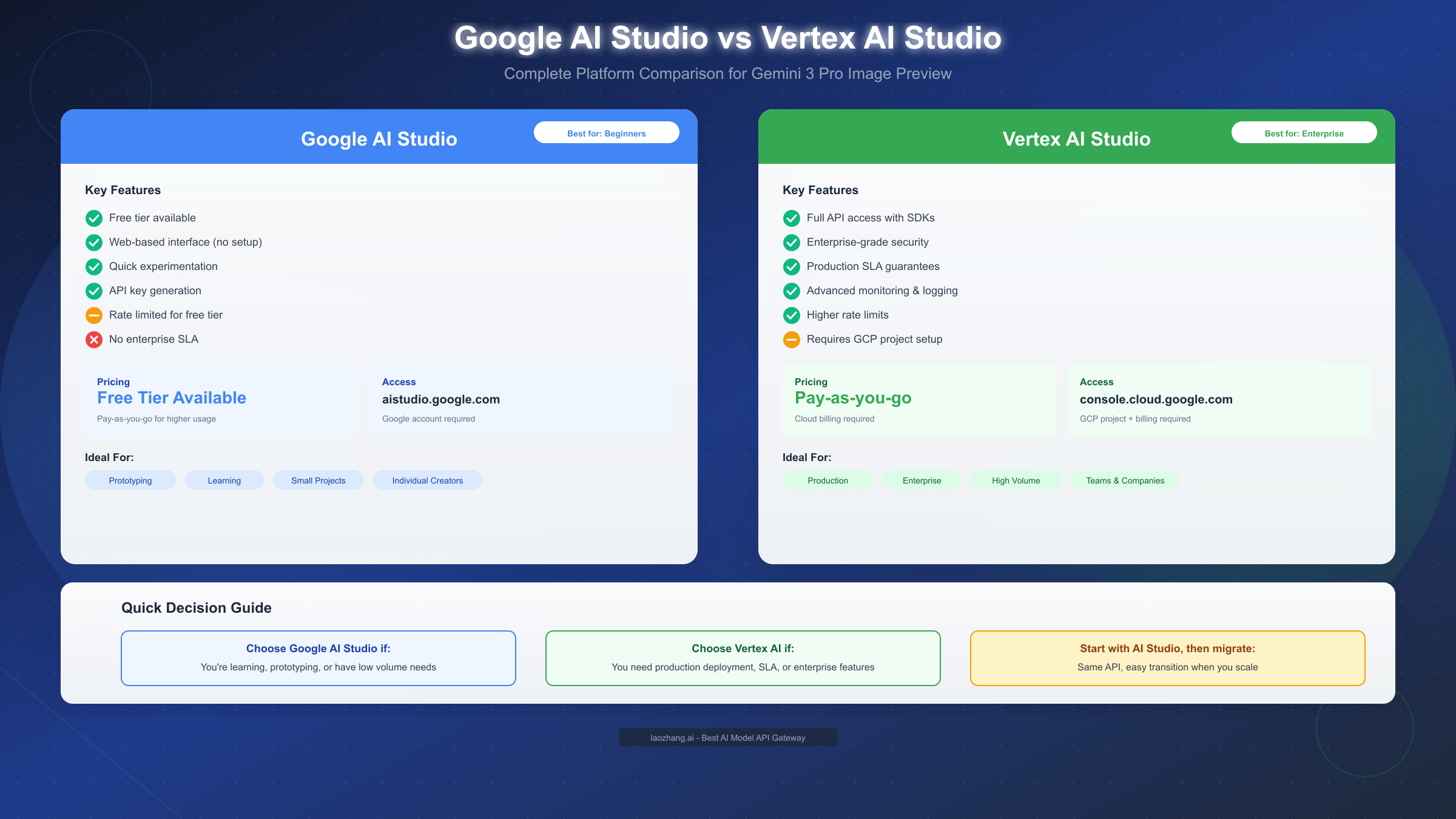
Google AI Studio serves as the accessible entry point designed for experimentation and smaller-scale usage. The platform requires nothing more than a Google account to get started, with no credit card or cloud billing setup necessary for the free tier. The web-based interface eliminates installation requirements, allowing you to generate your first image within minutes of accessing the site. This accessibility makes it ideal for learning the model's capabilities, prototyping ideas, or creating images for personal projects without any financial commitment.
The free tier limitations become relevant once you move beyond casual experimentation. Google AI Studio imposes rate limits on generation requests that vary based on model and usage patterns, typically allowing several dozen generations per day before throttling begins. The interface prioritizes simplicity over advanced controls, meaning some API parameters aren't exposed in the visual interface. Additionally, there's no service level agreement for availability or performance, so production applications shouldn't rely solely on this platform.
Vertex AI Studio provides the enterprise-grade infrastructure required for production deployments. Setting up access requires creating a Google Cloud Platform project with billing enabled, which introduces a barrier compared to AI Studio but unlocks capabilities essential for serious applications. The platform provides comprehensive SDK support in Python, JavaScript, Go, and Java, enabling integration into existing codebases. Detailed logging, monitoring, and analytics help you understand usage patterns and optimize costs.
Production reliability differentiates Vertex AI from the free alternative. Service level agreements guarantee availability percentages, meaning your application won't unexpectedly lose access to generation capabilities during peak demand. Higher rate limits accommodate commercial usage volumes, and dedicated support channels provide assistance when issues arise. For applications where image generation is a core feature rather than a nice-to-have, these guarantees justify the additional setup complexity.
The migration path between platforms follows a logical progression for most users. Starting with Google AI Studio lets you validate your use case, develop prompting strategies, and estimate usage volumes without cost. Once you've confirmed the model meets your needs and have a sense of expected generation volumes, transitioning to Vertex AI involves updating your authentication configuration and endpoint URLs while keeping your prompts and application logic largely unchanged. The API compatibility means code written against one platform transfers to the other with minimal modification.
Cost considerations favor different platforms depending on usage patterns. For occasional generation needs under the free tier limits, AI Studio costs nothing. For consistent, higher-volume usage, Vertex AI's pay-as-you-go pricing often provides better value than attempting to work around AI Studio rate limits. Detailed cost analysis requires understanding your expected generation volume, resolution requirements, and whether features like Google Search grounding are necessary for your use case.
Getting Started with Google AI Studio (Free Path)
The fastest route to generating images with Gemini 3 Pro Image Preview runs through Google AI Studio, where you can produce your first output in under five minutes without any setup beyond signing in. This section walks through the complete process from accessing the platform to generating and refining your initial images.
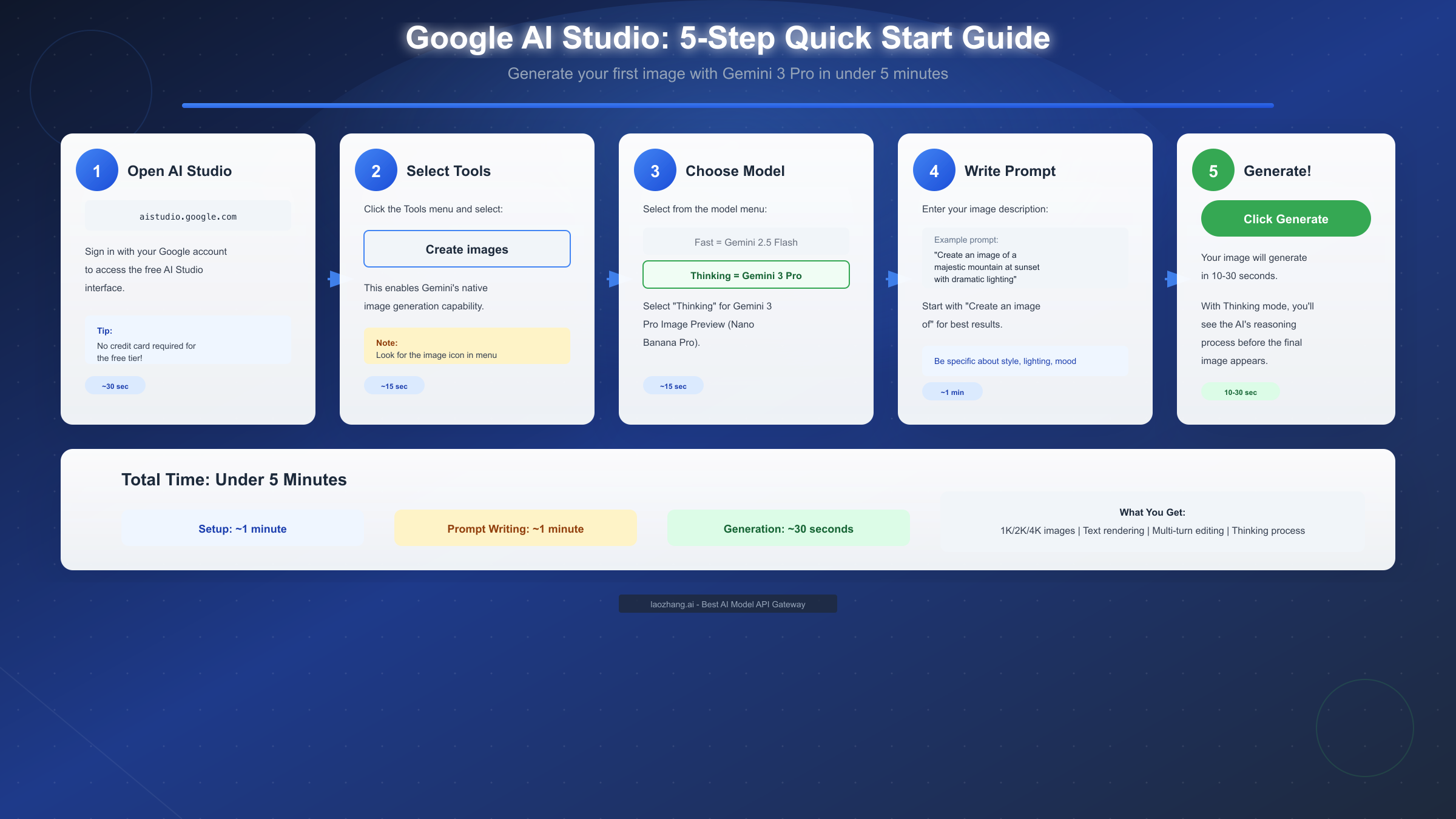
Accessing the platform begins at aistudio.google.com where you'll sign in with any Google account. The interface presents options for different interaction modes, but for image generation you'll navigate to the prompt creation area. No API keys, billing configuration, or project setup is required at this stage. The platform detects your account status and automatically applies free tier limits to your session.
Enabling image generation requires selecting the appropriate tool from the interface. Look for the "Create images" option in the tools menu or the image icon that appears alongside text generation options. Selecting this tool tells the system you want responses to include generated images rather than just text. Without this selection, even prompts asking for images will return text descriptions instead of actual visual output.
Choosing between model tiers determines the quality and capabilities of your output. The model selector presents options including "Fast" (Gemini 2.5 Flash Image) and "Thinking" (Gemini 3 Pro Image). Selecting Thinking mode activates Nano Banana Pro with its full feature set including 4K support and deliberative generation. For initial experimentation, starting with Fast mode provides quicker iterations while you develop your prompting approach, then switching to Thinking mode for final production of important images.
Writing effective prompts follows patterns that maximize model understanding. Begin your prompt with an explicit generation instruction like "Create an image of" or "Generate a picture showing" to ensure the model interprets your input as an image request rather than a question about images. Follow the instruction with a clear description of your subject, any important context about style or composition, and specific details about elements you want included. More specific prompts generally produce better results than vague descriptions.
Generating your first image involves clicking the generate button and waiting for processing. With Thinking mode enabled, you'll observe the model's reasoning process before the final image appears, typically taking 10-30 seconds depending on prompt complexity. The output appears in the conversation interface alongside any text response the model provides. From here, you can continue the conversation to request modifications, generate variations, or take the conversation in a new direction while maintaining context from previous turns.
Iterating through conversation produces better results than single-shot generation. Rather than attempting to perfect your prompt before generating, treat the process as collaborative. Generate an initial version, identify what you'd like to change, and describe those changes in a follow-up message. The model maintains context about previous generations, so saying "make the lighting warmer" or "move the subject to the left side" works without re-describing the entire scene. This conversational approach often reaches your desired outcome faster than repeated prompt rewrites.
Getting Started with Vertex AI Studio (Enterprise Path)
Vertex AI Studio provides the infrastructure for integrating Gemini 3 Pro Image Preview into production applications, offering programmatic access, higher rate limits, and enterprise support guarantees. The setup process involves more initial configuration than Google AI Studio but unlocks capabilities essential for commercial deployments.
Project setup begins in the Google Cloud Console where you'll create or select a project. Navigate to console.cloud.google.com and either create a new project for your image generation work or select an existing project where you want to add this capability. Each project maintains separate billing, access controls, and usage quotas, so consider whether image generation should share infrastructure with other services or operate independently.
Enabling the Vertex AI API activates the service for your project. Search for "Vertex AI API" in the API library and click enable. This action provisions the necessary backend resources and makes the API endpoints available for your project. The enablement process completes within minutes, after which you can begin making API calls.
Authentication configuration varies based on your deployment environment. For local development, the gcloud CLI provides the simplest authentication path through application default credentials. Run gcloud auth application-default login to authenticate your development environment. For production deployments, service accounts with appropriate IAM roles provide more secure, auditable access. Create a service account with the Vertex AI User role, download the credentials JSON, and configure your application to use these credentials.
SDK installation prepares your development environment for API calls. For Python, install the Google Gen AI SDK with pip install google-genai ensuring you have version 1.51.0 or later for full Gemini 3 compatibility. Similar packages exist for JavaScript, Go, and Java, each following the naming conventions of their respective ecosystems. The SDK handles request formatting, authentication, and response parsing, significantly simplifying integration compared to raw REST API calls.
Basic generation code demonstrates the API structure. A minimal Python implementation creates a client, configures the generation parameters, and processes the response:
pythonfrom google import genai
from google.genai.types import GenerateContentConfig, Modality

client = genai.Client()

response = client.models.generate_content(
    model="gemini-3-pro-image-preview",
    contents="Create an image of a mountain landscape at sunset",
    config=GenerateContentConfig(
        response_modalities=[Modality.TEXT, Modality.IMAGE]
    )
)
Response handling requires extracting images from the multimodal output. The response object contains parts that may include both text and image data. Images arrive as base64-encoded data that you'll need to decode and save or display depending on your application's requirements. The SDK documentation provides complete examples for handling various response formats across supported languages. For comprehensive API integration guidance, the Gemini 3.0 API guide covers advanced configuration options and error handling patterns.
Mastering Prompts for Better Results
The quality of images generated by Gemini 3 Pro Image Preview correlates directly with the quality of your prompts, making prompting skill development one of the highest-leverage investments for frequent users. Understanding how the model interprets instructions enables you to communicate your vision more effectively and reduce the iteration cycles needed to achieve desired outcomes.
Structural clarity in prompts helps the model parse complex requests. Rather than writing dense paragraphs combining multiple requirements, organize your prompt with clear sections addressing subject, setting, style, and technical specifications. This organization doesn't require literal headers or formatting, but the logical flow should move from the most important elements to supporting details. The model weighs earlier content more heavily, so lead with critical requirements.
Subject description benefits from specificity over abstraction. Instead of "a person walking," specify "a young woman in her twenties with shoulder-length dark hair walking confidently." The additional detail doesn't constrain creativity but rather gives the model concrete anchors around which to build the composition. Abstract descriptions force the model to make assumptions that may not align with your expectations.
Style specification works best with reference to established artistic traditions or techniques. Describing something as "photorealistic" or "in the style of watercolor painting" or "with a cel-shaded animation look" activates the model's training on those specific visual languages. Photography-specific terms like "85mm portrait lens," "golden hour lighting," or "shallow depth of field" produce predictable effects because these concepts have clear visual definitions.
Compositional instructions guide how elements arrange within the frame. Terms borrowed from photography and cinematography translate directly: "wide shot," "close-up," "Dutch angle," "centered composition," or "rule of thirds placement" all influence the generated output in expected ways. When element placement matters, be explicit about positions using terms like "in the foreground," "background," or directional indicators.
Iterative refinement through conversation leverages the model's context retention. After generating an initial image, subsequent messages can reference specific elements for modification without re-describing the entire scene. Phrases like "keep everything but change the lighting to dramatic" or "same composition but make it nighttime" preserve the aspects you liked while targeting specific changes. This approach proves more efficient than attempting to capture every requirement in a single prompt. For additional prompting techniques applicable across AI image models, our advanced image generation prompting guide provides transferable strategies.
Negative guidance requires careful phrasing to be effective. Rather than stating what you don't want with simple negation ("no people in the scene"), describe the positive alternative you prefer ("an empty landscape with no human presence"). The model processes negative instructions less reliably than positive ones, so reformulating requirements as positive descriptions typically produces more consistent results.
Troubleshooting Common Issues
Even with optimal prompts and correct configuration, you'll encounter situations where image generation doesn't proceed as expected. Understanding the common failure modes and their solutions helps you recover quickly and maintain productive workflows.
Generation failures with safety-related error codes indicate the model detected potential policy violations. The Gemini models apply content filtering that may trigger on prompts involving certain subjects, realistic depictions of public figures, or content that could potentially be misused. Error codes in the 100-199 range typically map to specific safety categories. Reviewing your prompt for elements that might trigger filters and rephrasing to avoid sensitive areas usually resolves these blocks. The official documentation maintains a complete mapping of safety codes to categories.
Timeout errors occur when generation takes longer than expected, particularly with complex Thinking mode prompts. The deliberative process that improves output quality also increases processing time, and resource contention during peak usage periods can extend this further. Implementing appropriate timeout handling in your application code prevents these situations from crashing your workflow. For particularly complex prompts, consider breaking them into simpler components that can be generated individually and combined.
Rate limit errors appear when you've exceeded your allocation for a given time period. Google AI Studio applies relatively aggressive limits to free tier usage, while Vertex AI limits depend on your project configuration and usage tier. When encountering rate limits, your options include waiting for the limit to reset (typically hourly or daily), upgrading to a higher tier with increased limits, or distributing generation requests across multiple projects if your use case supports it.
Inconsistent output quality between generations with identical prompts reflects the stochastic nature of the generation process. Each generation involves randomness that produces variation even from the same starting prompt. When you need consistency, use features like seed values (where supported) to reduce variation, or generate multiple candidates and select the best match to your requirements.
Image corruption or incomplete generation occasionally occurs due to transmission errors or processing interruptions. Retry logic with exponential backoff handles most transient failures gracefully. If a specific prompt consistently produces corrupted output, try simplifying the prompt or generating at lower resolution to isolate whether the issue relates to prompt complexity or resource constraints.
Authentication and permission errors in Vertex AI indicate configuration problems with credentials or IAM roles. Verify that your service account has the Vertex AI User role, that credentials are correctly configured in your environment, and that you're targeting the correct project where the API is enabled. The error messages usually indicate the specific permission or configuration that's missing.
Pricing and Cost Optimization
Understanding the cost structure for Gemini 3 Pro Image Preview helps you budget appropriately and make informed decisions about when to use this capability versus alternatives. The pricing models differ between platforms and depend on various factors including resolution and feature usage.
Google AI Studio's free tier provides genuine no-cost access for limited usage. You can generate images without any payment method on file, making it genuinely free for experimentation and small-scale personal projects. The limitation comes through rate throttling rather than hard caps, meaning you can continue generating after hitting limits, just at reduced frequency. For many individual creators and small projects, the free tier provides sufficient capacity without ever requiring payment.
Vertex AI pricing follows a pay-per-generation model tied to output resolution and input complexity. Base pricing covers standard generation requests, with multipliers applied for higher resolutions and advanced features. 4K generation costs approximately twice the rate of 1K generation, reflecting the additional computational resources required. Using Google Search grounding for real-time information adds additional per-request costs. Current pricing details appear in the Vertex AI pricing documentation, which updates periodically. For a comprehensive breakdown, our Gemini API pricing guide maintains current rate information.
Token-based cost calculation differs from simple per-image pricing. Image inputs and outputs consume tokens just as text does, with the token count depending on image size and complexity. Understanding this calculation helps you estimate costs for applications that combine text and image generation within single requests.
Cost optimization strategies reduce expenses without sacrificing output quality. Generate at 1K resolution during iteration phases, reserving 4K for final production versions. Use the Flash tier for rapid prototyping where speed matters more than maximum quality. Implement caching for repeated requests with identical or similar prompts. Review usage analytics regularly to identify unexpected consumption patterns that might indicate inefficient workflows.
For developers seeking cost-effective alternatives for production deployments, API aggregation services provide another option. Platforms like laozhang.ai offer access to Gemini models at reduced rates compared to direct API pricing, with image generation available at approximately 20% of official API costs. These services aggregate demand across many users to negotiate better rates, passing savings to customers. Documentation at https://docs.laozhang.ai/ covers integration options and current pricing.
FAQ: Your Questions Answered
What is the difference between Nano Banana and Nano Banana Pro? Nano Banana refers to the base Gemini image generation capability accessible through the "Fast" mode (technically Gemini 2.5 Flash Image), while Nano Banana Pro corresponds to the "Thinking" mode (Gemini 3 Pro Image Preview). Pro offers higher resolution output up to 4K, the deliberative thinking process for complex compositions, and support for up to 14 reference images compared to 3 in the base tier.
Can I use Gemini 3 Pro Image Preview for commercial projects? Yes, images generated through both Google AI Studio and Vertex AI can be used for commercial purposes according to Google's terms of service. However, certain content restrictions apply, and generated images include invisible SynthID watermarks that identify them as AI-generated. Review the current terms of service for specific limitations that may apply to your use case.
How long does image generation typically take? Generation time varies by model tier and prompt complexity. Flash mode typically completes in 3-8 seconds. Thinking mode (Pro) takes 10-30 seconds for most prompts, with particularly complex multi-image compositions potentially extending to a minute or more. Actual times depend on system load and your specific prompt requirements.
Why does my prompt sometimes produce text responses instead of images? The model interprets prompts based on context, and without clear image generation instructions, it may respond with text about images rather than actual generated images. Always begin prompts with explicit generation commands like "Create an image of" or "Generate a picture showing." Additionally, ensure the image generation tool is enabled in Google AI Studio or that your API request includes IMAGE in the response modalities.
What image formats does the API return? Images return as base64-encoded PNG data in API responses. For applications requiring other formats, you'll need to convert the output using image processing libraries appropriate to your programming environment. The web interfaces typically provide download options in common formats including PNG and JPEG.
Is there a way to ensure consistent character appearance across multiple images? Yes, the multi-image reference capability specifically supports character consistency. Upload reference images of the character you want to maintain, then describe new scenes or poses while referencing the uploaded character. The model will maintain recognizable consistency across generations, though some variation is natural and expected.
How do I access Gemini 3 Pro Image Preview via API without using the Google Cloud Console? The model is only available through Google's official platforms—either Google AI Studio for web-based access or Vertex AI for programmatic API access. Third-party API aggregators like laozhang.ai provide alternative access points that may offer different pricing or rate limits while still routing to the same underlying model.
What happens to images I generate? Does Google store them? According to Google's privacy documentation, images generated through AI Studio may be used to improve services unless you've opted out. Vertex AI enterprise accounts have clearer data retention policies with options for immediate deletion. Review the current privacy documentation for your specific platform and account type to understand data handling for your use case.