
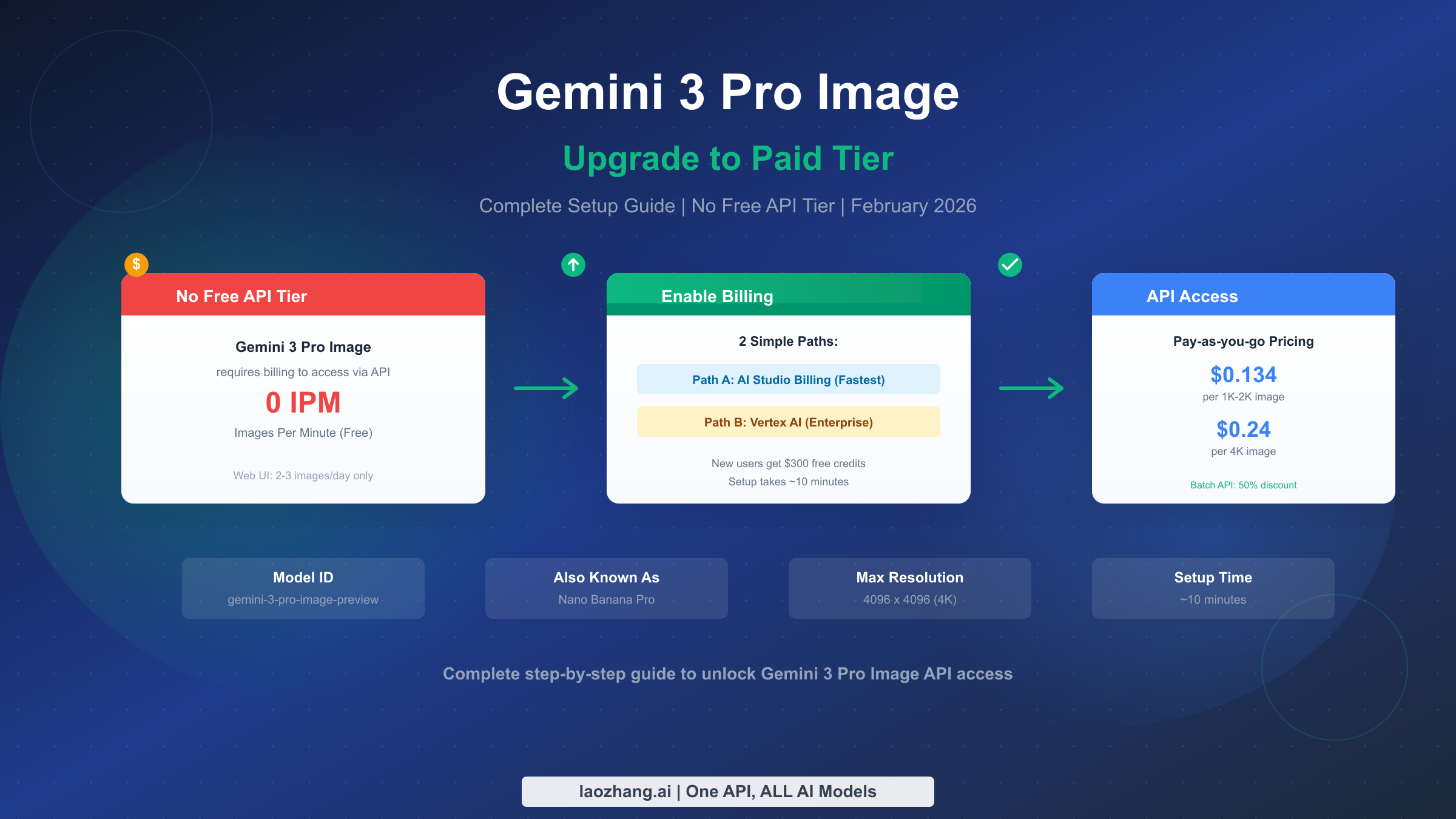
Gemini 3 Pro Image (also known as Nano Banana Pro) has no free API tier—you must enable billing to use it programmatically. The fastest path: open Google AI Studio, go to Dashboard > Usage and Billing > Billing tab, and click "Set up Billing" to link a Cloud Billing account. New users get $300 in free credits. Once activated, API calls cost $0.134 per 1K-2K image and $0.24 per 4K image (February 2026 pricing from Google Cloud documentation).
If you've tried calling the Gemini 3 Pro Image API and received a billing-related error, you're not alone. Unlike other Gemini models that offer free tiers with rate limits, this high-end image generation model requires active billing from the first API call. This guide walks you through the complete upgrade process, helps you choose the right billing path, and shows you exactly what you'll pay based on your usage patterns.
Why Gemini 3 Pro Image Has No Free API Tier
Google positions Gemini 3 Pro Image as its flagship image generation model, designed for professional asset production with advanced reasoning capabilities. This premium positioning comes with a clear message: if you want API access, you need to pay. Understanding why helps you make better decisions about whether this model is worth the investment.
The model uses the identifier gemini-3-pro-image-preview and represents Google's highest-quality image generation offering. According to Google's Vertex AI documentation, it's "designed for the most challenging image generation tasks, blending state-of-the-art reasoning." This isn't a general-purpose tool for casual experimentation—it's built for production workflows where quality matters more than cost.
Google's free tier strategy follows a deliberate pattern. The Gemini 2.5 Flash Image model offers a free tier with 1,500 requests per day, making it accessible for testing and low-volume use. By contrast, Gemini 3 Pro Image provides exactly 0 images per minute (IPM) and 0 requests per day (RPD) on the free tier. The web interface through AI Studio does allow 2-3 free generations daily with thinking mode, but programmatic API access requires billing.
This tiered approach makes business sense. Google can attract developers with the Flash model's free tier, then monetize serious users who need the Pro model's superior quality. For developers, this means you need to decide early whether the quality difference justifies the cost—or whether Flash Image meets your needs at a fraction of the price.
The model's technical specifications also justify the premium pricing. With a maximum input token limit of 65,536 and output limit of 32,768, support for 14 images per prompt, and 9 aspect ratios including 21:9 ultrawide, Gemini 3 Pro Image offers capabilities that simpler models can't match. Features like Google Search grounding, chain-of-thought reasoning, and system instructions position it for complex, production-grade applications.
Quick Decision Guide: Which Upgrade Path is Right for You
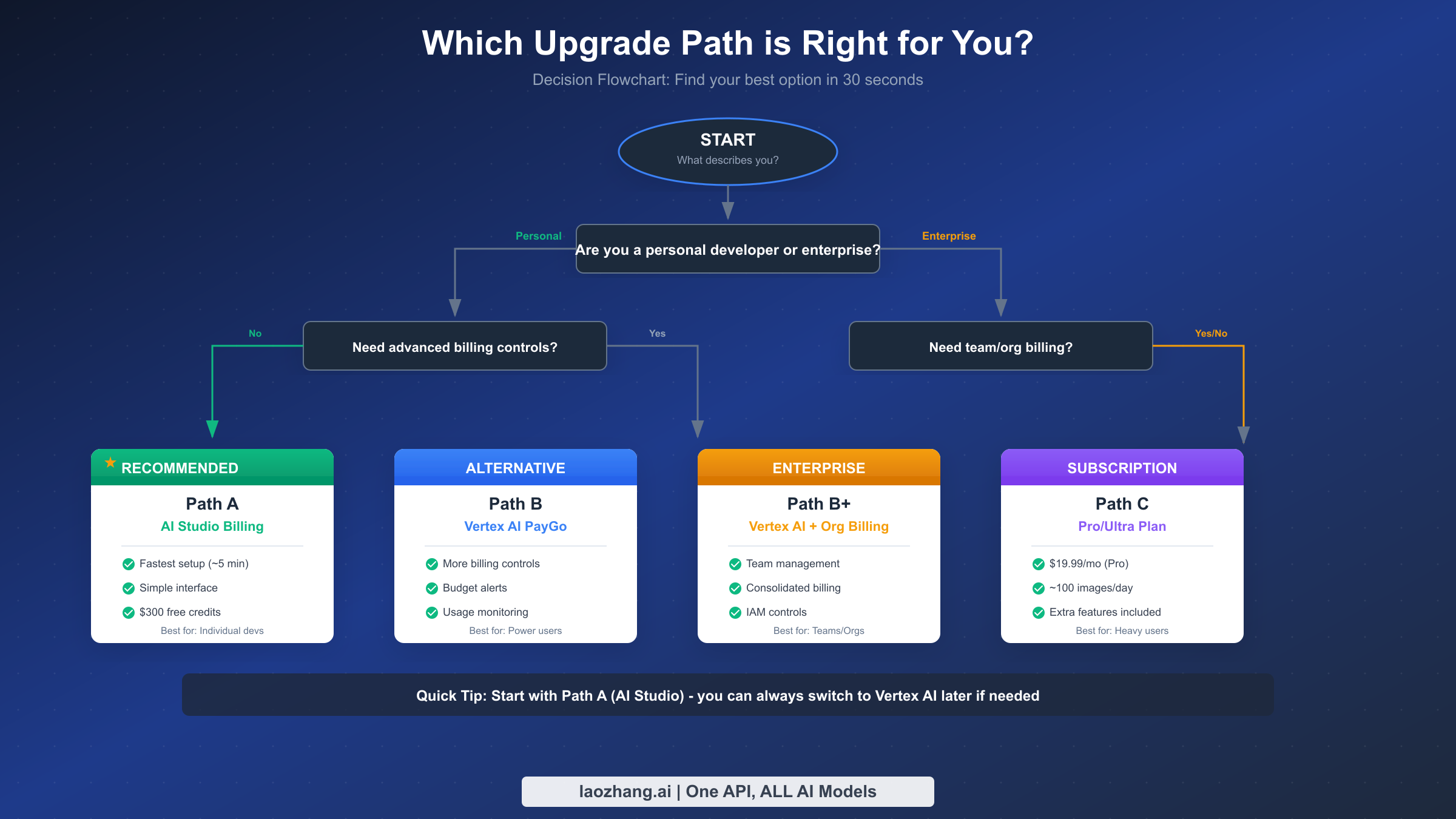
Before diving into setup steps, spend 30 seconds determining which path fits your situation. The wrong choice won't break anything—you can always switch later—but starting with the right approach saves time and potential frustration.
Google offers two primary paths for enabling Gemini 3 Pro Image API access, each optimized for different user types. Path A through AI Studio provides the simplest setup for individual developers, while Path B through Vertex AI offers more control for enterprise environments and power users.
If you're a personal developer working on side projects, prototypes, or learning exercises, Path A (AI Studio Billing) is almost certainly your best choice. The setup takes about 5 minutes, the interface is straightforward, and you get immediate access to the $300 free credits that come with new Google Cloud accounts. You don't need to understand IAM roles, project structures, or enterprise billing concepts.
For enterprise developers or teams, Path B (Vertex AI) makes more sense despite the longer setup. You get proper budget controls with alerts, team access management through IAM, consolidated billing across projects, and the organizational structure that finance teams and auditors expect. The extra 5-10 minutes of setup pays off when you need to track costs, manage permissions, or integrate with existing Google Cloud infrastructure.
There's also a third option: subscription plans. The Pro plan at $19.99 per month includes approximately 100 image generations daily with access to Gemini 3 Pro Image and other premium features. If you expect to generate more than 150 images per month consistently, the subscription might offer better value than pay-as-you-go pricing. The Ultra plan at $124.99 monthly targets heavy users with around 1,000 daily generations.
Here's a quick decision matrix based on the data from our research. Individual developers with variable usage should choose AI Studio billing for its simplicity and pay-as-you-go flexibility. Teams needing budget oversight and access controls should go with Vertex AI. Heavy individual users generating 100+ images daily will find subscriptions more economical. Enterprise teams should use Vertex AI with organizational billing for compliance and consolidated invoicing.
Path A - AI Studio Billing Setup (Recommended for Most Users)
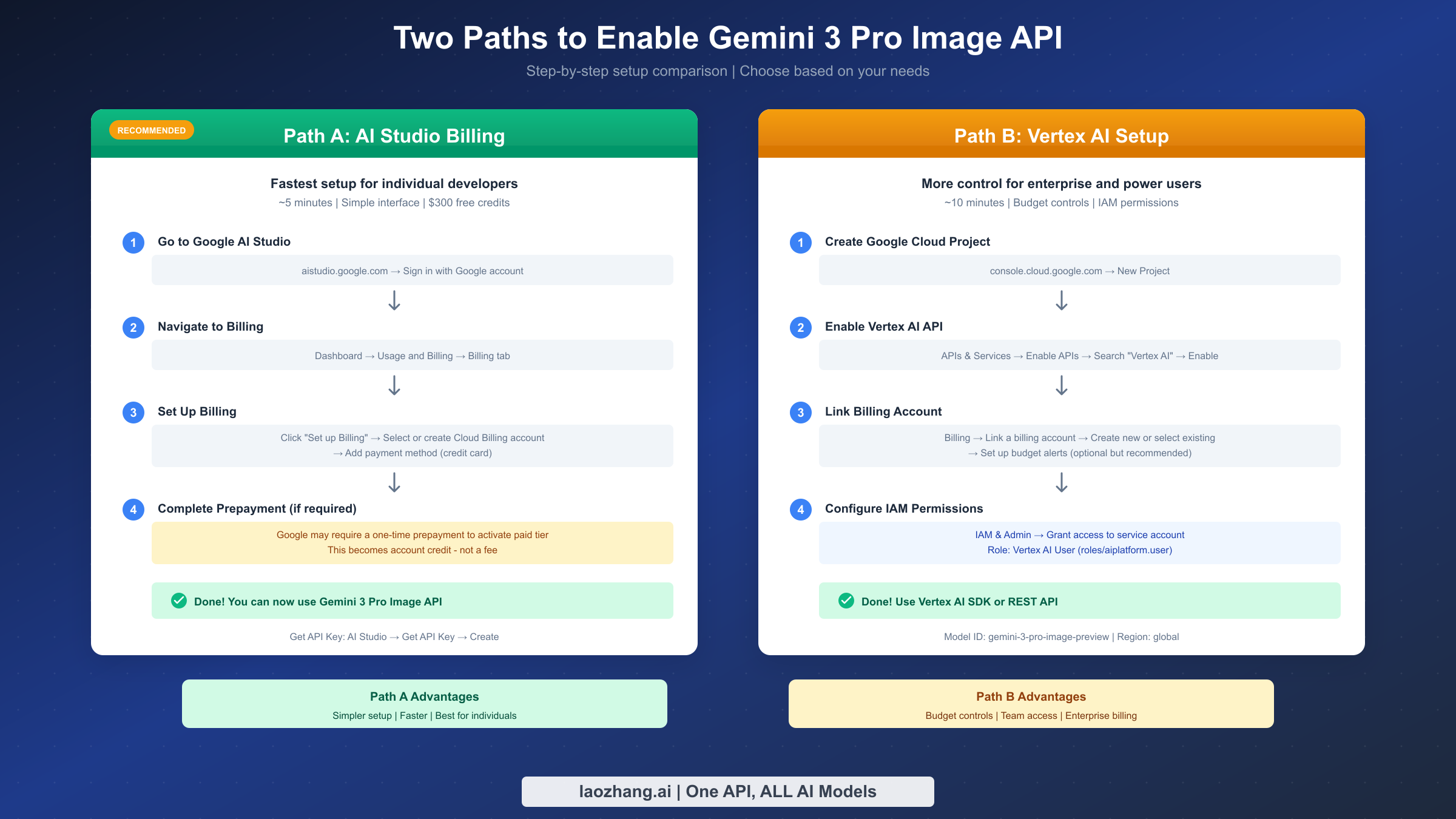
AI Studio billing setup is the fastest route to Gemini 3 Pro Image API access. This path works best for individual developers who want to start generating images quickly without navigating complex cloud infrastructure. The entire process takes about 5 minutes and requires only a Google account and payment method.
Start by navigating to aistudio.google.com and signing in with your Google account. If you're already signed in through other Google services, you'll land directly on the AI Studio dashboard. The interface presents model options in the left sidebar and a prompt area in the center—but before you can use Gemini 3 Pro Image via API, you need to set up billing.
Look for the billing section by clicking on Dashboard in the left navigation, then selecting Usage and Billing. Within this section, find and click the Billing tab. You'll see your current billing status, which for new users shows "Free tier" or "No billing account linked." Click the "Set up Billing" button to begin the account linking process.
Google will present options to either create a new Cloud Billing account or select an existing one if you've used Google Cloud before. For most users setting up billing for the first time, you'll create a new account. Enter your billing information including country, account type (individual or business), and payment details. Google accepts major credit cards and, in some regions, bank account linking.
One important detail that catches many developers off guard: Google may require a one-time prepayment to activate the paid tier for Gemini API access. According to Google's billing documentation, "When you activate the Gemini API on a project linked to an eligible billing account, you'll be notified if a prepayment is required." This prepayment isn't a fee—it becomes credit on your Cloud Billing account that you can use for any Google Cloud service. If prompted, complete the prepayment through the Billing > Payments Overview page in the Google Cloud Console.
After billing setup completes, return to AI Studio to generate your API key. Click "Get API Key" in the left sidebar, then "Create API Key." You can create a key in a new project or select an existing project. Copy the generated key and store it securely—you'll need it for all API calls.
To verify your setup works, make a test API call using curl or your preferred programming language. The model identifier for Gemini 3 Pro Image is gemini-3-pro-image-preview. A successful response confirms your billing is active and you're ready to generate images. If you receive a 403 error about permissions or billing, the prepayment may still be processing—wait 10-15 minutes and try again.
New Google Cloud users receive $300 in free credits valid for 90 days. These credits apply to Gemini 3 Pro Image API usage, meaning you can generate approximately 2,200 images at 1K-2K resolution before spending any actual money. This generous credit makes experimentation essentially free for new accounts.
Path B - Vertex AI Setup (For Enterprise and Advanced Users)
Vertex AI setup provides more control over billing, permissions, and project organization at the cost of additional complexity. Choose this path if you need budget alerts, team access management, or integration with existing Google Cloud infrastructure. The setup takes about 10-15 minutes for first-time users.
Begin at the Google Cloud Console (console.cloud.google.com) rather than AI Studio. Create a new project by clicking the project selector in the top navigation bar and selecting "New Project." Give your project a descriptive name—something like "gemini-image-prod" for production workloads or "gemini-experiments" for testing. Project names can't be changed after creation, so choose thoughtfully.
With your project created and selected, navigate to APIs & Services in the left sidebar, then click "Enable APIs and Services." Search for "Vertex AI" and click the Vertex AI API card. Click the "Enable" button and wait for the API to activate—this typically takes 30-60 seconds.
Next, link a billing account to your project. Click Billing in the left navigation, then "Link a billing account." If you have an existing billing account from other Google Cloud usage, you can select it here. Otherwise, create a new billing account by following the prompts to enter payment information. The process mirrors the AI Studio billing setup but happens within the Cloud Console context.
Setting up budget alerts is optional but strongly recommended for production use. Within the Billing section, click "Budgets & alerts" and then "Create budget." Set a monthly budget amount—perhaps $50 or $100 to start—and configure alert thresholds at 50%, 90%, and 100% of your budget. Google will email you when spending approaches these thresholds, preventing unexpected bills.
For team environments, configure IAM permissions to control who can use the API. Navigate to IAM & Admin in the left sidebar, then click "Grant Access." Add team members' email addresses and assign appropriate roles. For API usage, the "Vertex AI User" role (roles/aiplatform.user) provides the necessary permissions without granting administrative access.
Creating a service account is necessary for production applications. In IAM & Admin, select "Service Accounts" and click "Create Service Account." Name it descriptively (like "gemini-image-service"), assign the Vertex AI User role, and create a JSON key file. This key file authenticates your application to Google Cloud—store it securely and never commit it to version control.
To use Gemini 3 Pro Image through Vertex AI, you'll call the API with your project ID and region. The model ID remains gemini-3-pro-image-preview, and the recommended region for global availability is simply "global" or your nearest regional endpoint. The Vertex AI SDK for Python simplifies these calls, handling authentication and request formatting automatically.
Real Cost Breakdown: What You'll Actually Pay
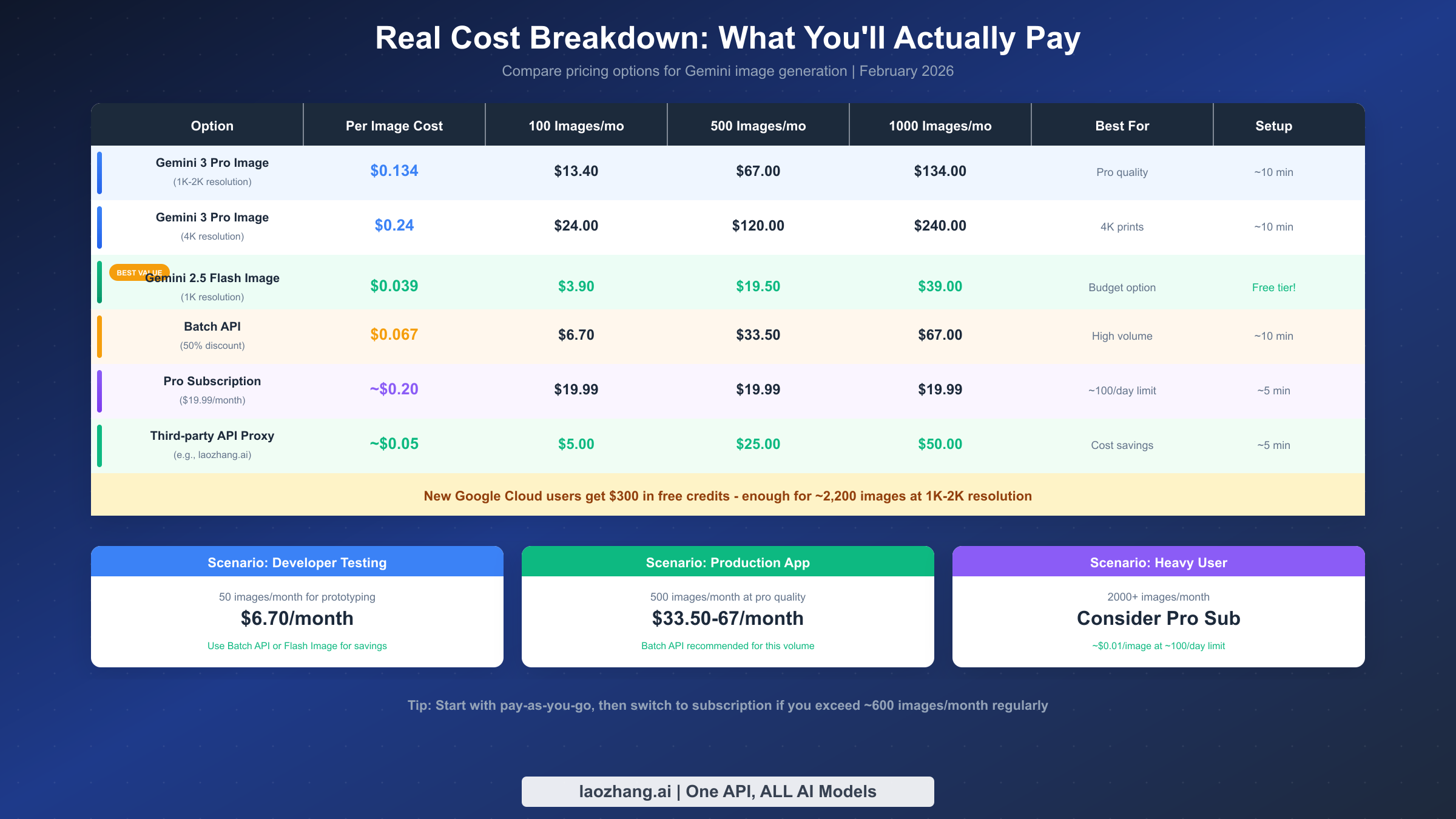
Understanding the real costs of Gemini 3 Pro Image requires looking beyond the per-image price to consider your actual usage patterns. The pricing structure from Google's Vertex AI documentation (February 2026) breaks down by resolution: $0.134 per image for 1K-2K resolution (1120 tokens consumed) and $0.24 per image for 4K resolution (2000 tokens consumed).
Let's translate these prices into monthly costs for typical usage scenarios. A developer testing the API with 50 images monthly would spend $6.70 at standard rates. A production application generating 500 images monthly hits $67.00. A high-volume service producing 1,000 monthly images reaches $134.00. These costs assume 1K-2K resolution—multiply by roughly 1.8 for 4K images.
The Batch API offers a compelling alternative for workloads that don't require real-time responses. Google provides a 50% discount on all batch requests, dropping the effective cost to $0.067 per 1K-2K image and $0.12 per 4K image. If your application can tolerate processing delays—perhaps for background content generation, bulk asset creation, or overnight batch jobs—this discount significantly reduces costs.
Comparing Gemini 3 Pro Image against alternatives reveals interesting tradeoffs. Gemini 2.5 Flash Image costs only $0.039 per 1K image (1290 tokens), roughly 70% cheaper than the Pro model. For many applications, Flash Image's quality is perfectly adequate—consider testing both models with your specific use cases before committing to Pro.
Third-party API proxies like laozhang.ai offer another cost-saving option, providing Gemini 3 Pro Image access at approximately $0.05 per image—about 60% savings compared to Google's direct pricing. These services handle billing and provide stable API access, which can simplify development especially for teams that want to avoid Google Cloud account setup. Documentation is available at docs.laozhang.ai for those exploring this option.
For heavy users, the subscription model deserves consideration. At $19.99 monthly for the Pro plan with roughly 100 daily generations (3,000/month), the effective per-image cost drops to about $0.007—dramatically cheaper than pay-as-you-go pricing. However, the daily cap means you can't burst beyond approximately 100 images in a single day, which limits the subscription's usefulness for applications with unpredictable demand.
New Google Cloud users should maximize the $300 free credit. At $0.134 per image, this credit covers approximately 2,240 images—enough for substantial experimentation and early production use. The credit expires after 90 days, so plan your testing timeline accordingly.
Troubleshooting: Still Getting Errors After Upgrade?
Even after completing billing setup, you might encounter errors when calling the Gemini 3 Pro Image API. Most issues stem from a handful of common causes, and systematic troubleshooting quickly identifies the problem.
The 403 Permission Denied error is the most common post-upgrade issue. This typically means billing isn't fully activated on your project. Check that your billing account is linked and in good standing by visiting the Billing section of Google Cloud Console. If you were required to make a prepayment, verify it processed successfully—prepayments can take up to 15 minutes to reflect in account status. For detailed troubleshooting, see our 403 Permission Denied troubleshooting guide.
A 401 Unauthorized error indicates API key issues rather than billing problems. Verify you're using a valid API key by checking the API Keys section in Google Cloud Console. Ensure the key is associated with a project that has billing enabled and the Vertex AI API activated. Keys created before billing setup may need to be regenerated.
The 429 Resource Exhausted error means you've hit rate limits rather than billing issues. Paid tier limits are significantly higher than free tier, but they still exist. Implement exponential backoff in your code and consider distributing requests across multiple API keys if you need higher throughput. Our 429 Resource Exhausted error solutions guide covers implementation details.
Server-side 503 errors during high-demand periods aren't billing-related—they indicate temporary capacity constraints. These errors typically resolve within minutes. Implement retry logic with jitter to handle transient failures gracefully. Check the 503 Overloaded error guide for current status and workarounds.
To verify your billing is truly active, make a minimal test request and examine the response headers. Successful requests include billing-related metadata. You can also check the Usage and Billing dashboard in AI Studio—it should show recent API calls if billing is working correctly.
If issues persist after checking these common causes, review your project's audit logs in Google Cloud Console. Navigate to Logging > Logs Explorer and filter for Vertex AI API calls. Error details in the logs often reveal the specific permission or configuration missing.
Cost-Saving Alternatives: When Flash Image is Enough
Gemini 3 Pro Image isn't always the right choice. For many applications, Gemini 2.5 Flash Image delivers acceptable quality at roughly 70% lower cost, and it includes a free tier for testing. Understanding when to use each model optimizes your spending without sacrificing necessary quality.
The key difference lies in reasoning and detail handling. Gemini 3 Pro Image uses advanced reasoning to interpret complex prompts, handle nuanced style requests, and maintain consistency across multi-image generations. Flash Image prioritizes speed and efficiency, excelling at straightforward prompts but sometimes struggling with intricate creative directions.
For these use cases, Flash Image typically suffices: social media graphics with clear style guides, product mockups with simple backgrounds, UI placeholder images, test and development environments, and any application where "good enough" quality meets requirements. The free tier of 1,500 requests daily makes Flash Image ideal for development and testing workflows.
Reserve Gemini 3 Pro Image for: marketing materials requiring brand-perfect quality, print-resolution assets, complex artistic styles, photorealistic imagery, and any production use case where image quality directly impacts user experience or business outcomes.
A hybrid approach often works best. Use Flash Image for development, staging, and non-critical production use cases. Switch to Pro Image for final renders, customer-facing content, and quality-critical applications. Many teams implement this automatically through configuration flags that select the model based on the request context.
The free Gemini Flash Image API guide provides detailed setup instructions for maximizing Flash Image's free tier.
FAQ
Is Gemini 3 Pro Image completely free anywhere?
The web interface at AI Studio allows 2-3 free image generations daily using the thinking mode feature. However, API access has no free tier—even one API call requires active billing. For free API access, consider Gemini 2.5 Flash Image which offers 1,500 requests daily at no cost.
How long does billing activation take?
Standard billing setup completes instantly. If Google requires a prepayment, the activation can take up to 15 minutes after payment processes. Some users report delays of up to an hour during peak periods. The prepayment amount becomes account credit, not a fee.
Can I use the $300 free credit for Gemini 3 Pro Image?
Yes. New Google Cloud users receive $300 in free credits valid for 90 days. These credits apply to all Google Cloud services including Gemini 3 Pro Image API usage. At $0.134 per image, this covers approximately 2,240 images at 1K-2K resolution.
What's the difference between AI Studio and Vertex AI billing?
Both use Google Cloud Billing under the hood—the same billing account, same payment methods, same invoices. The difference is interface and features. AI Studio provides a simpler setup aimed at individual developers. Vertex AI offers budget controls, IAM permissions, and enterprise features. You can use both interfaces with the same billing account.
How do I cancel or disable billing?
To stop charges, disable the Gemini API in your project's API settings rather than closing your billing account entirely. This preserves your billing account for other Google Cloud services while preventing Gemini-related charges. You can also set a budget alert at $0 to receive notifications if any charges occur. Unused credit cannot be refunded but remains available for 90 days.
Which model ID should I use?
For Gemini 3 Pro Image, always use gemini-3-pro-image-preview as the model identifier. This applies whether you're calling through AI Studio's API, Vertex AI REST API, or Vertex AI SDK. The model is also referred to as "Nano Banana Pro" in AI Studio's interface, but the API identifier remains the same.