
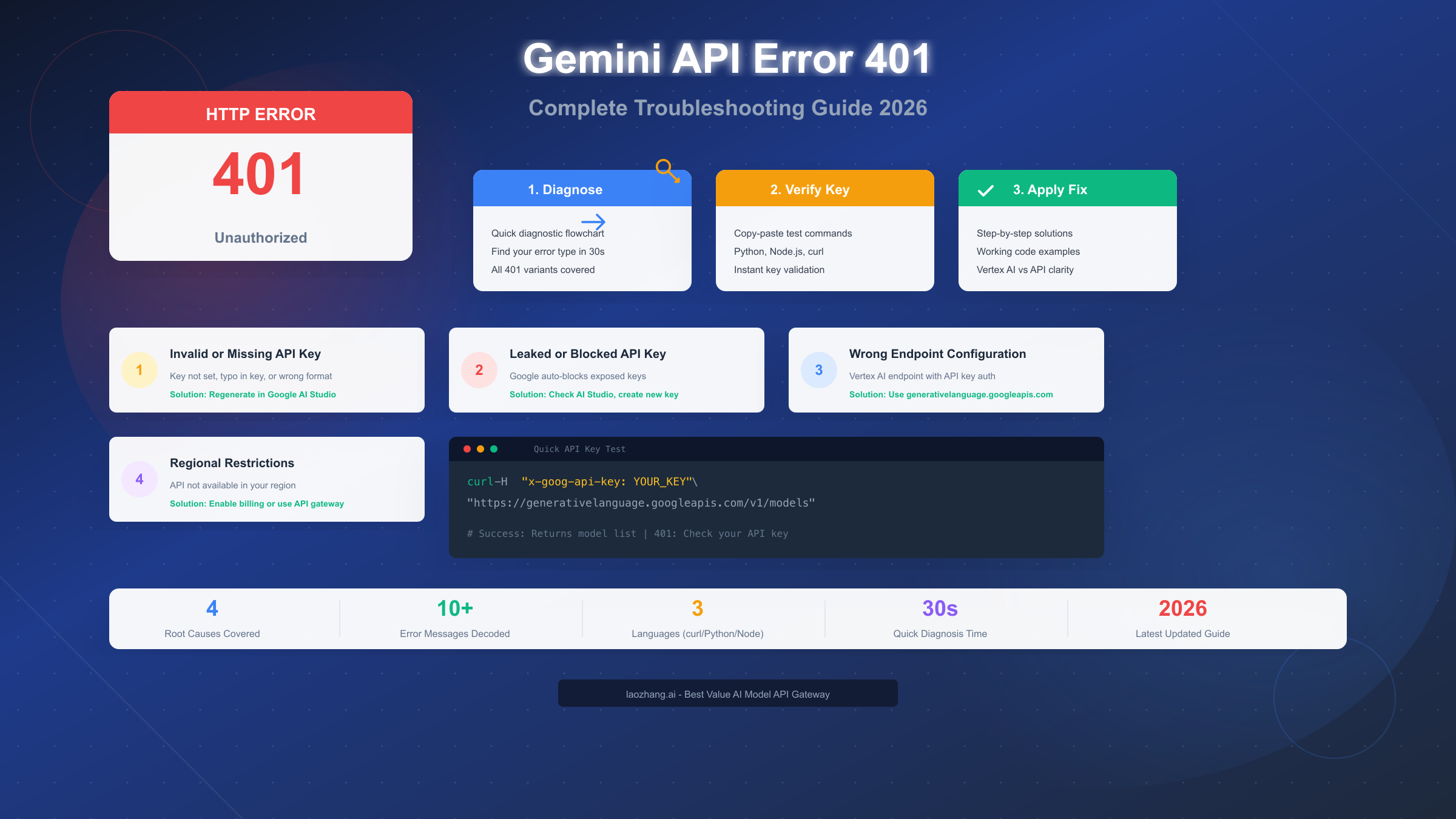
Gemini API error 401 means authentication failed when connecting to Google's AI service. The four primary causes are: invalid or missing API key, leaked and automatically blocked key, wrong endpoint configuration (using Vertex AI endpoint with API key authentication), and regional restrictions. This comprehensive guide provides a diagnostic flowchart that identifies your specific issue in under 30 seconds, plus copy-paste code examples to verify and fix each problem.
Whether you're seeing "API key not valid" in your console or the cryptic "OAuth2 expected, got API key" message, understanding exactly what went wrong requires more than generic troubleshooting advice. The Gemini API ecosystem includes multiple endpoints, authentication methods, and regional considerations that can all trigger 401 errors. This guide cuts through the confusion with systematic diagnosis and verified solutions that work in 2026.
Quick Diagnosis: Find Your Error Type in 30 Seconds
Before diving into specific fixes, let's identify exactly which 401 variant you're experiencing. The error message itself contains crucial information about the root cause, and matching your exact error to the right solution saves hours of trial-and-error debugging.

Start here: Is your API key set correctly?
The fastest way to diagnose your 401 error is to answer these questions in order. First, check if your API key is actually being sent with the request. Many 401 errors occur simply because the environment variable isn't set or the key isn't being passed to the API client correctly.
Check 1: Environment Variable
Open your terminal and run this command to verify your API key is accessible:
bashecho $GOOGLE_API_KEY
If this returns empty or shows an incorrect value, your application cannot authenticate. Set it properly before proceeding to other checks.
Check 2: Key Format Validation
Gemini API keys follow a specific format. They always start with "AIza" followed by a string of characters. If your key looks different, you might be using a different type of Google credential that won't work with the standard Gemini API endpoint.
Check 3: Endpoint Identification
Look at your API request URL. If it contains "aiplatform.googleapis.com", you're using Vertex AI which requires OAuth2 authentication. If it contains "generativelanguage.googleapis.com", you're using the standard Gemini API which accepts API keys. Using the wrong authentication method for your endpoint is the most common cause of 401 errors among developers transitioning between Google's AI services.
The diagnostic flowchart above walks you through this decision tree visually. Follow each branch based on your answers until you reach the specific fix for your situation. Most developers find their issue within the first two questions.
Error Messages Decoded: Complete Reference Table
Understanding the exact error message helps pinpoint the cause immediately. The Gemini API returns different messages for different authentication failures, and knowing what each means eliminates guesswork from your troubleshooting process.
| Error Message | Root Cause | Quick Fix |
|---|---|---|
API key not valid. Please pass a valid API key. | Invalid or missing API key | Generate new key in Google AI Studio |
Request had invalid authentication credentials | Malformed or expired key | Check key format, regenerate if needed |
API key expired. Please renew the API key. | Key has been revoked or blocked | Create new key, check for leakage |
OAuth2 expected, got API key | Using Vertex AI endpoint with API key | Switch to Standard API endpoint |
Permission denied: API key missing | Key not included in request header | Add x-goog-api-key header |
PERMISSION_DENIED: The caller does not have permission | Key blocked or wrong project | Check AI Studio, verify project |
User location is not supported | Regional restriction active | Enable billing or use API gateway |
Additional error codes to watch for:
The 401 Unauthorized error sometimes appears alongside related HTTP status codes. A 403 PERMISSION_DENIED often indicates your key exists but lacks the required permissions. A 400 INVALID_ARGUMENT suggests the request format is wrong rather than authentication itself. These distinctions matter because they point to different solutions.
Error response structure analysis:
When you receive a 401 error, the response body contains valuable debugging information. The error.message field provides the human-readable description, while error.status gives the specific error type. Pay attention to both when troubleshooting, as the same 401 status code can mean different things depending on the accompanying message.
For developers integrating with production systems, logging these complete error responses is essential. The difference between "API key not valid" and "Request had invalid authentication credentials" determines whether you need to regenerate the key or check your request construction. Building proper error handling that captures and distinguishes these messages accelerates future debugging significantly.
Verify Your API Key Works: Copy-Paste Test Commands
Before making any changes to your code, verify whether your API key actually works with a simple test. These commands isolate the authentication from your application logic, confirming whether the issue is with the key itself or how your application uses it.
curl Verification (Universal)
This command works on any system with curl installed. It tests authentication directly without any SDK or library dependencies:
bashcurl -s -o /dev/null -w "%{http_code}" \
  -H "x-goog-api-key: YOUR_API_KEY" \
  "https://generativelanguage.googleapis.com/v1/models"
Replace YOUR_API_KEY with your actual key. A successful response returns 200. If you get 401, the key itself is the problem. If you get a different error code, the issue lies elsewhere in your setup.
Python Verification Script
For Python developers, this standalone script tests your key without any project dependencies:
pythonimport os
import requests

api_key = os.environ.get('GOOGLE_API_KEY')
if not api_key:
    print("Error: GOOGLE_API_KEY environment variable not set")
    exit(1)

url = "https://generativelanguage.googleapis.com/v1/models"
headers = {"x-goog-api-key": api_key}

response = requests.get(url, headers=headers)

if response.status_code == 200:
    print("Success! API key is valid.")
    models = response.json().get('models', [])
    print(f"Available models: {len(models)}")
elif response.status_code == 401:
    print("Error 401: API key authentication failed")
    print(f"Message: {response.json().get('error', {}).get('message', 'Unknown error')}")
else:
    print(f"Unexpected status: {response.status_code}")
    print(response.text)
Save this as verify_key.py and run with python verify_key.py. The script explicitly checks for the environment variable and provides clear feedback for both success and failure scenarios.
Node.js Verification Script
For JavaScript developers, this equivalent script tests authentication:
javascriptconst apiKey = process.env.GOOGLE_API_KEY;

if (!apiKey) {
    console.error("Error: GOOGLE_API_KEY environment variable not set");
    process.exit(1);
}

const url = "https://generativelanguage.googleapis.com/v1/models";

fetch(url, {
    headers: { "x-goog-api-key": apiKey }
})
.then(response => {
    if (response.status === 200) {
        return response.json().then(data => {
            console.log("Success! API key is valid.");
            console.log(`Available models: ${data.models?.length || 0}`);
        });
    } else if (response.status === 401) {
        return response.json().then(data => {
            console.error("Error 401: API key authentication failed");
            console.error(`Message: ${data.error?.message || 'Unknown error'}`);
        });
    } else {
        console.error(`Unexpected status: ${response.status}`);
    }
})
.catch(err => console.error("Request failed:", err.message));
Interpreting test results:
If the test succeeds but your application fails, the problem is in how your application constructs requests. Compare your application's request headers and URL to the test commands. Common issues include missing the x-goog-api-key header, using the wrong header name (like Authorization: Bearer), or constructing the URL incorrectly.
If the test fails with 401, your API key is genuinely invalid, expired, or blocked. Proceed to the fix sections below based on your specific situation.
Vertex AI vs Gemini API: Which Are You Using?
The most confusing aspect of Google's AI services for new developers is understanding the difference between Vertex AI and the Standard Gemini API. They offer similar capabilities but use different authentication methods, and mixing them up is a primary source of 401 errors.

Standard Gemini API (Recommended for most developers)
The Standard Gemini API is accessed through generativelanguage.googleapis.com. This is the endpoint you get when you create an API key in Google AI Studio at aistudio.google.com. It supports simple API key authentication, making it ideal for quick prototyping, personal projects, and applications where you don't need the enterprise features of Google Cloud Platform.
Authentication is straightforward: include your API key in the x-goog-api-key header with every request. No OAuth flow, no service accounts, no complex configuration. This simplicity is why most tutorials and code examples use this endpoint.
Vertex AI (Enterprise/GCP users)
Vertex AI is accessed through aiplatform.googleapis.com or regional variants like us-central1-aiplatform.googleapis.com. It's designed for enterprise deployments within Google Cloud Platform and offers additional features like VPC networking, enhanced security controls, and integration with other GCP services.
The critical difference is authentication: Vertex AI requires OAuth2 or service account credentials. API keys do not work with Vertex AI endpoints. If you send a request to a Vertex AI endpoint with an API key in the header, you'll receive a 401 error with a message indicating OAuth2 was expected.
How to identify which you're using:
Check your code or configuration for these URL patterns:
- Contains
generativelanguage.googleapis.com→ Standard Gemini API - Contains
aiplatform.googleapis.com→ Vertex AI - Contains region prefixes like
us-central1-→ Vertex AI
Common confusion scenarios:
Many developers encounter 401 errors when following tutorials that mix both approaches. A tutorial might show Vertex AI code but expect you to use a simple API key, or vice versa. Always verify that your authentication method matches your endpoint.
If you're getting "OAuth2 expected, got API key" errors, you're sending API key authentication to a Vertex AI endpoint. The solution is either to switch to the Standard Gemini API endpoint or to implement proper OAuth2 authentication for Vertex AI. For most individual developers and small teams, switching to the Standard API is the faster path forward.
For teams already invested in Google Cloud Platform infrastructure, understanding how to properly configure service accounts for Vertex AI may be worthwhile. However, if you're just trying to access Gemini's capabilities quickly, the Standard API with simple key authentication serves the same purpose with far less complexity.
Fix 1: Invalid or Missing API Key
The most common cause of 401 errors is an API key that's either not set, set incorrectly, or never generated in the first place. This section walks through generating a new key and configuring it properly for your development environment.
Step 1: Generate a new API key in Google AI Studio
Navigate to Google AI Studio and sign in with your Google account. Click on "Get API Key" in the left sidebar, then "Create API Key." If you're creating a key for the first time, you may need to accept the terms of service.
Select the Google Cloud project to associate with the key, or create a new project if needed. The key is generated immediately and displayed on screen. Copy it now—you won't be able to view it again after leaving this page, though you can always generate a new one.
Step 2: Set the environment variable
The recommended approach is storing your API key in an environment variable rather than hardcoding it in your application. This prevents accidental exposure in version control and makes it easy to use different keys in different environments.
For bash/zsh (Linux/macOS), add to your ~/.bashrc or ~/.zshrc:
bashexport GOOGLE_API_KEY="your-api-key-here"
For Windows PowerShell:
powershell$env:GOOGLE_API_KEY = "your-api-key-here"
For persistent Windows environment variables, use System Properties → Environment Variables.
Step 3: Verify the environment variable is loaded
After setting the variable, open a new terminal session and verify:
bashecho $GOOGLE_API_KEY
If the key appears, your environment is configured correctly. If it's empty, ensure you've started a new terminal session after modifying your shell configuration file.
Step 4: Update your application code
Ensure your application reads the API key from the environment variable. Here's the pattern for popular languages:
Python with google-generativeai SDK:
pythonimport os
import google.generativeai as genai

genai.configure(api_key=os.environ.get('GOOGLE_API_KEY'))
model = genai.GenerativeModel('gemini-pro')
response = model.generate_content("Hello, Gemini!")
Node.js with @google/generative-ai:
javascriptconst { GoogleGenerativeAI } = require('@google/generative-ai');

const genAI = new GoogleGenerativeAI(process.env.GOOGLE_API_KEY);
const model = genAI.getGenerativeModel({ model: 'gemini-pro' });
const result = await model.generateContent('Hello, Gemini!');
Common mistakes to avoid:
Never commit API keys to version control. If your key ends up in a public repository, Google will automatically detect and block it. Use .gitignore to exclude files containing keys and use environment variables consistently.
If you need more details on obtaining and managing your Gemini API key, see our complete guide to getting your Gemini API key which covers all three methods including Google Cloud Console and Vertex AI approaches.
Fix 2: Leaked or Blocked API Key
Google actively monitors public repositories and code sharing sites for exposed API keys. When your key is detected in a public location, Google automatically blocks it to prevent abuse. This is a security feature, but it can be surprising if you don't realize your key was exposed.
How to check if your key is blocked:
Sign in to Google AI Studio and navigate to the API Keys section. Your keys are listed with their status. A blocked key typically shows a warning indicator or "Inactive" status. In some cases, the key might appear active but still fail authentication if it was recently blocked.
Why keys get blocked:
The most common reasons for automatic blocking include:
- Committed to public GitHub repository - Even if you delete the commit later, the key was exposed
- Shared in public forums or Stack Overflow - Screenshots or code snippets containing keys
- Included in public Colab notebooks - Notebooks shared publicly expose all cell contents
- Hardcoded in client-side JavaScript - Browser-accessible code exposes keys to all users
Creating a replacement key:
Once a key is blocked, it cannot be unblocked. You must generate a new key following the process in the previous section. Before creating the new key, identify how the old key was exposed and fix that issue first. Creating a new key only to have it blocked again within minutes is frustrating and avoidable.
Updating existing integrations:
When you replace an API key, all applications using the old key will stop working immediately. Plan for this by:
- Generating the new key before deactivating the old one (if the old one still works)
- Updating all applications that use the key
- Using environment variables so you only need to change one value per environment
- Testing each application after updating
Preventing future key exposure:
Adopt these practices to keep your keys secure:
- Use environment variables exclusively, never hardcode keys
- Add
.envfiles to.gitignorebefore your first commit - Use secrets management services for production deployments
- Enable Google Cloud's secret scanning alerts if available
- Review code before committing, specifically for any strings starting with "AIza"
Fix 3: Wrong Endpoint Configuration
Using the wrong endpoint is particularly common among developers who follow different tutorials or copy code from various sources. The 401 error appears because you're sending API key authentication to an endpoint that expects OAuth2, or vice versa.
Correct endpoint for API key authentication:
The Standard Gemini API endpoint that works with API keys is:
https://generativelanguage.googleapis.com/v1/models/{model}:generateContent
For listing available models:
https://generativelanguage.googleapis.com/v1/models
Incorrect endpoints (require OAuth2):
These Vertex AI endpoints do not accept API key authentication:
https://aiplatform.googleapis.com/...
https://us-central1-aiplatform.googleapis.com/...
https://{region}-aiplatform.googleapis.com/...
If you're using any endpoint with "aiplatform" in the URL, you need either to switch to the Standard API or implement OAuth2 authentication.
Fixing SDK configuration:
Different SDKs have different ways of specifying the endpoint. Here's how to ensure you're using the correct endpoint in common libraries:
Python (google-generativeai):
The official SDK defaults to the correct endpoint when using genai.configure(). If you've manually specified an endpoint, check that it's the Standard API:
pythonimport google.generativeai as genai

genai.configure(
    api_key=os.environ['GOOGLE_API_KEY'],
    # The SDK defaults to the correct endpoint, but if specified:
    # client_options={'api_endpoint': 'generativelanguage.googleapis.com'}
)
Node.js (@google/generative-ai):
The npm package uses the correct endpoint by default:
javascriptconst { GoogleGenerativeAI } = require('@google/generative-ai');
const genAI = new GoogleGenerativeAI(process.env.GOOGLE_API_KEY);
Direct HTTP requests:
When making direct HTTP requests, verify your URL construction:
pythonurl = "https://generativelanguage.googleapis.com/v1/models/gemini-pro:generateContent" # Incorrect - Vertex AI endpoint url = "https://us-central1-aiplatform.googleapis.com/v1/projects/{project}/locations/us-central1/publishers/google/models/gemini-pro:generateContent"
Framework-specific configurations:
Some frameworks and libraries have their own configuration for Google AI services. LangChain, for example, has separate classes for Gemini (Standard API) and Gemini via Vertex AI. Using ChatGoogleGenerativeAI with an API key works correctly, while ChatVertexAI requires OAuth2 credentials.
Check your framework's documentation to ensure you're using the class or configuration intended for API key authentication rather than service account authentication.
Fix 4: Regional Restrictions
Gemini API availability varies by region, and users in unsupported locations receive 401 or 403 errors even with valid API keys. Understanding regional restrictions and available workarounds is essential for developers working internationally or deploying to global audiences.
Checking current supported regions:
Google maintains a list of supported countries for the Gemini API. As of 2026, the API is available in over 230 countries, but notable restrictions remain in:
- China
- Russia
- Iran
- Cuba
- North Korea
- Syria
Some features may also have additional restrictions even in generally supported regions. The free tier has different availability than paid tiers in certain locations.
Enabling billing to expand access:
Some regional restrictions only apply to free tier usage. Enabling billing on your Google Cloud project can unlock access in additional regions. Navigate to the Google Cloud Console, select your project, and enable billing to see if this resolves your access issues.
VPN considerations:
While VPNs can technically bypass geographic restrictions, using them may violate Google's Terms of Service. For individual developers testing and learning, this might be an acceptable short-term solution. For production applications, using a VPN creates reliability and compliance risks.
API gateway solution:
For production applications requiring reliable access regardless of regional restrictions, API gateway services provide a stable alternative. These services route your requests through servers in supported regions, handling the geographic complexity transparently.
For teams needing reliable access regardless of location, API gateway services like laozhang.ai provide stable connections with pricing matching major platforms. This approach is particularly valuable when your users or servers may be in restricted regions but you need consistent API access.
For more details on accessing Gemini from restricted regions, see our detailed guide on Gemini regional restrictions which covers all available solutions including infrastructure-level approaches.
Prevent Future 401 Errors: Best Practices Checklist
Prevention is more efficient than debugging. These practices eliminate most 401 error causes before they occur and make troubleshooting easier when issues do arise.
Development environment setup:
- Store API keys in environment variables, never in code
- Use
.envfiles for local development, add them to.gitignore - Validate environment variables exist at application startup
- Use separate API keys for development, staging, and production
Key management practices:
- Rotate keys periodically (every 90 days is a reasonable interval)
- Delete unused keys from Google AI Studio
- Monitor key usage in Google Cloud Console for anomalies
- Set up billing alerts to detect unexpected usage spikes
Code implementation patterns:
- Validate API key existence before making requests
- Implement proper error handling that distinguishes 401 from other errors
- Log complete error responses (message and status) for debugging
- Build retry logic for transient failures, but not for 401 errors
Error handling example:
pythonimport os
import google.generativeai as genai
from google.api_core import exceptions

api_key = os.environ.get('GOOGLE_API_KEY')
if not api_key:
    raise ValueError("GOOGLE_API_KEY environment variable is required")

genai.configure(api_key=api_key)

try:
    model = genai.GenerativeModel('gemini-pro')
    response = model.generate_content("Hello")
except exceptions.Unauthenticated as e:
    print(f"Authentication failed (401): {e.message}")
    print("Check: API key valid? Correct endpoint? Not blocked?")
except exceptions.PermissionDenied as e:
    print(f"Permission denied (403): {e.message}")
    print("Check: API enabled? Regional restrictions?")
except Exception as e:
    print(f"Unexpected error: {type(e).__name__}: {e}")
Monitoring recommendations:
- Set up alerting for authentication failures in your logging system
- Monitor API response codes, alert on 401 rate increases
- Track key usage patterns to detect if a key might be compromised
- Use structured logging to make error analysis efficient
API aggregation services offer additional stability by handling rate limits and failover automatically. Services like laozhang.ai (docs.laozhang.ai) provide multi-model access without the complexity of managing multiple API keys, reducing the surface area for authentication errors.
For similar error handling patterns with other AI APIs, see our guide on similar error handling patterns for other APIs which covers implementing resilient API clients.
Frequently Asked Questions
Why does my API key work in curl but fail in my application?
This usually indicates a configuration issue in your application rather than a key problem. Check that your application reads the environment variable correctly—many frameworks require explicit configuration to access environment variables. Also verify the header name is exactly x-goog-api-key (case-sensitive in some contexts) and that no middleware or proxy is modifying your request headers.
Can I use the same API key for multiple projects?
Yes, a single API key works across multiple applications. However, all usage is aggregated under the same key, making it harder to track usage by project and potentially hitting rate limits faster. For production, consider separate keys per application for better monitoring and isolation.
How long does it take for Google to block a leaked key?
Google's automated detection typically flags exposed keys within minutes of them appearing in public repositories. The actual blocking can happen within the same hour. If you realize you've exposed a key, generate a replacement immediately rather than waiting to see if it gets blocked.
Why am I getting 401 errors intermittently?
Intermittent 401 errors are unusual—authentication either works or it doesn't. If you're seeing occasional 401s mixed with successful requests, check for race conditions in your code (key not loaded before requests start), network issues causing request corruption, or multiple processes with different configurations. True intermittent 401s from Google's side are rare.
Does enabling billing affect my free tier quota?
Enabling billing on your Google Cloud project doesn't automatically charge you. The free tier quotas still apply until you exceed them. However, billing enablement can unlock access in additional regions and removes some rate limit restrictions. You'll only be charged if you explicitly configure paid-tier usage.
Can I transfer an API key to a different Google Cloud project?
No, API keys are bound to the project in which they were created. If you need to change projects, you must generate a new key in the target project and update all applications using the old key. Plan for this when structuring your Google Cloud projects.
What's the difference between 401 and 403 errors?
A 401 Unauthorized means authentication failed—your identity couldn't be verified. A 403 Forbidden means authentication succeeded but you don't have permission for the requested action. For Gemini API, 401 typically means key issues while 403 often indicates the API isn't enabled or regional restrictions apply.
How do I check if my API key is about to expire?
Standard Gemini API keys don't expire unless manually revoked or automatically blocked for security reasons. There's no expiration date to monitor. However, if you're using OAuth2 tokens for Vertex AI, those do expire and need refreshing. The SDKs typically handle token refresh automatically when properly configured.
Summary and Next Steps
Gemini API 401 errors have four main causes: invalid or missing API keys, leaked and blocked keys, wrong endpoint configuration (Vertex AI vs Standard API), and regional restrictions. This guide provided diagnostic tools to identify your specific issue quickly and working code examples to verify and fix each problem.
Quick reference for immediate action:
- Test your key first - Use the curl command or verification scripts to isolate the issue
- Check the endpoint - Ensure you're using
generativelanguage.googleapis.comfor API key auth - Verify key status - Check Google AI Studio for blocked or inactive keys
- Consider region - Enable billing or use alternative access methods if regionally restricted
The verification scripts and error message reference table serve as ongoing resources for debugging future issues. Bookmark this guide for quick access when 401 errors appear in your development or production systems.
For developers building production applications, implementing the prevention checklist and proper error handling patterns will significantly reduce authentication-related downtime. The patterns shown here—environment variable management, error discrimination, and structured logging—apply broadly to any API integration, not just Gemini.
If you're continuing to experience issues after following this guide, the Gemini API status page and Google AI Developer Forum are valuable resources for real-time information about service availability and known issues. The community forums often have quick responses to emerging problems that aren't yet documented elsewhere.