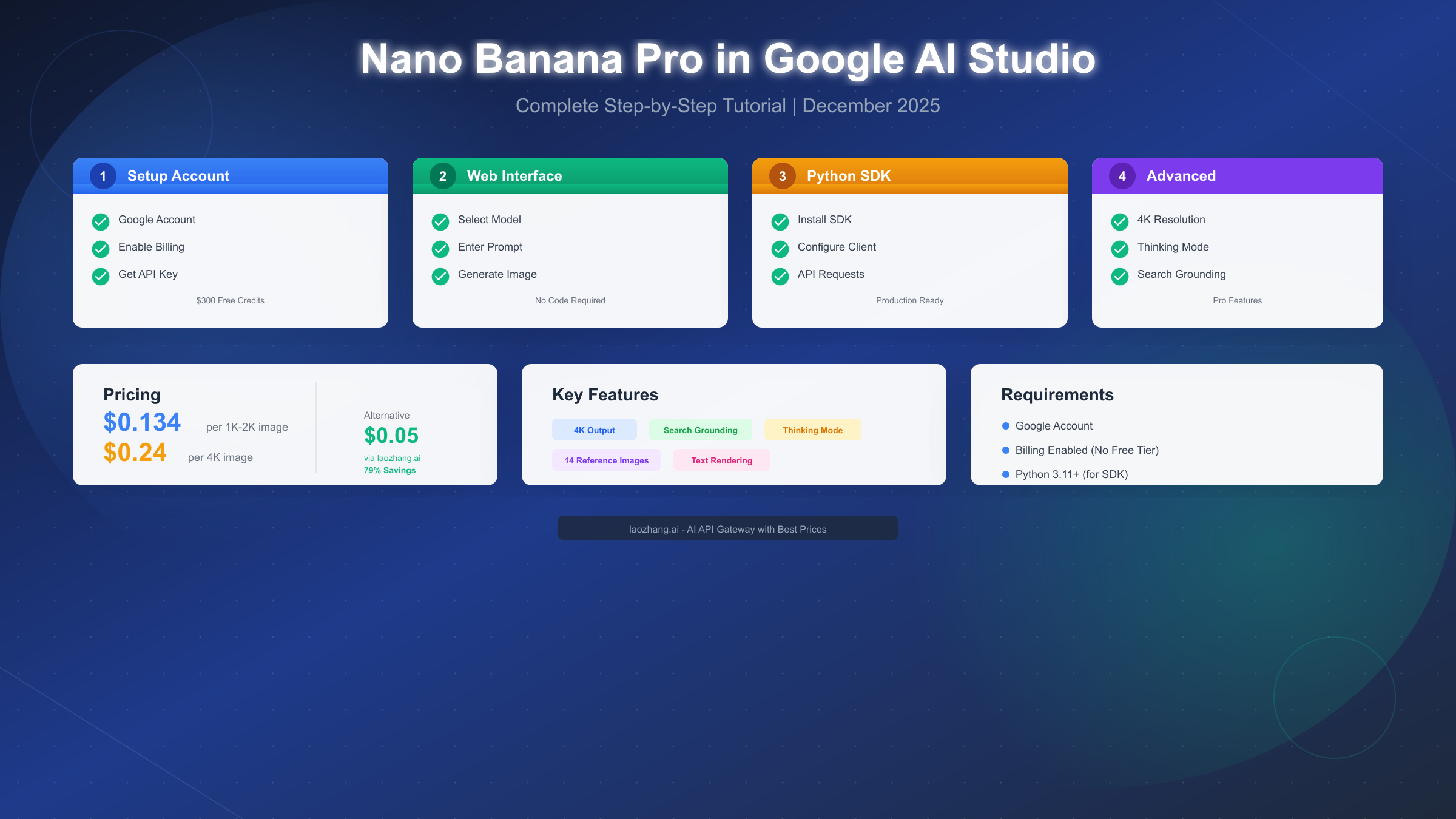
Google's Nano Banana Pro represents the cutting-edge of AI image generation, offering unprecedented control over creative outputs through Google AI Studio. Whether you're a designer looking to prototype quickly, a developer building image-generation features, or a content creator exploring AI art, this comprehensive tutorial will guide you from complete beginner to confident user. By the end of this guide, you'll know how to generate your first image in under 10 minutes using either the web interface or Python SDK, understand the pricing structure, and discover strategies to reduce your costs by up to 79%.
What Is Nano Banana Pro and Why Use Google AI Studio
Nano Banana Pro, officially known as Gemini 3 Pro Image (model ID: gemini-3-pro-image-preview), is Google DeepMind's state-of-the-art image generation and editing model. Unlike its predecessor Nano Banana (based on Gemini 2.5 Flash), Nano Banana Pro is built on the more powerful Gemini 3 Pro foundation, bringing significant improvements in quality, control, and capabilities.
What makes Nano Banana Pro special? The model excels in several areas that matter for professional use. First, it renders text accurately in multiple languages—a weakness of many competing models. Second, it supports up to 4K resolution output, making it suitable for print, broadcast, and large-format displays. Third, it can connect to Google Search to verify facts and generate imagery based on real-time data, such as current weather maps or recent events.
Google AI Studio (aistudio.google.com) serves as the primary interface for accessing Nano Banana Pro. It's a browser-based playground where you can experiment with all available Gemini models without writing code. The platform also provides API key management and serves as the entry point for building applications with the Gemini API. For developers who want programmatic access, Google AI Studio generates API keys that work with the Python SDK and REST API.
The key distinction between Nano Banana Pro and the free Nano Banana model is pricing—there's no free tier for the Pro version. However, new Google Cloud accounts receive $300 in free credits, which translates to approximately 2,200 images at 1K-2K resolution or about 1,250 images at 4K resolution. This generous credit makes it practical to thoroughly evaluate the model before committing to ongoing costs.
Prerequisites: Google Account, Billing, and API Key
Before generating your first image, you need to complete three essential setup steps. While the process is straightforward, getting billing configured correctly prevents frustrating errors later. For a more detailed walkthrough of the billing process, check out our complete API key and billing setup guide.
Step 1: Create or Access Your Google Account
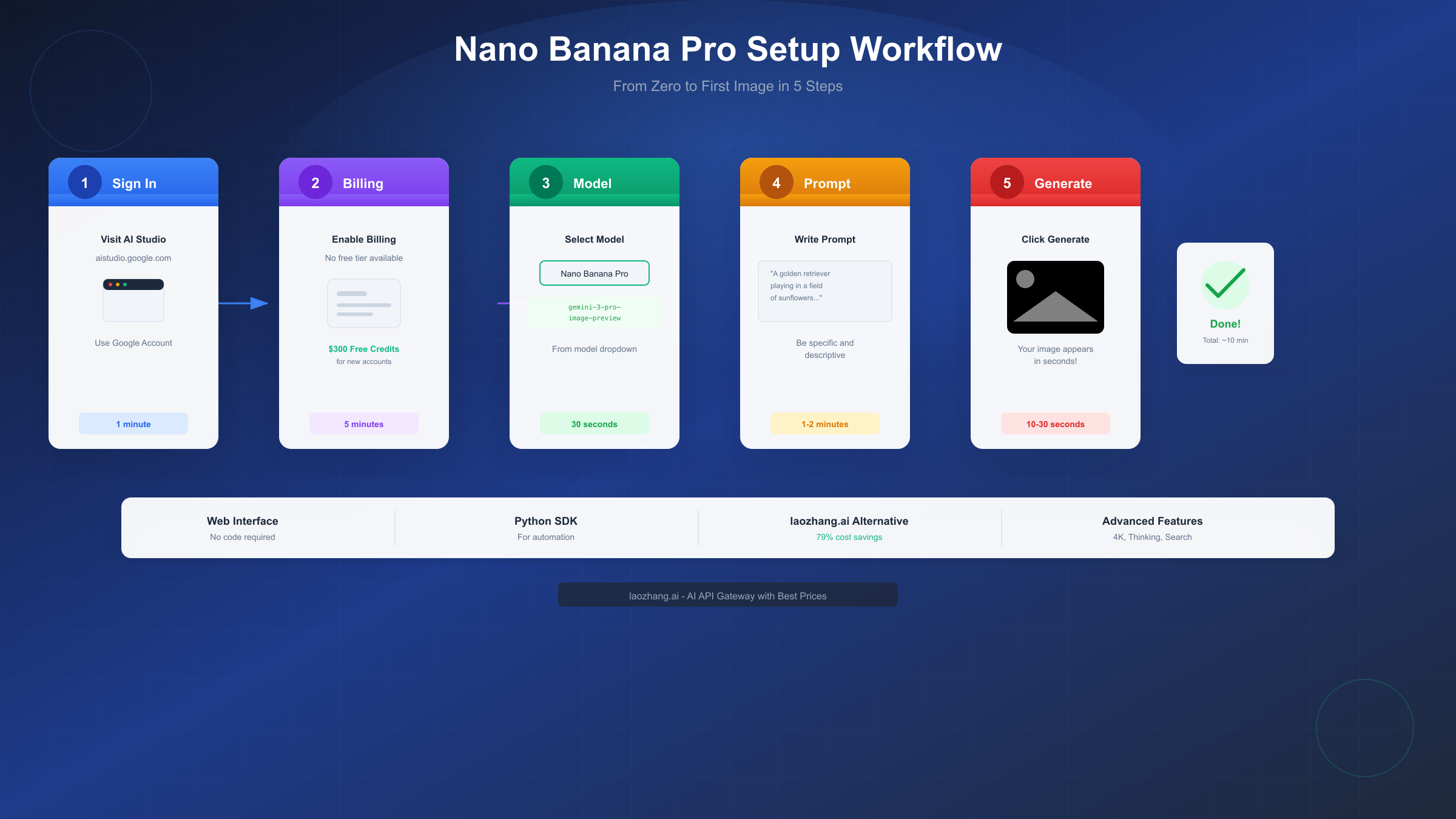
Navigate to aistudio.google.com and sign in with your Google account. If you don't have one, create a free Google account first. Once signed in, Google AI Studio automatically creates a Google Cloud project and generates an initial API key for you.
Step 2: Enable Billing on Your Project
This is the critical step that many users miss. Nano Banana Pro has no free tier, meaning you cannot generate images without an active billing account. Here's how to enable billing:
- In Google AI Studio, click on your project name in the top navigation
- Select "API key management" from the dropdown
- Find your API key and click "Set up billing" next to it
- Follow the prompts to link a payment method to your Google Cloud project
Google Cloud accepts major credit cards and some debit cards. New accounts automatically receive $300 in free credits that last for 90 days, so you won't be charged until those credits are exhausted.
Step 3: Verify Your API Key Works
After enabling billing, verify everything is configured correctly. In the API key management screen, copy your API key using the copy icon. You can test it immediately in AI Studio by selecting Nano Banana Pro from the model dropdown and attempting to generate an image. If billing isn't properly configured, you'll receive a clear error message indicating the issue.
Common Setup Issues
If you encounter a "billing not enabled" error despite completing the setup, try these solutions: First, ensure you're using the correct Google Cloud project—you might have multiple projects. Second, wait 5-10 minutes for billing changes to propagate. Third, try creating a new API key after enabling billing, as older keys sometimes don't pick up billing changes immediately.
Method 1: Using the Web Interface (No Code Required)
The web interface in Google AI Studio provides the fastest path to generating images without writing any code. This approach is ideal for experimentation, prompt testing, and occasional image generation needs.
Accessing the Image Generation Interface
From the Google AI Studio homepage, you have two options for accessing Nano Banana Pro. The first method is clicking "Create images" from the tools menu, then selecting "Thinking" from the model menu to activate Nano Banana Pro. The second method is starting a new chat session and selecting "Nano Banana Pro (Gemini 3 Pro Image)" from the model dropdown at the top of the interface.
Crafting Effective Prompts
The quality of your output depends heavily on how you structure your prompts. Start with a simple formula: "[Action] an image of [subject] [doing something] [in a setting]". For example, "Generate an image of a golden retriever playing fetch in a sunflower field during golden hour."
To get better results, consider these elements in your prompts:
The subject should be specific—instead of "a dog," try "a fluffy golden retriever puppy with bright eyes." The action or pose adds interest—"leaping to catch a frisbee" creates more dynamic imagery than simply "standing." The setting provides context—"in a sunflower field at golden hour" gives the model clear environmental cues. Finally, style modifiers can dramatically change the output—adding "in the style of studio photography" or "watercolor painting style" guides the artistic direction.
Adjusting Generation Settings
Below the prompt input, you'll find several configuration options. The resolution dropdown lets you choose between 1K, 2K, and 4K output. Higher resolutions cost more but provide better detail for printing or large displays. The aspect ratio selector offers common formats like 16:9, 4:3, and 1:1 for different use cases.
For Nano Banana Pro specifically, you can enable "Thinking mode," which causes the model to reason through complex prompts before generating. This typically produces better results for detailed or nuanced requests but takes slightly longer to process.
Downloading and Using Your Images
Once generation completes, your image appears in the chat interface. Hover over the image to reveal download and copy options. All images generated with Nano Banana Pro are watermarked with SynthID, Google's imperceptible digital watermark that identifies AI-generated content. This watermark doesn't affect visual quality but allows detection tools to identify the image as AI-generated.
For iterative refinement, you can continue the conversation by describing modifications. For example, follow up with "Make the background more vibrant" or "Add a second dog in the scene." The model maintains context across turns, allowing for collaborative image development.
Method 2: Using the Python SDK for Developers
For automated workflows, batch processing, or integration into applications, the Python SDK provides programmatic access to Nano Banana Pro. This section walks through complete implementation with proper error handling.
Installing the SDK
Nano Banana Pro requires the Google Gen AI SDK version 1.52.0 or higher, which in turn requires Python 3.11 or later. Install the SDK using pip:
pythonpip install google-genai>=1.52.0
Verify your installation by checking the version:
pythonimport google.genai
print(google.genai.__version__)  # Should be 1.52.0 or higher
Basic Image Generation
Here's a complete example that generates an image and saves it locally:
pythonimport google.genai as genai
from google.genai import types
import base64
import os


client = genai.Client(api_key=os.environ.get("GOOGLE_API_KEY"))

# Generate an image
response = client.models.generate_content(
    model="gemini-3-pro-image-preview",
    contents="A serene Japanese garden with a koi pond, stone lantern, and maple trees in autumn colors",
    config=types.GenerateContentConfig(
        response_modalities=["IMAGE"],
        image_resolution="2k"  # Options: "1k", "2k", "4k"
    )
)

# Extract and save the image
for part in response.candidates[0].content.parts:
    if hasattr(part, 'inline_data') and part.inline_data:
        image_data = base64.b64decode(part.inline_data.data)
        with open("generated_image.png", "wb") as f:
            f.write(image_data)
        print("Image saved as generated_image.png")
Production-Ready Code with Error Handling
For production use, you'll want robust error handling and retry logic:
pythonimport google.genai as genai
from google.genai import types
import base64
import os
import time

def generate_image_with_retry(prompt, resolution="2k", max_retries=3):
    """Generate an image with automatic retry on failure."""
    client = genai.Client(api_key=os.environ.get("GOOGLE_API_KEY"))

    for attempt in range(max_retries):
        try:
            response = client.models.generate_content(
                model="gemini-3-pro-image-preview",
                contents=prompt,
                config=types.GenerateContentConfig(
                    response_modalities=["IMAGE"],
                    image_resolution=resolution
                )
            )

            # Check for valid response
            if response.candidates and response.candidates[0].content.parts:
                for part in response.candidates[0].content.parts:
                    if hasattr(part, 'inline_data') and part.inline_data:
                        return base64.b64decode(part.inline_data.data)

            raise ValueError("No image in response")

        except Exception as e:
            if attempt < max_retries - 1:
                wait_time = 2 ** attempt  # Exponential backoff
                print(f"Attempt {attempt + 1} failed: {e}. Retrying in {wait_time}s...")
                time.sleep(wait_time)
            else:
                raise RuntimeError(f"Failed after {max_retries} attempts: {e}")

    return None

# Usage
try:
    image_bytes = generate_image_with_retry(
        "A futuristic cityscape at sunset with flying vehicles",
        resolution="4k"
    )
    with open("city_4k.png", "wb") as f:
        f.write(image_bytes)
except RuntimeError as e:
    print(f"Image generation failed: {e}")
For more details on Gemini API capabilities and pricing, see our comprehensive Gemini 3.0 API guide.
Alternative: Third-Party API via laozhang.ai (79% Savings)
While Google's official API provides direct access to Nano Banana Pro, third-party providers offer significant cost savings for high-volume users. The laozhang.ai platform provides access to the same Nano Banana Pro model at a fraction of the cost.
Why Consider a Third-Party Provider?
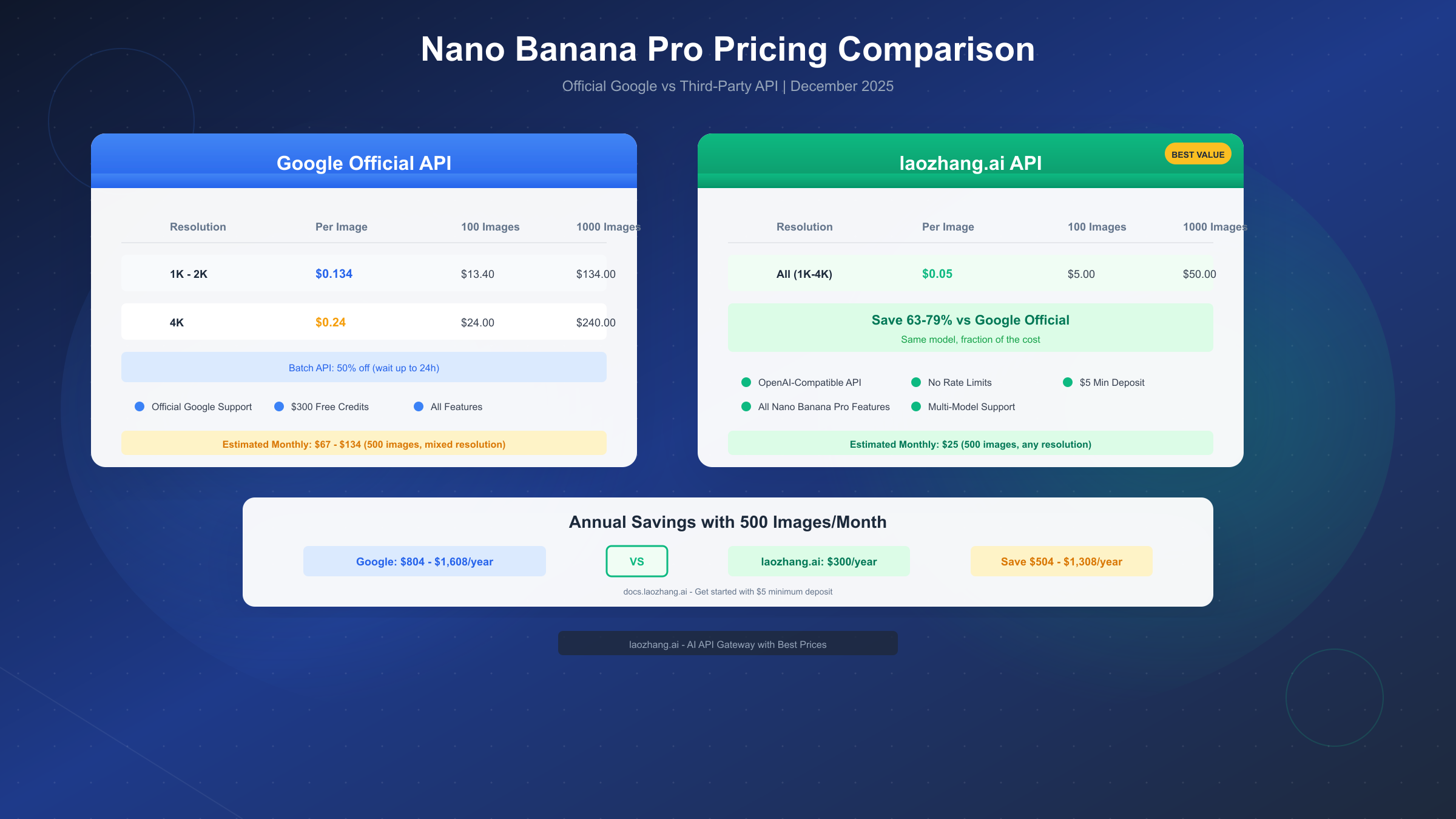
The primary advantage is cost savings. Google charges $0.134 per image at 1K-2K resolution and $0.24 per 4K image. Through laozhang.ai, the same model costs approximately $0.05 per image regardless of resolution—representing 63-79% savings depending on the resolution you need. For teams generating hundreds or thousands of images monthly, this difference adds up to substantial annual savings.
Setting Up laozhang.ai Access
The registration and setup process is straightforward:
- Visit the laozhang.ai platform and create an account
- Add funds to your account (minimum $5 deposit)
- Generate an API key from your dashboard
- Configure your SDK to use the alternative endpoint
SDK Configuration for Third-Party Access
The laozhang.ai API uses OpenAI-compatible endpoints, which means you can use standard OpenAI SDK patterns with a different base URL:
pythonimport openai

client = openai.OpenAI(
    api_key="your-laozhang-api-key",
    base_url="https://api.laozhang.ai/v1"
)

response = client.images.generate(
    model="gemini-3-pro-image-preview",
    prompt="A majestic mountain landscape at sunrise",
    size="2048x2048",
    quality="hd"
)

print(response.data[0].url)
When to Use Official vs Third-Party
Choose the official Google API when you need guaranteed SLA, official support channels, or your organization has compliance requirements for first-party services. Choose third-party providers like laozhang.ai when cost optimization is a priority, you're doing high-volume generation, or you're in development/testing phases where official support isn't critical.
For complete documentation and current pricing, visit docs.laozhang.ai.
Advanced Features: 4K, Thinking Mode, and Search Grounding
Nano Banana Pro offers several advanced capabilities that differentiate it from simpler image generation models. Understanding these features helps you get the most value from your API usage.
4K Resolution Output
The 4K generation mode produces images at 4096×4096 pixels, suitable for print production, large displays, and detailed artwork. To enable 4K output via the SDK:
pythonconfig=types.GenerateContentConfig(
    response_modalities=["IMAGE"],
    image_resolution="4k"  # Premium pricing applies
)
Keep in mind that 4K images cost approximately 79% more than standard resolution ($0.24 vs $0.134). Use 4K selectively for final outputs rather than during iterative prompt development.
Thinking Mode for Complex Prompts
Thinking mode enables the model to reason through complex requests before generating. This produces interim "thought images" that help refine composition before the final output. Thinking mode is particularly valuable for prompts involving multiple subjects with specific spatial relationships, complex lighting scenarios, or detailed style requirements.
In the web interface, select "Thinking" from the model menu to enable this mode. Via the API, thinking mode is enabled by default for Nano Banana Pro and produces more deliberate, higher-quality results.
Search Grounding for Real-Time Data
One of Nano Banana Pro's unique capabilities is connecting to Google Search to verify facts and incorporate real-world information. This enables generating accurate maps, charts with current data, diagrams of real locations, and infographics that get details right.
To leverage search grounding, include queries that reference real-world entities or current information in your prompts. For example, "Create an infographic showing the current weather forecast for Tokyo" will use live data to inform the generation.
Reference Image Mixing
Nano Banana Pro supports uploading up to 14 reference images to guide generation. This allows loading complete style guides—including logos, color palettes, character turnarounds, and product shots—simultaneously. For high-fidelity object reproduction, use up to 6 reference images. For human character consistency across multiple outputs, use up to 5 person images.
Pricing Breakdown and Cost Optimization Strategies
Understanding Nano Banana Pro's pricing structure helps you budget effectively and identify optimization opportunities. For detailed pricing comparisons across all Gemini models, see our Gemini API pricing guide.
Official Google Pricing
| Resolution | Per Image | 100 Images | 1,000 Images | Monthly (500/mo) |
|---|---|---|---|---|
| 1K-2K | $0.134 | $13.40 | $134.00 | $67.00 |
| 4K | $0.24 | $24.00 | $240.00 | $120.00 |
Note that input tokens and text output tokens are charged separately based on standard Gemini 3 Pro rates.
Batch API for 50% Savings
Google offers a Batch API that provides 50% discount in exchange for delayed delivery. Instead of real-time generation, batch requests may take up to 24 hours to complete. This is ideal for background processing, content pipelines, and non-urgent generation needs.
Cost Optimization Strategies
Several approaches can significantly reduce your image generation costs:
First, iterate at lower resolutions. Use 1K resolution during prompt development and only generate final outputs at 2K or 4K. This can cut development costs by 40% or more.
Second, use the Batch API for non-urgent work. If you're building a content library or processing in background pipelines, the 50% batch discount provides meaningful savings.
Third, consider third-party providers for high volume. As discussed earlier, services like laozhang.ai offer the same model at 63-79% lower cost, which translates to substantial savings at scale.
Monthly Cost Scenarios
Here's what to expect at different usage levels:
- Light use (100 images/month): $13-24 official, $5 via laozhang.ai
- Moderate use (500 images/month): $67-120 official, $25 via laozhang.ai
- Heavy use (2,000 images/month): $268-480 official, $100 via laozhang.ai
Troubleshooting Common Issues
Even with proper setup, you may encounter issues during image generation. This section covers the most common problems and their solutions.
"Billing not enabled" Error
This error appears when attempting to use Nano Banana Pro without an active billing account. To resolve:
- Verify billing is enabled on your Google Cloud project
- Ensure you're using the correct project (check the project dropdown in AI Studio)
- Wait 5-10 minutes for billing changes to propagate
- Try creating a new API key after enabling billing
"Rate limit exceeded" Error
You've hit the API's rate limits. Solutions include:
- Implement exponential backoff in your code (wait, then retry)
- Spread requests over time rather than bursting
- Consider upgrading your quota through Google Cloud Console
- Use a third-party provider with higher rate limits
"Content blocked" or Safety Filter Errors
Nano Banana Pro has content safety filters that may block certain prompts. To avoid this:
- Review your prompt for potentially problematic content
- Try rephrasing the request in more neutral terms
- Avoid prompts that could generate harmful, violent, or inappropriate content
- Check Google's content policy for specific guidelines
Image Quality Issues
If generated images don't meet expectations:
- Add more specific details to your prompt (composition, lighting, style)
- Enable thinking mode for complex scenes
- Use reference images to guide style and composition
- Try different resolutions—sometimes higher isn't better for all subjects
SDK Installation Problems
If the SDK won't install or import:
- Verify Python 3.11 or later is installed:
python --version - Update pip:
pip install --upgrade pip - Install in a virtual environment to avoid conflicts
- Check that you have the minimum SDK version:
pip install google-genai>=1.52.0
Summary and Next Steps
You now have a complete understanding of how to use Nano Banana Pro in Google AI Studio. Let's recap the key points and outline your next steps.
Key Takeaways
Nano Banana Pro (Gemini 3 Pro Image) is Google's premium image generation model, accessed through Google AI Studio or the Python SDK. There's no free tier—you must enable billing before generating images, though new accounts receive $300 in free credits. The web interface requires no coding and is perfect for experimentation, while the Python SDK enables automation and integration. Advanced features like 4K output, thinking mode, and search grounding unlock professional-grade capabilities. Cost optimization through batch processing or third-party providers can reduce expenses by 50-79%.
Your Action Checklist
- Sign in to aistudio.google.com with your Google account
- Enable billing on your Google Cloud project
- Generate your first image using the web interface
- Experiment with different prompts and settings
- Explore the Python SDK for programmatic access
- Evaluate third-party options if cost optimization is important
Next Learning Resources
To deepen your knowledge, explore these related guides:
- Advanced prompting techniques for image generation
- Building production applications with the Gemini API
- Optimizing image workflows with batch processing
Whether you're creating concept art, generating product visuals, or building AI-powered applications, Nano Banana Pro provides the quality and control needed for professional results. Start with the web interface to learn prompt crafting, then transition to the SDK as your needs grow more sophisticated.