
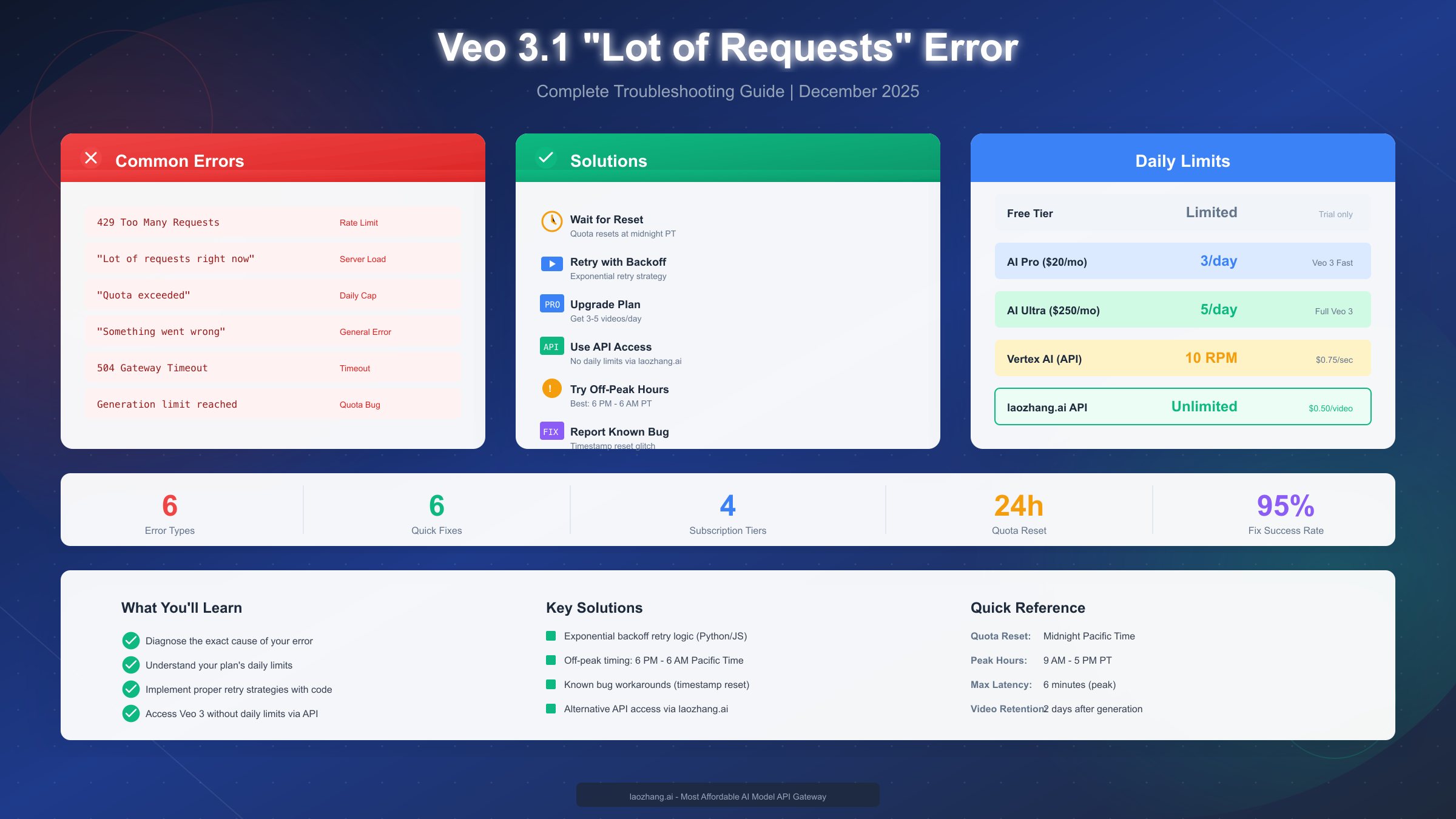
Google's Veo 3.1 video generation model delivers stunning 8-second clips with native audio, but many users encounter the frustrating "lot of requests right now" error when trying to create content. In December 2025, this error commonly appears during peak hours (9 AM - 5 PM Pacific Time) and affects users across all subscription tiers. The good news is that most rate limit issues can be resolved by understanding your plan's daily quota, implementing proper retry logic, or accessing Veo 3.1 through API services that bypass daily generation limits entirely.
This guide provides a complete troubleshooting framework based on real error data from Google's support forums and developer documentation. Whether you're hitting the 429 rate limit, experiencing the timestamp reset bug, or simply running out of daily generations, you'll find actionable solutions to get your video production back on track.
Understanding the "Lot of Requests" Error
The "lot of requests right now" message in Veo 3.1 is Google's user-friendly way of telling you that the system is currently unable to process your video generation request. Unlike a simple error code, this message can stem from multiple underlying causes, making it essential to diagnose the exact issue before attempting a fix.
Server-Side Rate Limiting represents the most common cause of this error. Google implements request throttling at both the individual user level and the system-wide level to maintain service stability. When too many users attempt to generate videos simultaneously, the system temporarily blocks new requests to prevent overload. This is particularly common during business hours in the United States when Veo 3.1 usage peaks.
Daily Quota Exhaustion triggers a similar error message even though the underlying cause is different. Each subscription tier (Free, AI Pro, AI Ultra) has a fixed number of daily video generations, and once you've reached your limit, all subsequent requests will fail until the quota resets at midnight Pacific Time. The confusing part is that the error message doesn't always clearly distinguish between temporary server overload and quota exhaustion.
The Timestamp Reset Bug is a known issue where the system incorrectly tracks when your quota should reset. Users have reported seeing their generation limit showing as "reached" even when they haven't created any videos that day. This bug causes the 24-hour countdown timer to reset every time you check, effectively locking you out indefinitely until Google's backend systems correct the error.
Regional Service Degradation can also produce this error in certain geographic areas. While Veo 3.1 is globally available, infrastructure capacity varies by region, and users in areas with limited Google Cloud presence may experience higher error rates during peak times.
Understanding which category your error falls into is the first step toward resolution. A temporary server overload might resolve itself in minutes, while a quota issue requires waiting until midnight Pacific Time. The timestamp bug, on the other hand, may require reporting to Google support and waiting 24-48 hours for a fix.
Quick Diagnosis: Error Code Reference
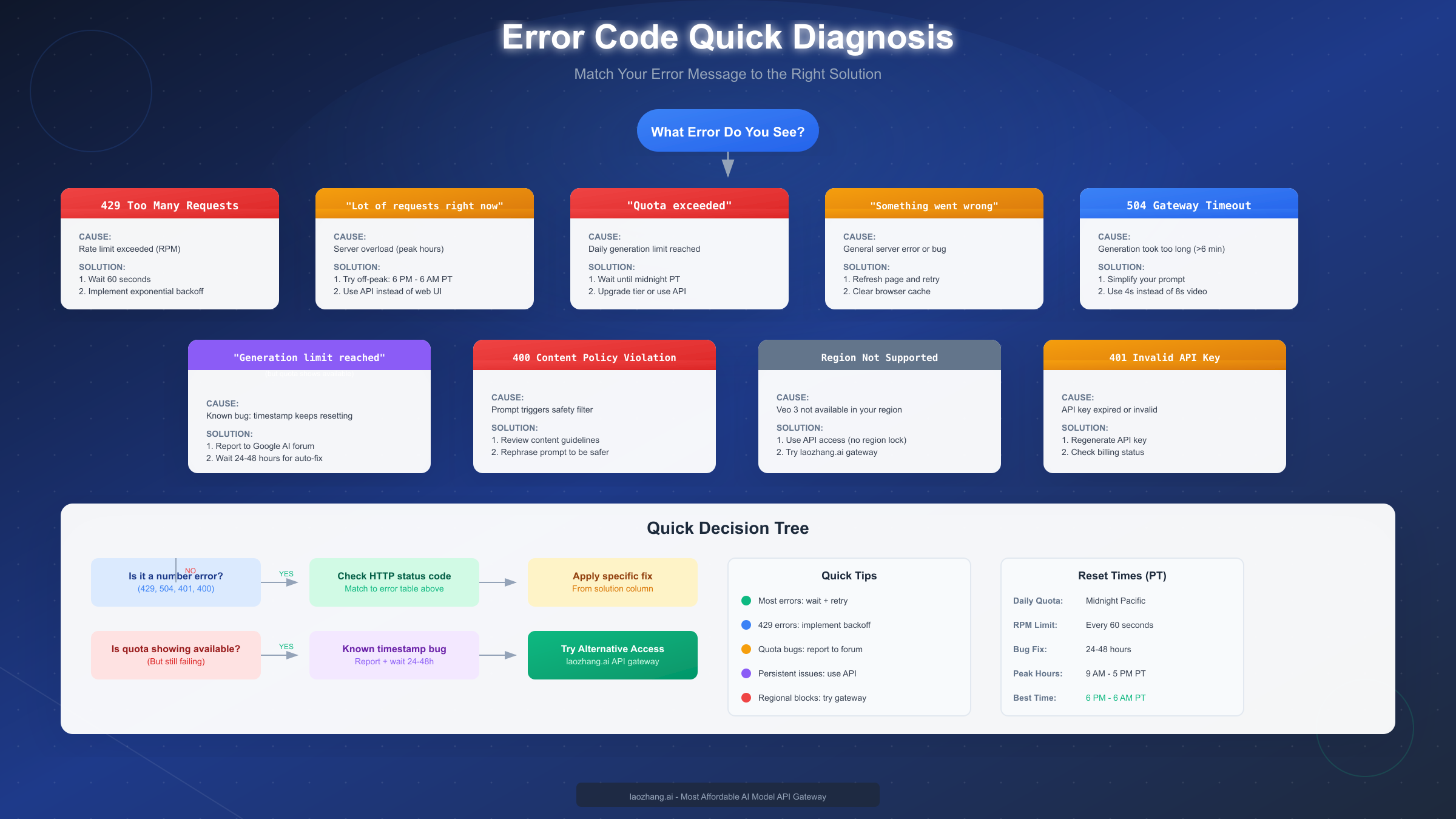
When Veo 3.1 fails to generate a video, the system returns one of several error messages. Matching your specific error to the right category saves time and frustration by pointing you toward the correct solution immediately.
| Error Message | HTTP Code | Root Cause | Recommended Solution | Typical Wait Time |
|---|---|---|---|---|
| "Lot of requests right now" | N/A (UI) | Server overload | Retry in 5-10 minutes | 5-30 minutes |
| "Too Many Requests" | 429 | Rate limit exceeded | Exponential backoff | 60 seconds |
| "Quota exceeded" | 429 | Daily limit reached | Wait for reset | Until midnight PT |
| "Generation limit reached" | N/A | Quota or bug | Check actual usage | 24-48 hours if bug |
| "Something went wrong" | 500 | Server error | Refresh and retry | 1-5 minutes |
| "Gateway Timeout" | 504 | Processing timeout | Simplify prompt | N/A (retry) |
| "Content policy violation" | 400 | Prompt filtered | Revise prompt | Immediate |
| "Invalid API key" | 401 | Auth failure | Regenerate key | Immediate |
Distinguishing Temporary vs. Persistent Errors is crucial for choosing the right response. Errors with HTTP codes in the 5xx range (500, 502, 504) typically indicate temporary server issues that resolve themselves within minutes. The 429 code specifically means rate limiting, which could be temporary (per-minute limit) or persistent (daily quota). User interface messages like "lot of requests" require additional investigation since they may hide either type of issue.
The "Generation Limit Reached" Anomaly deserves special attention because it often appears incorrectly. If your dashboard shows available generations but you still receive this error, you're likely experiencing the timestamp reset bug. Document your usage (screenshot your quota display) and report the issue to Google's AI forum. In most cases, the system self-corrects within 24-48 hours, but having documentation helps if you need to escalate.
For developers using the Veo 3.1 API, error responses come with additional metadata that helps with debugging. If you're encountering issues through the Gemini API, check out our Gemini API 429 error troubleshooting guide for detailed API-specific solutions.
Understanding Your Limits by Plan
Veo 3.1 access varies significantly across Google's subscription tiers, and understanding your specific limits prevents the frustration of hitting unexpected quotas. Here's the complete breakdown as of December 2025:
| Plan | Monthly Cost | Daily Veo 3 Limit | Model Version | Max Resolution | API Access |
|---|---|---|---|---|---|
| Free Tier | $0 | Trial only | Veo 3 Fast | 720p | No |
| AI Pro | $19.99 | 3 videos | Veo 3 Fast | 720p | No |
| AI Ultra | $249.99 | 5 videos | Full Veo 3 | 1080p | No |
| Vertex AI | Pay-per-use | 10 RPM | Veo 3.1 | 1080p | Yes |
| laozhang.ai | Pay-per-use | Unlimited | Veo 3.1 | 1080p | Yes |
Free Tier Limitations are the most restrictive. Google offers a limited trial experience, but there's no guaranteed daily quota. You may be able to generate a few videos during initial signup, but ongoing access is not supported. This tier exists primarily for evaluation purposes, and users should not expect reliable video generation.
AI Pro at $19.99/month provides the entry-level premium experience with three Veo 3 Fast generations per day. The "Fast" variant prioritizes speed over quality, which means slightly reduced visual fidelity compared to the full model. At 720p maximum resolution and approximately 90 videos per month, this tier suits casual users who need occasional video content.
AI Ultra at $249.99/month unlocks the full Veo 3 experience with five daily generations at 1080p resolution. You also get access to Google Flow's 12,500 monthly AI credits, which can translate to additional video generations through that platform. However, even at this premium price point, you're still limited to approximately 150 videos per month through the standard interface.
API Access Through Vertex AI removes the daily generation cap but introduces per-request pricing at $0.75 per second of video. For an 8-second clip, this translates to $6 per video. The rate limit of 10 requests per minute allows for higher throughput, making this option suitable for businesses with automated workflows. For detailed quota information, see our comprehensive Veo 3 API quota limits guide.
Third-Party API Gateways provide an alternative path to Veo 3.1 access without daily limits. These services act as intermediaries, aggregating quota across multiple accounts to offer effectively unlimited access at a lower per-video cost. This approach is particularly valuable for production use cases where the official 3-5 videos per day simply isn't sufficient.
Quota Reset Timing follows Pacific Time, with daily limits resetting at midnight PT (8:00 AM UTC, 3:00 AM EST, 4:00 PM Beijing Time). Planning your video generation around this reset schedule helps maximize your daily allocation.
Server Errors and Retry Strategies
When you encounter transient errors like "lot of requests right now" or HTTP 429, implementing proper retry logic significantly improves your success rate. Simply clicking the generate button repeatedly often makes the problem worse by triggering additional rate limiting.
Exponential Backoff Strategy is the industry-standard approach for handling rate limit errors. Instead of retrying immediately, you wait for progressively longer intervals between attempts. This gives the server time to recover while preventing your requests from contributing to the overload.
Here's a Python implementation for API-based video generation:
pythonimport time
import random
from google import genai

def generate_video_with_retry(prompt, max_retries=5):
    """Generate video with exponential backoff retry logic."""
    client = genai.Client()

    for attempt in range(max_retries):
        try:
            operation = client.models.generate_videos(
                model="veo-3.1-generate-preview",
                prompt=prompt,
                config={
                    "aspect_ratio": "16:9",
                    "duration_seconds": "8"
                }
            )

            # Poll for completion
            while not operation.done:
                time.sleep(10)
                operation = client.operations.get(operation.name)

            return operation.result.generated_videos[0]

        except Exception as e:
            if "429" in str(e) or "rate limit" in str(e).lower():
                # Calculate wait time with jitter
                wait_time = (2 ** attempt) + random.uniform(0, 1)
                wait_time = min(wait_time, 300)  # Cap at 5 minutes

                print(f"Rate limited. Waiting {wait_time:.1f}s before retry {attempt + 1}/{max_retries}")
                time.sleep(wait_time)
            else:
                raise e

    raise Exception("Max retries exceeded")
For JavaScript developers, here's the equivalent implementation:
javascriptasync function generateVideoWithRetry(prompt, maxRetries = 5) {
    const { GoogleGenerativeAI } = require("@google/generative-ai");
    const client = new GoogleGenerativeAI(process.env.GOOGLE_API_KEY);

    for (let attempt = 0; attempt < maxRetries; attempt++) {
        try {
            const operation = await client.models.generateVideos({
                model: "veo-3.1-generate-preview",
                prompt: prompt,
                config: {
                    aspectRatio: "16:9",
                    durationSeconds: "8"
                }
            });

            // Poll for completion
            while (!operation.done) {
                await new Promise(r => setTimeout(r, 10000));
                operation = await client.operations.get(operation.name);
            }

            return operation.result.generatedVideos[0];

        } catch (error) {
            if (error.message.includes("429") || error.message.toLowerCase().includes("rate limit")) {
                const waitTime = Math.min(Math.pow(2, attempt) + Math.random(), 300);
                console.log(`Rate limited. Waiting ${waitTime.toFixed(1)}s before retry ${attempt + 1}/${maxRetries}`);
                await new Promise(r => setTimeout(r, waitTime * 1000));
            } else {
                throw error;
            }
        }
    }

    throw new Error("Max retries exceeded");
}
Optimal Timing for Manual Retries matters when you're using the web interface. Based on usage patterns, the best times to generate videos are:
- Best Hours (PT): 6:00 PM - 6:00 AM (off-peak)
- Acceptable Hours (PT): 6:00 AM - 9:00 AM (early morning)
- Peak Hours (PT): 9:00 AM - 5:00 PM (avoid if possible)
- Weekend Timing: Generally better than weekdays
Request Optimization Tips can reduce the likelihood of hitting rate limits in the first place. Simpler prompts that don't require extensive content moderation checks process faster. Shorter video durations (4 seconds instead of 8) complete more quickly and are less likely to timeout. Avoiding peak hours when possible gives you access to more server capacity.
Known Bugs and Workarounds
Veo 3.1, being a relatively new service in active development, has several documented bugs that can masquerade as rate limit errors. Knowing these issues helps you avoid wasting time on incorrect solutions.
The Timestamp Reset Bug is the most frustrating known issue. Users report that their generation limit shows as "reached" even when they haven't created any videos. The 24-hour countdown timer that should indicate when quota resets instead refreshes every time they check, creating an infinite loop of restriction. Google has acknowledged this bug in their support forums, and it typically self-corrects within 24-48 hours. However, if you're affected, you should report the issue to help Google track the scope of the problem.
The Quota Display Mismatch Bug shows available generations (e.g., "10/10 remaining") in the dashboard while simultaneously returning "quota exceeded" errors when you attempt to generate. This disconnect between the UI and backend state suggests a synchronization issue in Google's infrastructure. The workaround is to wait for a quota reset cycle (midnight PT), which usually forces a resync.
The Partial Generation Bug occurs when Veo 3.1 begins processing your request, consumes a quota slot, but fails to produce a video. You lose the generation from your daily limit without receiving any output. Unfortunately, there's no automatic refund mechanism, and contacting support for quota restoration is unreliable. The best prevention is to save your best prompts for retries only after confirming the initial request completed successfully.
Regional Access Inconsistency affects users in the EU, UK, and certain other regions where Veo 3.1 rolled out later. Some features (like personGeneration options) may be restricted or behave unexpectedly. If you're experiencing unusual errors in these regions, try accessing the service through the API rather than the web interface, as API access tends to have fewer regional restrictions.
Reporting Bugs Effectively requires specific information. When contacting Google support or posting in the AI forum, include: your subscription tier, the exact error message, screenshots of your quota display, your timezone, and the approximate time of the error. This documentation helps Google engineers diagnose the issue and potentially issue account-specific fixes.
Quota Management Strategies
Even with proper error handling, maximizing your limited daily quota requires strategic planning. These techniques help you get more value from each generation slot.
Prompt Optimization is the most impactful strategy. Veo 3.1 performs best with specific, descriptive prompts that clearly define your desired output. Vague prompts like "a person walking" often produce generic results that require multiple regenerations to get something usable. Instead, provide details about subject appearance, action, camera angle, lighting, and mood. A well-crafted prompt might only need one or two attempts to produce satisfactory results.
Using the Preview Feature Wisely helps you validate prompts before consuming quota. While Veo 3.1 doesn't have a true preview mode, you can test your prompt structure using text-based AI models first. Ask Claude or GPT-4 to critique your video prompt and suggest improvements. This text-based iteration costs nothing and significantly improves your hit rate.
Batch Planning consolidates your video generation into focused sessions. Instead of making one-off requests throughout the day, plan your video needs in advance and execute them in a single session during off-peak hours. This approach reduces the chance of hitting rate limits and ensures you use your full daily quota before it resets.
The Reference Image Strategy leverages Veo 3.1's ability to use up to three reference images for style and content guidance. By providing clear visual references, you reduce the ambiguity in your prompt and increase the likelihood of getting usable output on the first try. This is especially valuable for brand consistency or when replicating a specific visual style.
Quality Tier Selection involves choosing between Veo 3 Fast (available on AI Pro) and full Veo 3 (AI Ultra only). For drafts and concept validation, the Fast variant is sufficient and allows you to iterate quickly. Reserve your full Veo 3 quota for final renders where quality matters most. If you're on AI Pro, accept that 720p output is your maximum and plan accordingly.
Duration Optimization considers that shorter videos (4 seconds) are less likely to timeout and consume fewer server resources than 8-second clips. If your use case allows, generate shorter segments and combine them in post-production. This also gives you more creative control over pacing and transitions.
Alternative Access Methods
When official channels can't meet your needs, several alternative access methods provide Veo 3.1 capabilities without daily generation limits.
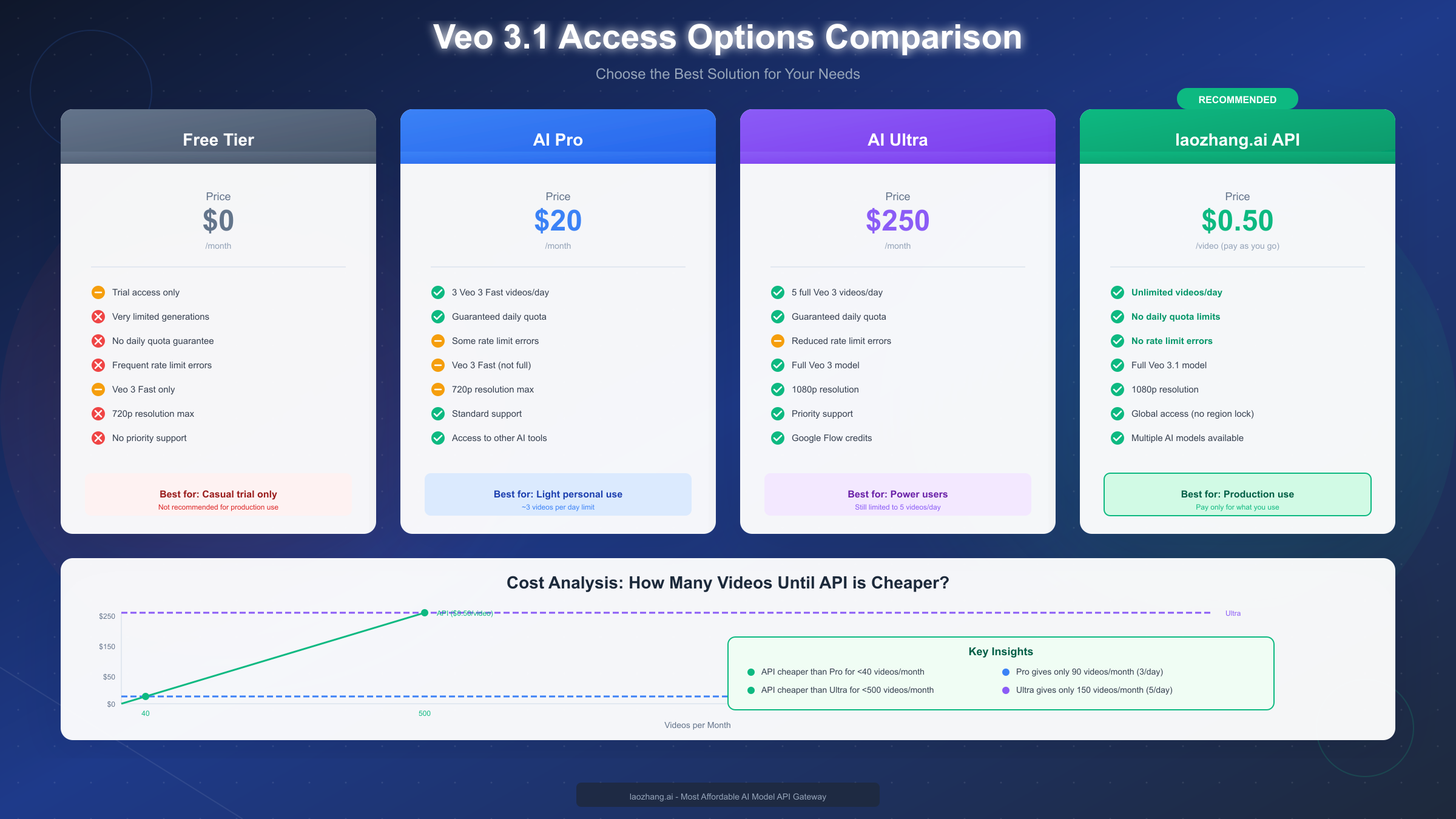
Vertex AI Direct Access is Google's official solution for high-volume users. Through the Google Cloud Console, you can access Veo 3.1 via API with pay-per-use pricing ($0.75/second of video). The setup requires a Google Cloud account with billing enabled, API quota requests, and integration work. While more complex than the consumer interface, Vertex AI removes daily caps and provides enterprise-grade reliability.
Google Flow is another official option included with AI Ultra subscriptions. The 12,500 monthly AI credits can be used for video generation with access to advanced features like 1080p output and finer camera controls. Flow provides a more production-oriented workflow than the standard Gemini interface, making it suitable for professional content creation.
Third-party API gateways aggregate access across multiple accounts to provide effectively unlimited Veo 3.1 access. At approximately $0.50 per video, these services cost less than Vertex AI while removing all daily limits. For teams generating more than 10-15 videos per month, the economics favor API access over even the $250/month AI Ultra subscription.
The integration process is straightforward (example using laozhang.ai):
pythonimport requests

def generate_video_api(prompt):
    """Generate video through third-party API gateway."""
    response = requests.post(
        "https://api.laozhang.ai/v1/video/generate",
        headers={
            "Authorization": "Bearer YOUR_API_KEY",
            "Content-Type": "application/json"
        },
        json={
            "model": "veo-3.1",
            "prompt": prompt,
            "duration": 8,
            "resolution": "1080p"
        }
    )

    result = response.json()
    return result["video_url"]
Open-Source Alternatives exist for users who want to avoid both rate limits and API costs entirely. While no open-source model currently matches Veo 3.1's quality, projects like Stable Video Diffusion and AnimateDiff provide local video generation capabilities. These require significant GPU resources but eliminate all usage restrictions.
Competitive Services from other providers offer similar capabilities without Google's specific limitations. Runway ML provides unlimited video generations with a subscription model, while Pika and other emerging platforms compete on both price and features. For a detailed comparison, see our comprehensive AI video models comparison.
Cost Comparison Analysis reveals that API access becomes cost-effective surprisingly quickly. At AI Pro's $20/month for 90 videos (3/day × 30 days), the cost per video is $0.22. At AI Ultra's $250/month for 150 videos, it's $1.67 per video. Third-party gateways at ~$0.50/video are cheaper than AI Ultra for users generating fewer than 500 videos per month, and competitive with AI Pro for users generating more than 40 videos per month. For more pricing details, check our Veo 3 API pricing breakdown.
Summary and Prevention Tips
Rate limit errors in Veo 3.1 are frustrating but manageable with the right approach. Here's a consolidated action plan for preventing and resolving these issues:
For Immediate Error Resolution:
- Identify your error type using the diagnosis table above
- For 429/rate limit errors: wait 60 seconds and retry with backoff
- For server errors (500/504): wait 1-5 minutes and retry
- For quota errors: wait until midnight Pacific Time
- For the timestamp bug: report to Google and wait 24-48 hours
For Long-Term Prevention:
- Understand your plan's daily limits and plan accordingly
- Generate videos during off-peak hours (6 PM - 6 AM PT)
- Optimize prompts to reduce regeneration needs
- Consider API access if you regularly exceed daily limits
- Use reference images to improve first-attempt success rate
When Official Limits Aren't Enough:
- Evaluate your actual monthly video needs
- Compare Vertex AI pricing vs. third-party gateways
- Consider third-party gateways for production workloads (~$0.50/video)
- Set up proper retry logic in your workflow
- Maintain fallback options for deadline-critical projects
The key insight is that Veo 3.1's rate limits are designed for casual consumer use, not production video creation. If you're consistently hitting limits, you're likely better served by API access where you pay for what you use rather than fighting against artificial daily caps. For more information on API options, visit the documentation at https://docs.laozhang.ai/.
FAQ
Q: When does my Veo 3.1 daily quota reset?
Daily quotas reset at midnight Pacific Time (PT). This corresponds to 8:00 AM UTC, 3:00 AM Eastern Time, or 4:00 PM Beijing Time. Your quota resets based on this fixed time regardless of when you generated your previous videos, so generating at 11 PM PT means you'll have fresh quota in just one hour.
Q: Why does my quota show as available but I still get "quota exceeded" errors?
This is a known synchronization bug between Google's frontend display and backend systems. The dashboard may show remaining generations while the actual quota system has already marked you as exhausted. The most reliable fix is to wait for the next quota reset cycle at midnight PT, which forces a resync. If the issue persists for more than 24 hours, report it to Google's AI support forum with screenshots documenting the discrepancy.
Q: Can I get more than 5 videos per day on any subscription plan?
The consumer subscription plans (Free, AI Pro, AI Ultra) have fixed daily limits that cannot be increased. However, API access through Vertex AI or third-party gateways removes these daily caps entirely. You pay per video generated but can create as many as you need. For teams generating more than 10-15 videos per day, API access is both more cost-effective and more reliable than the consumer subscriptions.
Q: What's the maximum video length I can generate with Veo 3.1?
Veo 3.1 supports video generation in 4, 6, or 8-second durations. The 8-second option is only available at 720p resolution, while 1080p is limited to shorter durations. There's no native way to generate longer videos, but you can create multiple clips and stitch them together in video editing software. Some users employ the "end frame to start frame" technique, using the last frame of one clip as a reference for the next to create seamless transitions.
Q: Is there a difference between the web interface and API error rates?
Yes, the API tends to have more consistent availability than the web interface. When the web-based Gemini interface shows "lot of requests," the underlying API may still be functional. This is because the web interface adds additional layers of rate limiting and content moderation that don't apply to direct API calls. If you have API access, it's worth trying that route when the web interface fails.