
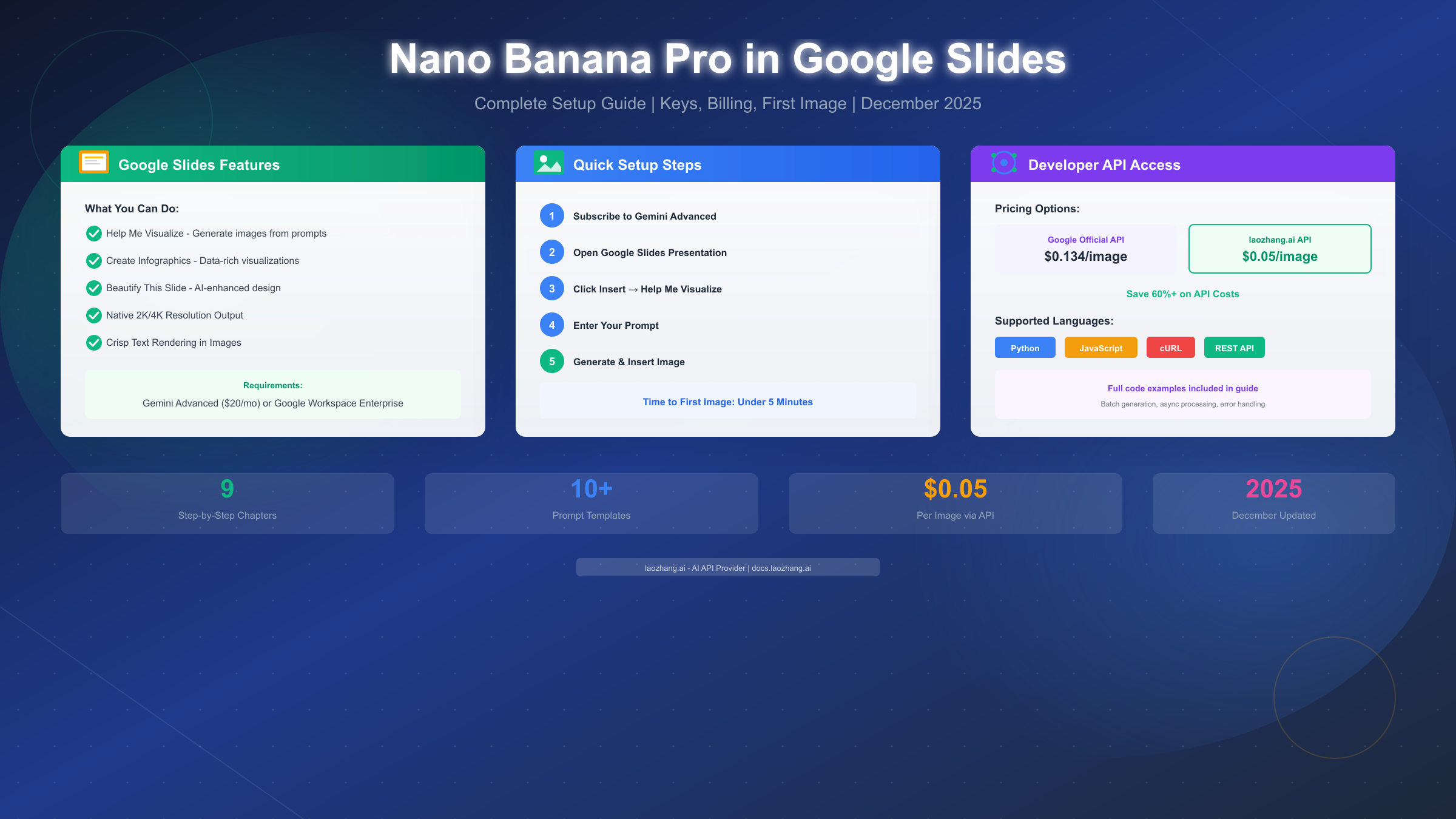
Google has transformed presentation creation with the integration of Nano Banana Pro directly into Google Slides. This powerful AI image generation model, which is actually Gemini 3 Pro Image under the hood, enables users to create stunning visuals, infographics, and slide designs without ever leaving their presentation. In December 2025, this feature became available to Gemini Advanced subscribers and Google Workspace Enterprise users, marking a significant leap forward in AI-assisted content creation.
This comprehensive guide walks you through everything you need to know about using Nano Banana Pro in Google Slides—from initial setup and billing configuration to advanced prompt techniques and cost-effective API alternatives. Whether you're a marketing professional creating client presentations, an educator developing engaging lesson materials, or a developer looking to integrate AI image generation into your workflow, you'll find actionable guidance tailored to your needs.
What is Nano Banana Pro?
Nano Banana Pro represents Google's most advanced text-to-image generation model, developed by Google DeepMind as part of the Gemini 3 family. While the whimsical name might seem unusual for an enterprise product, it reflects Google's internal codename that stuck as the public-facing brand. The model excels at creating photorealistic images, stylized illustrations, data visualizations, and complex infographics—all from natural language descriptions.
The connection to Gemini 3 Pro Image is straightforward: Nano Banana Pro is the consumer-facing name for what developers know as the Gemini 3 Pro Image model. This naming distinction matters because when you access the API directly, you'll reference "gemini-3-pro-image" rather than "nano-banana-pro." The underlying technology is identical, offering the same quality output whether accessed through Google Slides or programmatically.
Within Google Slides specifically, Nano Banana Pro powers three distinct features that work together to transform your presentation workflow:
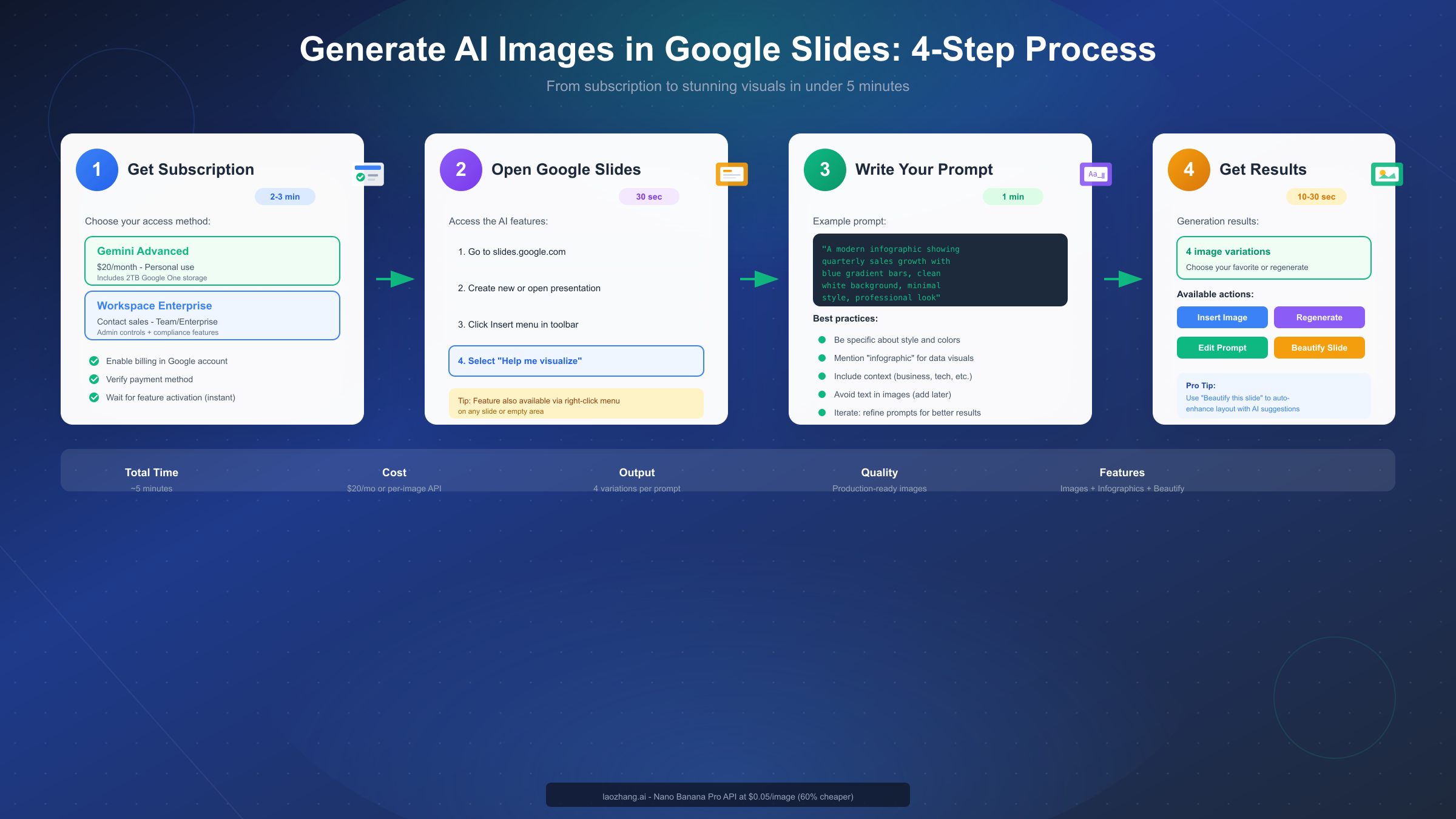
Help me visualize serves as the primary image generation interface. When you select this option from the Insert menu, a panel opens where you can describe the image you want. The model processes your text prompt and generates four variations, typically within 10-30 seconds. You can then choose your preferred option, request regeneration with modifications, or refine your prompt for different results.
Beautify this slide takes a different approach by analyzing your existing slide content and automatically generating design improvements. Rather than creating images from scratch, this feature examines your text, layout, and any existing visuals, then suggests enhanced designs that incorporate AI-generated elements while maintaining your content's integrity.
AI Infographics specifically targets data visualization needs. When you describe data relationships, processes, or comparative information, the model generates structured infographics rather than freeform images. This proves particularly valuable for business presentations where clear data communication matters more than artistic expression.
The technical capabilities of Nano Banana Pro include support for various aspect ratios, style modifiers (photorealistic, illustration, 3D render, etc.), and context-aware generation that considers your existing slide content. The model demonstrates strong performance with professional contexts—corporate imagery, technical diagrams, educational content—while also handling creative requests effectively.
Prerequisites: Accounts and Subscriptions
Before you can access Nano Banana Pro features in Google Slides, you'll need to ensure your account meets the subscription requirements and has proper billing configured. This section covers every step of the setup process, including common pitfalls and their solutions.
Two primary paths exist for accessing Nano Banana Pro in Google Slides:
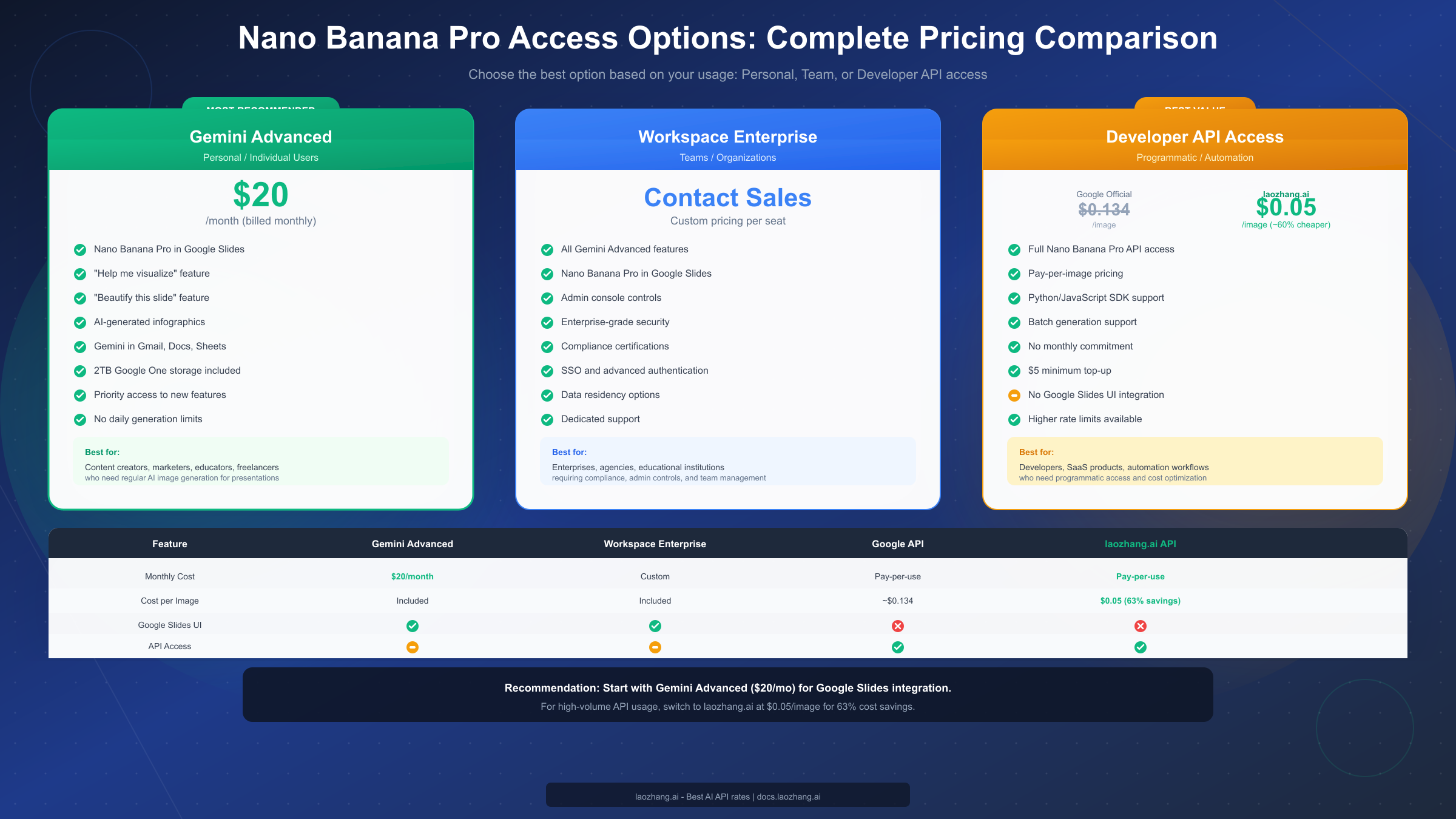
The first option is Gemini Advanced, Google's premium AI subscription priced at $20 per month. This subscription bundles Nano Banana Pro access with Gemini features across all Google Workspace applications (Gmail, Docs, Sheets, and Slides), plus 2TB of Google One storage. For individual users and small teams without existing Workspace contracts, Gemini Advanced represents the most straightforward path to access.
The second option is Google Workspace with Gemini Enterprise add-on. Organizations already using Google Workspace can add Gemini capabilities through their admin console. This approach offers centralized billing, usage analytics, admin controls, and compliance certifications that individual Gemini Advanced subscriptions don't provide. Pricing varies based on organization size and existing Workspace tier.
Setting up Gemini Advanced requires the following steps:
Start by visiting one.google.com/gemini-advanced or navigating to Settings within Google Slides and selecting the Gemini upgrade option. Sign in with the Google account you use for Google Slides—this is important because Gemini features attach to specific accounts rather than browsers or devices.
On the subscription page, you'll see the $20/month pricing with details about included features. Click "Start trial" or "Subscribe" depending on your eligibility for the promotional period. Google periodically offers one-month free trials for new subscribers, though availability varies by region.
The payment setup page requires a valid payment method. Google accepts credit cards, debit cards, and PayPal in most regions. Enter your payment details and confirm your address information. This billing information remains on file for monthly automatic renewal.
After payment confirmation, Google typically activates Gemini features within minutes. However, some users report delays of up to 24 hours for full feature propagation. If you don't see the "Help me visualize" option in Google Slides immediately after subscribing, wait a few hours before troubleshooting.
For Workspace administrators, the process differs significantly. Access the Google Admin console (admin.google.com), navigate to Billing, and locate the Gemini add-on options. Workspace tiers determine which Gemini features become available—Enterprise and Education Plus tiers receive full Nano Banana Pro capabilities, while lower tiers may have limitations.
Common setup issues and their solutions:
If the "Help me visualize" option doesn't appear after subscribing, first verify you're signed into the correct Google account. The subscription attaches to a specific account, and Google Slides uses whichever account is currently active in your browser. Click your profile picture in Google Slides to confirm the account matches your Gemini subscription.
Geographic restrictions occasionally prevent feature access. Nano Banana Pro in Google Slides launched first in the United States, with gradual rollout to other regions. If you're in a region where the feature isn't yet available, using a VPN won't help—Google validates account region based on billing address, not IP location.
Browser extensions and corporate network policies sometimes interfere with Gemini features. Try accessing Google Slides in an incognito window or a different browser without extensions. If that works, systematically disable extensions to identify the culprit.
Generate Images with "Help Me Visualize"
The "Help me visualize" feature represents the core image generation capability of Nano Banana Pro within Google Slides. Understanding how to access and use this feature effectively will dramatically improve your presentation workflow.
Accessing the feature follows two primary paths. The first method uses the Insert menu: with your presentation open, click Insert in the top menu bar, then select "Help me visualize" from the dropdown. This opens the Gemini panel on the right side of your screen.
The second access method works through right-clicking. Select any slide in the left sidebar, right-click, and choose "Help me visualize" from the context menu. Alternatively, right-click on an empty area within a slide to access the same option. This context-menu approach often feels faster for users already working within their slides.
The generation interface presents a text input field where you'll type your image description. Below this field, you'll find example prompts that Google provides as inspiration. The interface also shows your recent prompts, making it easy to iterate on previous attempts.
When you enter a prompt and click "Create," the model processes your request and typically returns four image variations within 10-30 seconds. These variations appear as thumbnails in the panel, with the option to enlarge each one for closer inspection.
Understanding what makes an effective prompt dramatically improves your results. Nano Banana Pro responds well to detailed, specific descriptions that include:
Subject matter defines what your image depicts. Rather than "a chart," specify "a bar chart showing quarterly revenue growth." Instead of "a person," describe "a professional woman in business attire presenting at a conference."
Style indicators tell the model how to render your subject. Include terms like "photorealistic," "minimalist illustration," "3D render," "watercolor style," or "corporate infographic aesthetic." These modifiers significantly influence output style.
Color specifications improve brand consistency. If your presentation uses specific colors, mention them: "blue gradient background matching corporate brand colors" or "green and white color scheme for environmental theme."
Composition details guide image layout. Describe whether you want the subject centered, positioned to one side for text overlay, or arranged with specific proportions. "Product image positioned left with space on right for bullet points" gives the model useful structural guidance.
Context signals help the model understand intended use. Mentioning "for a business presentation," "for an educational slide," or "for a tech startup pitch deck" helps calibrate the style and tone appropriately.
After generation, you have several action options:
"Insert" places your chosen image directly onto the current slide. The image arrives at a default size, which you can then resize and reposition using standard Google Slides controls.
"Regenerate" creates four new variations using the same prompt. This proves useful when the initial results are directionally correct but you want different specific executions.
"Edit prompt" returns focus to the text input with your original prompt preserved, letting you make modifications. This iterative refinement process often produces the best results—few users nail their ideal image on the first attempt.
Practical workflow tips for efficient generation:
Start broad, then refine. Initial prompts can be general to see how the model interprets your request. Based on those results, add specificity in subsequent iterations. This exploratory approach often leads to better outcomes than attempting a perfect prompt immediately.
Save successful prompts for reuse. When you find prompt structures that work well for your use case, document them. The model's behavior remains consistent, so prompts that generate good results will continue to do so.
Generate multiple images in batches. If your presentation needs several images, consider generating them in sequence while the Gemini panel is open. This workflow proves faster than switching between editing and generation modes repeatedly.
Consider aspect ratio needs before generating. If you know your image needs to fill a specific space, mention dimensions in your prompt: "wide landscape format," "square composition," or "tall portrait orientation" guide the model toward appropriate outputs.
Create AI Infographics
Beyond freeform image generation, Nano Banana Pro offers specialized infographic creation capabilities within Google Slides. This feature recognizes when your prompt describes data relationships, processes, or comparative information, and generates structured visualizations rather than artistic images.
Infographics differ from standard image generation in their output structure. When you request an infographic, the model creates images with clear visual hierarchy, data representation elements (charts, diagrams, icons), and built-in text areas. These outputs work particularly well for business presentations where information clarity matters more than artistic expression.
To generate infographics effectively, frame your prompts around data and processes rather than visual subjects. Consider these prompt structures:
For process flows, describe steps in sequence: "A 5-step infographic showing customer onboarding process: sign up, verification, profile setup, first purchase, loyalty enrollment. Clean corporate style with numbered steps and connecting arrows."
For comparison infographics, specify the dimensions being compared: "Side-by-side comparison infographic of basic vs premium subscription tiers. Include feature checkboxes, pricing, and target audience for each tier. Professional blue and green color scheme."
For data visualization, describe the data story: "Infographic showing market growth from 2020 to 2025, emphasizing the 340% increase. Include a trend line, key milestones, and projected future growth. Modern gradient style with data callouts."
For organizational charts, structure relationships clearly: "Team structure infographic with CEO at top, three department heads below, and team members under each. Include photo placeholders and role titles. Minimalist design with subtle hierarchy visualization."
The model handles complexity differently than freeform images. Infographics with too many elements may lose clarity. Aim for focused visualizations that communicate one main concept or data story. If you need comprehensive infographics, consider generating multiple images covering different aspects rather than cramming everything into a single visual.
Text handling in infographics deserves special attention. While Nano Banana Pro can include text elements in generated infographics, the results vary in quality. Text sometimes appears slightly blurred or with minor rendering artifacts. For critical presentations, consider generating the visual structure through AI, then adding text manually in Google Slides for maximum legibility. This hybrid approach combines AI efficiency with precise typography control.
Best practices for infographic generation:
Provide actual numbers when possible. Rather than "show growth," specify "show 47% year-over-year growth." Concrete data helps the model create more accurate and useful visualizations.
Reference familiar infographic styles. Mentioning "in the style of a McKinsey report" or "similar to Harvard Business Review data visualization" gives the model contextual cues about expected sophistication levels.
Request minimal text for AI generation. Infographics with extensive text labels rarely generate perfectly. Instead, request the structural visualization with placeholder spaces, then add your specific text afterward.
Beautify Your Slides with AI
The "Beautify this slide" feature represents a different application of Nano Banana Pro than direct image generation. Rather than creating new images from text prompts, this feature analyzes your existing slide content and generates design improvement suggestions that incorporate AI-generated elements.
Accessing the Beautify feature works through the same Gemini panel used for image generation. With a slide selected, look for the "Beautify this slide" option within the Gemini interface. Alternatively, right-click on a slide and select the beautification option from the context menu.
The feature analyzes several aspects of your existing slide:
Text content and hierarchy determines what information needs emphasis. The AI identifies titles, subtitles, body text, and supporting details, then creates designs that visually reinforce this hierarchy.
Existing images on the slide influence beautification suggestions. The AI considers your current visuals when generating new designs, attempting to maintain thematic consistency while improving overall composition.
Color schemes present in your slide affect output options. Beautify attempts to work within your existing palette rather than introducing entirely new color directions, though you can override this through regeneration.
When you activate Beautify, the feature generates multiple design variations for your current slide. These variations might include:
Layout restructuring that repositions elements for better visual flow. Text might move from bullet points to cards, images might shift from inline to background, or spacing might adjust to create better breathing room.
AI-generated background images or patterns that complement your content. If your slide discusses nature topics, you might see subtle nature-themed backgrounds. Technical content might receive abstract geometric patterns.
Icon and accent element additions that break up text-heavy slides. The AI generates small visual elements—icons, dividers, decorative shapes—that add visual interest without overwhelming your content.
Typography and emphasis changes that improve readability. The AI might suggest larger titles, different text arrangements, or highlighted key phrases.
Understanding when Beautify works best helps set appropriate expectations. The feature excels with:
Text-heavy slides that need visual interest. A slide full of bullet points transforms significantly more than an already-designed slide with balanced text and imagery.
Slides with clear content hierarchy. When your slide has obvious titles, subtitles, and supporting points, the AI structures its beautification around these elements effectively.
Content that benefits from thematic imagery. Topics like travel, technology, nature, or business often pair well with AI-generated background elements.
Beautify has limitations in certain scenarios:
Highly designed slides may not improve significantly. If you've already invested effort in design, Beautify suggestions might feel like lateral moves rather than improvements.
Brand-specific requirements may not be met. Beautify doesn't know your corporate brand guidelines, so generated designs might conflict with required colors, fonts, or style specifications.
Data-dense slides require careful application. Tables, complex charts, and detailed diagrams may not beautify well—the AI sometimes over-decorates in ways that reduce data clarity.
Workflow recommendations for Beautify:
Apply Beautify early in your presentation process, before detailed formatting. Starting with AI suggestions, then refining manually, proves more efficient than trying to integrate AI designs into already-completed slides.
Use Beautify selectively across your presentation. Not every slide needs beautification—apply it to key message slides, section dividers, or text-heavy pages while leaving data slides and branded templates unchanged.
Regenerate multiple times before deciding. The variations Beautify offers differ significantly, so clicking regenerate a few times ensures you've seen a representative range of possibilities.
API Access for Developers
While the Google Slides integration serves presentation creators effectively, developers building applications need direct API access to Nano Banana Pro. This section covers both official Google API access and cost-effective alternatives.
Google AI Studio provides the official API pathway. Navigate to aistudio.google.com to access the development environment. After signing in with your Google account, you'll find API key management, documentation, and interactive testing tools.
Creating an API key requires a Google Cloud project with billing enabled. In AI Studio, click "Get API key" and follow the project creation prompts if needed. Once generated, your API key enables programmatic access to Gemini models, including Nano Banana Pro image generation.
Basic Python implementation demonstrates API usage:
pythonimport google.generativeai as genai
from PIL import Image
import io


genai.configure(api_key="YOUR_API_KEY")

# Initialize the image generation model
model = genai.GenerativeModel('gemini-3-pro-image')

# Generate an image from text prompt
response = model.generate_content(
    "A modern infographic showing quarterly sales growth, "
    "blue gradient bars, clean white background, professional style"
)

# Process the response
if response.images:
    image_data = response.images[0]
    image = Image.open(io.BytesIO(image_data))
    image.save("generated_infographic.png")
    print("Image saved successfully")
JavaScript/Node.js implementation follows similar patterns:
javascriptconst { GoogleGenerativeAI } = require("@google/generative-ai");
const fs = require("fs");

const genAI = new GoogleGenerativeAI("YOUR_API_KEY");

async function generateImage(prompt) {
  const model = genAI.getGenerativeModel({ model: "gemini-3-pro-image" });

  const result = await model.generateContent(prompt);
  const response = await result.response;

  if (response.images && response.images.length > 0) {
    const imageBuffer = Buffer.from(response.images[0], 'base64');
    fs.writeFileSync('generated_image.png', imageBuffer);
    console.log('Image saved successfully');
  }
}

generateImage("Professional business team in modern office, photorealistic");
For developers seeking comprehensive API documentation, the Gemini 3 Pro Image API guide provides detailed coverage of all endpoints, parameters, and advanced usage patterns.
Cost optimization through third-party providers deserves consideration for high-volume usage. Google's official API pricing for image generation runs approximately $0.134 per image, which adds up quickly for production applications generating hundreds or thousands of images.
Third-party API providers like laozhang.ai offer the same Nano Banana Pro model at $0.05 per image—roughly 63% cheaper than official pricing. This pricing model works particularly well for:
- Production applications with predictable high volume
- Development and testing environments where iteration is frequent
- Cost-sensitive projects with tight budget constraints
- Batch processing workflows generating images in bulk
The laozhang.ai API maintains compatibility with Google's interface, requiring minimal code changes to switch providers. Simply update the base URL and API key while keeping your existing prompt logic intact. Full documentation is available at docs.laozhang.ai.
Rate limiting and quota management affect both official and third-party access. Google's quotas vary by account type and billing tier—free tier accounts face strict limits, while paid accounts receive higher quotas. For production deployments, request quota increases through Google Cloud Console or use providers offering higher rate limits.
Pricing and Cost Calculator
Understanding the full cost picture for Nano Banana Pro access requires examining all available options—subscription plans, API pricing, and their trade-offs. This section breaks down every pricing tier to help you make informed decisions.
Gemini Advanced at $20/month remains the most straightforward option for presentation creators. This subscription provides:
- Unlimited image generation in Google Slides
- Gemini features across Gmail, Docs, and Sheets
- 2TB Google One storage
- Priority access to new features
- Support through Google One channels
The per-image cost under this plan depends entirely on your usage volume. Someone generating 50 images monthly pays effectively $0.40 per image, while heavy users generating 500 images monthly pay just $0.04 per image. The unlimited nature rewards high-volume users.
For detailed information about free tier limits and how they compare, see the Nano Banana Pro daily limits guide.
Google Workspace Enterprise pricing varies by organization and existing contract terms. Typical ranges fall between $25-35 per user monthly, though volume discounts apply for larger deployments. This option makes sense when:
- Your organization already uses Google Workspace
- You need admin controls and usage analytics
- Compliance certifications are required
- Centralized billing simplifies accounting
API pricing follows per-image models:
| Provider | Price per Image | Monthly Cost (100 images) | Monthly Cost (1000 images) |
|---|---|---|---|
| Google Official | ~$0.134 | $13.40 | $134.00 |
| laozhang.ai | $0.05 | $5.00 | $50.00 |
| Savings | 63% | $8.40 | $84.00 |
For comprehensive pricing information across all Gemini models, the complete Gemini API pricing breakdown provides detailed tier comparisons.
Cost calculation scenarios help contextualize these numbers:
Scenario 1: Individual Content Creator Monthly needs: 30-50 presentation images Recommendation: Gemini Advanced ($20/month) Effective per-image cost: $0.40-0.67 Alternative consideration: API at $0.05/image costs $1.50-2.50, but loses Slides integration
Scenario 2: Marketing Agency Monthly needs: 500+ images across multiple clients Recommendation: API access through laozhang.ai Monthly cost: ~$25 (500 images) Savings vs Gemini Advanced: Access for entire team vs per-seat subscription Trade-off: No direct Slides integration, requires separate workflow
Scenario 3: Enterprise Deployment Monthly needs: Team of 50 with moderate usage each Recommendation: Workspace Enterprise with Gemini add-on Monthly cost: Negotiated rate, typically $30-35/user Benefits: Admin controls, compliance, SSO, centralized management
Hidden costs to consider:
API usage beyond quotas incurs overage charges. Monitor your consumption through provider dashboards to avoid unexpected bills.
Time investment in workflow setup adds implicit costs. The Slides integration saves time compared to API-based workflows, which might offset higher per-image costs for lower-volume users.
Storage for generated images accumulates. Google Drive storage within Slides is included, but API-generated images require separate storage solutions.
10 Best Prompts for Stunning Visuals
Effective prompts dramatically improve Nano Banana Pro output quality. These ten tested prompts cover common presentation needs, with explanations of why each works and how to adapt them for your specific use cases.
Prompt 1: Professional Product Mockup
Product photo of [your product] on a minimalist white desk,
soft natural lighting from left side, subtle shadow,
high-end commercial photography style, 8K detail
This prompt works because it specifies lighting direction, background simplicity, and quality expectations. Adapt by replacing the product description and adjusting lighting direction for your composition needs.
Prompt 2: Corporate Team Meeting
Diverse professional team collaborating in modern glass office,
natural daylight, business casual attire, engaged expressions,
photorealistic editorial photography, shallow depth of field
The diversity specification, clothing detail, and photography style terms combine to produce corporate-appropriate imagery. Modify team size, office style, or activity for variations.
Prompt 3: Data Visualization Infographic
Clean infographic showing [your metric] growth from [start] to [end],
ascending bar chart with gradient fill, key data points highlighted,
corporate blue and white color scheme, minimal text placeholders,
professional business report style
Explicit data direction (growth), visualization type (bar chart), and style references produce usable infographics. Replace metrics and adjust colors to match your brand.
Prompt 4: Tech Product Screenshot Enhancement
Modern laptop displaying [your interface/dashboard],
floating on clean gradient background, subtle reflection,
tech product marketing style, premium presentation aesthetic
The floating effect with reflection creates polished product shots. Adapt by changing the device type or interface description.
Prompt 5: Abstract Concept Visualization
Abstract visualization representing [concept: innovation/growth/connection],
flowing geometric shapes, gradient from [color1] to [color2],
modern corporate aesthetic, suitable for presentation background,
subtle and professional, no text
Abstract prompts benefit from explicit style guidance. The "no text" instruction prevents unwanted generated text.
Prompt 6: Educational Diagram
Educational diagram showing [process/concept],
clear step-by-step layout with numbered stages,
icons representing each step, connecting arrows,
clean whiteboard aesthetic, professional educational style
Educational content needs clarity above artistry. The whiteboard aesthetic signals simplified, explanatory style.
Prompt 7: Location/Setting Image
[City/location] skyline during golden hour,
modern architecture prominent, clear sky,
professional travel photography style,
vibrant but natural colors
Location images benefit from time-of-day specification and architectural focus. Adjust the city name and time of day for variations.
Prompt 8: Icon Set Generation
Set of 6 minimal line icons representing [category],
consistent stroke weight, rounded corners,
monochromatic [color] on white background,
modern UI design style, cohesive visual family
Icon generation requires consistency emphasis. The "visual family" instruction helps maintain stylistic unity across the set.
Prompt 9: Quote or Testimonial Background
Elegant abstract background for quote overlay,
soft gradient from [color1] to [color2],
subtle geometric patterns, calming professional aesthetic,
ample negative space in center for text placement
Background images for text need explicit negative space instructions. The center specification guides composition.
Prompt 10: Before/After Comparison
Split-screen comparison image showing transformation,
left side: [before state], right side: [after state],
clear visual division, matching lighting and angle,
professional demonstration style
Comparison images need explicit split-screen instruction and matching conditions specification.
Prompt refinement strategies:
When initial results disappoint, first identify what's wrong—composition, style, content, or quality—then target that specific aspect in your refinement. Adding "NOT [unwanted element]" sometimes helps exclude problematic tendencies.
Combine successful prompt elements from different generations. If one prompt produced good lighting but poor composition, and another had great composition but flat lighting, merge the relevant instructions.
Build a personal prompt library organized by use case. Document what works for your specific needs, including both the prompt text and example outputs.
FAQ and Troubleshooting
This section addresses common questions and issues users encounter with Nano Banana Pro in Google Slides, providing practical solutions based on reported problems and their resolutions.
Why don't I see "Help me visualize" in my Insert menu?
This typically indicates an account or subscription issue. First, verify you're signed into a Google account with an active Gemini Advanced subscription or Workspace with Gemini Enterprise. Click your profile picture in Slides to confirm. If the subscription is active but the feature doesn't appear, try these steps in order: clear browser cache, try an incognito window, try a different browser, wait 24 hours for full feature propagation after new subscriptions.
Can I use Nano Banana Pro images commercially?
Yes, images generated through Gemini Advanced or Workspace Enterprise subscriptions are licensed for commercial use in your presentations, marketing materials, and business documents. However, review Google's current terms of service for any specific restrictions—policies occasionally update. API-generated images through official or third-party providers follow similar licensing, though individual provider terms may add conditions.
Why do my generated images have blurry text?
AI image generation models handle text imperfectly, especially smaller text or complex fonts. For crisp text, generate images without text elements, then add text manually in Google Slides. This hybrid approach ensures legibility while leveraging AI for visual design.
How many images can I generate per day?
Gemini Advanced subscribers have no stated daily limit for Google Slides generation, though extremely high-volume usage might trigger temporary slowdowns. API access follows explicit quota limits that vary by tier—check your Google Cloud Console or provider dashboard for current allocations. The free tier limits guide details specific restrictions for non-paying users.
Can I download generated images for use elsewhere?
Yes. In Google Slides, right-click any inserted AI image and select "Save to Keep" or use the download options. Alternatively, copy the image and paste into other applications. API-generated images save directly to your specified location in code.
What's the cheapest way to access Nano Banana Pro?
For Google Slides integration specifically, Gemini Advanced at $20/month is the only option. For programmatic access without Slides integration, the free Gemini Flash Image API offers limited free-tier access, while laozhang.ai provides full Nano Banana Pro access at $0.05/image—the most cost-effective option for high-volume needs.
Why do my prompts sometimes produce unexpected results?
AI interpretation varies, especially with ambiguous or overly brief prompts. Address this by being more specific: add style references, describe composition explicitly, mention what you don't want, and iterate through regeneration. The model improves with detailed guidance.
Can I integrate Nano Banana Pro with Google Sheets or Docs?
The "Help me visualize" feature currently appears only in Google Slides. However, Gemini features in Sheets and Docs offer other AI capabilities. For image generation in other contexts, use the API directly and insert images manually.
Is there an offline mode or desktop application?
No, Nano Banana Pro requires internet connectivity and runs entirely through Google's cloud infrastructure. Offline presentation editing in Slides remains possible, but image generation requires an active connection.
How do I report issues or provide feedback?
Within Google Slides, use the Help menu to access feedback options. For API issues, Google Cloud Console provides support ticket submission. For third-party providers like laozhang.ai, contact their support channels directly.
Summary of key takeaways:
Nano Banana Pro brings production-quality AI image generation directly into Google Slides, transforming how professionals create visual presentations. Whether you choose the $20/month Gemini Advanced subscription for seamless Slides integration or leverage API access at $0.05/image through laozhang.ai for cost-effective high-volume generation, the technology delivers consistent, professional results.
The most successful users combine clear prompt writing skills, understanding of feature capabilities, and appropriate tool selection for their specific needs. Start with the basics covered in this guide, experiment with the prompt examples provided, and iterate based on your results. The model rewards specificity and responds well to iterative refinement—your first attempt rarely needs to be your final output.
For ongoing updates, bookmark the official Google Workspace blog and monitor Gemini feature announcements. The technology continues evolving, with new capabilities and refinements appearing regularly. What seems impressive today will likely be surpassed by tomorrow's updates—staying current ensures you're always leveraging the full potential of AI-assisted presentation creation.