
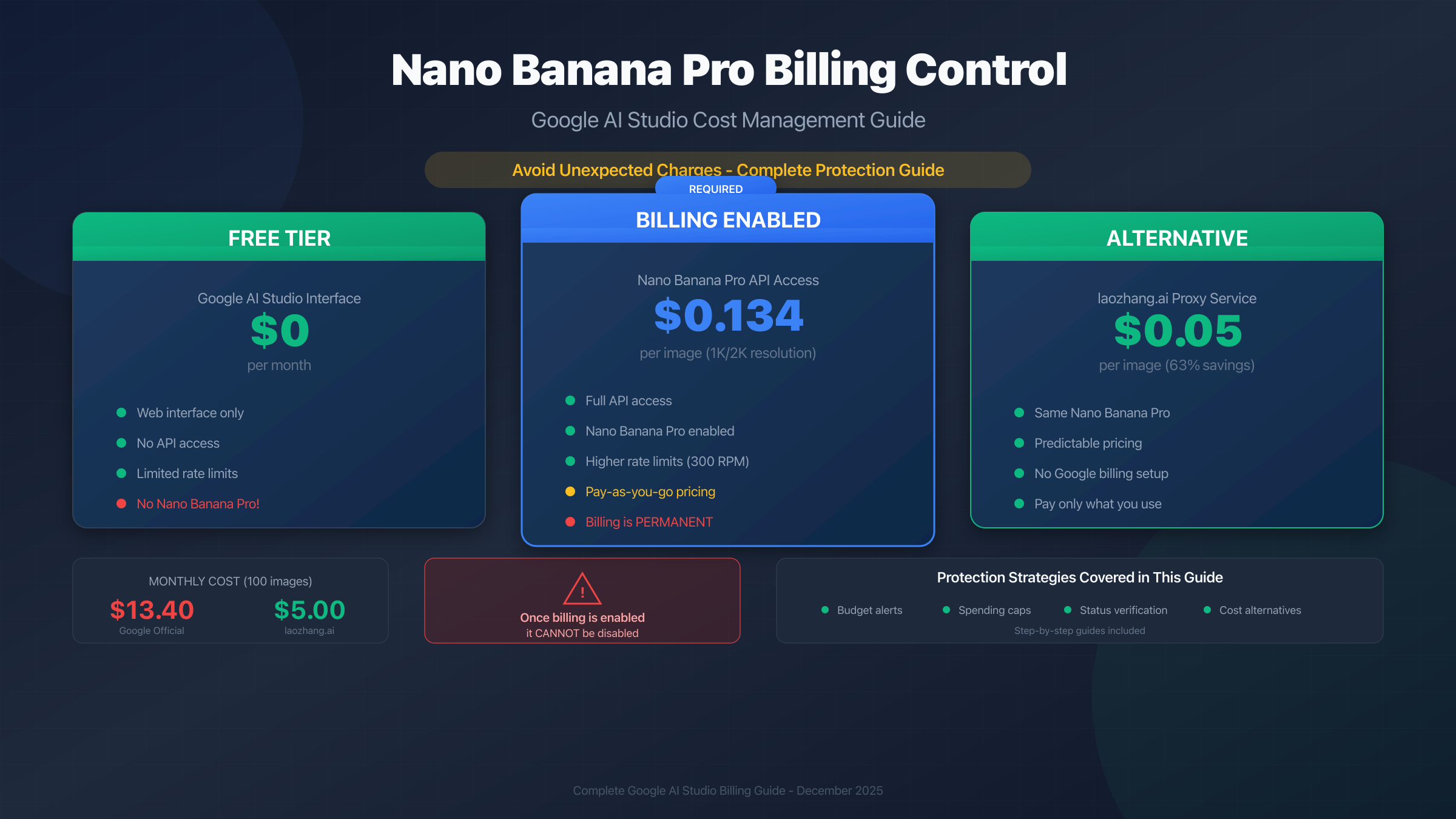
If you're worried about unexpected charges when using Nano Banana Pro in Google AI Studio, you're asking exactly the right question. The billing structure for Google's image generation models catches many users off guard—and once billing is enabled, it cannot be disabled. This comprehensive guide will help you understand the costs, verify your billing status, set up protective measures, and discover a significantly cheaper alternative that could save you 63% on every image.
The internet is filled with stories of developers and content creators who woke up to $500+ charges overnight because of a bug in their code, a leaked API key, or simply not understanding how Google's billing system works. According to community reports, these surprise billing incidents have become increasingly common as more users adopt AI image generation for their projects. The good news is that with proper preparation, these situations are entirely preventable.
This guide consolidates everything you need to know about Nano Banana Pro billing into one actionable resource. Whether you're a beginner exploring image generation for the first time, a developer integrating AI images into your application, or a content creator looking to scale your workflow, you'll find specific guidance for your situation. We'll cover the exact steps to verify your billing status, the complete cost breakdown including hidden fees, how to set up protective budget alerts, and a detailed comparison of alternatives that could dramatically reduce your costs.
Quick Answer: Is Nano Banana Pro Free in Google AI Studio?
The short answer is no—Nano Banana Pro requires billing to be enabled. Unlike some Google AI models that offer a free tier, Nano Banana Pro (gemini-3-pro-image-preview) has no free usage allocation. Every API call costs money from the very first image.
Here's what you need to know immediately:
| Aspect | Reality |
|---|---|
| Free tier availability | Not available for Nano Banana Pro |
| Cost per image | $0.134 (1K/2K resolution) |
| High-resolution cost | $0.24 (4K resolution) |
| Billing requirement | Mandatory for any API usage |
| Free alternative | Web interface only (no API) |
The confusion stems from Google AI Studio's free web interface. While you can experiment with image generation through the browser-based interface without charges, the moment you try to use the API programmatically—which is what most developers and content creators need—you must have an active billing account.
This distinction is critical to understand. Many users assume that because they can generate images in the web interface without seeing any charges, the API must also be free or have a generous free tier. Unfortunately, Google's documentation buries this information across multiple pages, leaving users to discover the hard way that their experimental code is racking up real charges.
Critical Warning: Once you enable billing on your Google Cloud project, you cannot revert to a free tier. The free tier restrictions are removed entirely, meaning you'll be charged for all API usage going forward. This is a one-way door that many users walk through without understanding the consequences.
The permanence of billing activation is one of the most frequently misunderstood aspects of Google Cloud. Unlike subscription services where you can cancel and return to a free plan, Google Cloud's billing system fundamentally changes your project's classification. This design exists to prevent abuse—users could theoretically cycle between free and paid tiers to maximize free usage—but it creates a significant decision point that deserves careful consideration.
If you're looking for a cost-effective way to access Nano Banana Pro's capabilities, services like laozhang.ai offer the same model at $0.05 per image—a 63% reduction from Google's official pricing—without requiring Google Cloud billing setup. This alternative is worth exploring before committing to Google's billing system, especially if cost control is a priority for your project.
Understanding Google AI Studio Billing Structure
Google AI Studio's billing system operates on a tiered structure that's significantly different from traditional subscription models. Understanding this structure before enabling billing is crucial for avoiding unexpected costs.
The billing system is designed primarily for enterprise users who need predictable, scalable access to AI capabilities. For individual developers and small teams, however, the complexity can be overwhelming. Google Cloud's billing operates through a hierarchy of organizations, billing accounts, and projects, each with its own configuration options and spending controls.
Free Tier vs. Pay-As-You-Go
Google AI Studio offers two distinct usage modes, and the transition between them is permanent:
| Feature | Free Tier | Pay-As-You-Go (Billing Enabled) |
|---|---|---|
| Web interface access | Full access | Full access |
| API access | Limited (text models only) | Full access |
| Nano Banana Pro API | Not available | Available at $0.134/image |
| Rate limits | 5-10 RPM | 300 RPM |
| Daily request limits | 50-100 RPD | Significantly higher |
| Reversion option | N/A | Cannot revert to free |
| Support level | Community only | Paid support available |
| SLA | None | Available with paid plans |
The free tier is designed primarily for exploration and learning. It provides access to the web interface for all models, including image generation, but restricts API access to basic text models with low rate limits. This design encourages users to experiment with AI capabilities before committing to paid usage, but the restrictions on image generation API access mean that any serious development work requires billing.
One important distinction that confuses many users: the web interface and API are treated as entirely separate products from a billing perspective. Using the web interface—even for Nano Banana Pro image generation—doesn't contribute to your API usage or require billing. However, the moment you make a programmatic API call, billing rules apply.
Why Billing Activation Is Permanent
When you enable billing, Google removes all free tier restrictions from your project. This isn't a toggle you can switch back—it's a fundamental change to how your project is classified. Google designed this system to prevent abuse of free tier limits by cycling through billing states.
What this means for you:
- Before enabling billing: You have unlimited time to experiment with the web interface. Use this time to refine your prompts, understand the model's capabilities, and estimate your usage patterns.
- After enabling billing: Every API call incurs costs, starting from $0.00013 for basic text calls. Even simple test scripts can accumulate charges if run repeatedly.
- No hybrid option: You cannot get free tier limits plus pay for overages. Once billing is enabled, you're in the pay-as-you-go system entirely.
The technical reason for this permanence relates to how Google Cloud manages quotas and resource allocation. Free tier users share capacity from a limited pool, while paid users get dedicated allocations. Moving a project between these pools would require rebuilding its resource allocations, which Google has chosen not to support.
For more details on Gemini API pricing across all models, see our comprehensive Gemini API pricing guide.
Common Billing Misconceptions
Many users make costly assumptions about Google AI Studio billing. Understanding these misconceptions can prevent expensive mistakes:
-
"My Gemini Advanced subscription includes API access" — False. Gemini Advanced ($19.99/month) is a consumer subscription that provides enhanced web access, increased context windows, and priority access to new features. API access requires completely separate billing through Google Cloud. These are two independent products that happen to share the Gemini branding.
-
"I can set a spending limit that stops all charges" — Partially true. You can set budget alerts, but Google doesn't offer hard spending caps for most services. Budget alerts notify you via email, SMS, or webhook when you hit specified thresholds, but they don't automatically stop usage. Your code will continue running and incurring charges unless you implement your own stopping mechanism.
-
"Failed requests don't cost anything" — True. Requests that return 400 (client error) or 500 (server error) status codes are not billed. This includes rate limit errors (429 status). However, successful requests that generate content you don't use are still charged. The billing trigger is successful content generation, not content utilization.
-
"The web interface uses my API quota" — False. Web interface usage is separate from API usage and doesn't consume your API quota or incur API charges. You can use the web interface extensively without affecting your API billing, and vice versa.
-
"I can delete my project to stop charges" — Partially true. Deleting a project stops future charges, but any existing charges remain on your billing account. You also lose access to all resources in that project, including any generated content, API keys, and configurations.
-
"Testing locally doesn't incur charges" — False if you're making real API calls. The location of your code doesn't matter—if it makes API calls to Google's servers, those calls are billed. Using environment-specific API keys and mock APIs for testing can prevent accidental charges during development.
How to Check Your Current Billing Status
Before making any decisions about enabling billing, you need to verify your current project status. Follow these steps to determine whether billing is already active on your Google Cloud project.
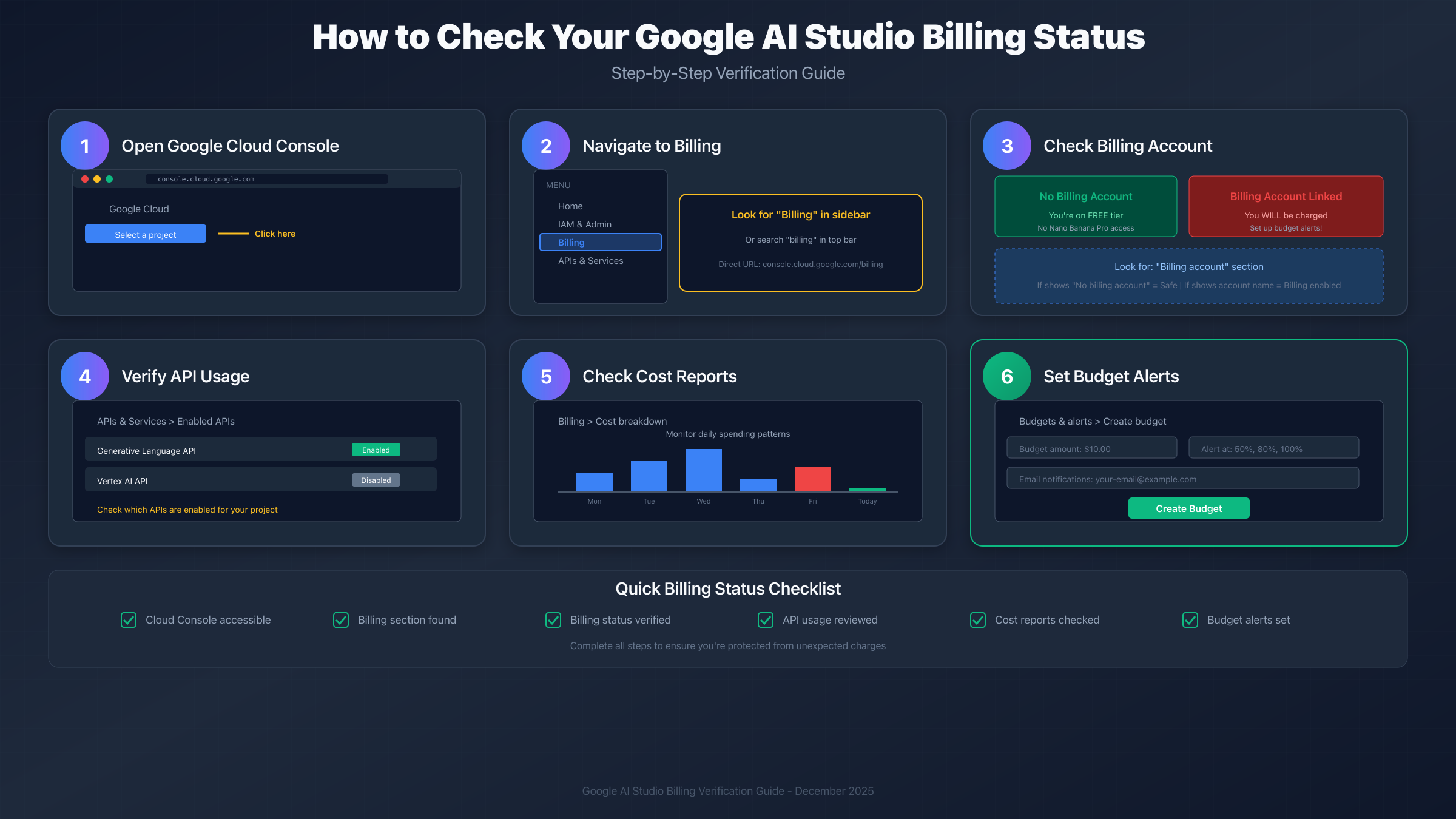
Understanding your current billing status is essential for two reasons. First, you may have enabled billing in the past for another service and forgotten about it—Google Cloud billing applies at the project level, so enabling it for one API activates it for all. Second, you need to know your baseline before implementing any cost control measures.
Step 1: Access Google Cloud Console
Navigate to console.cloud.google.com and sign in with the Google account associated with your AI Studio projects. If you've never used Google Cloud before, you'll see a welcome screen asking you to create your first project.
The Cloud Console can be overwhelming at first—it's designed for enterprise users managing complex infrastructures. For billing verification, you only need to access a few specific sections. Don't worry about the dozens of other services listed in the sidebar; focus on the billing-related options.
Step 2: Select Your Project
In the top navigation bar, click the project selector dropdown. You'll see a list of all projects associated with your account. If you've been using AI Studio, look for projects with names like "My First Project" or custom names you may have created.
Pro tip: AI Studio automatically creates a project for you when you first use it. If you've never explicitly created a project, it's likely named something generic like "My First Project" or assigned a random ID. You can rename projects in the Cloud Console settings to make them easier to identify.
If you have multiple projects, check each one individually. Billing is configured per-project, so you may have different billing states across your projects. Some developers create separate projects for development, staging, and production environments, each potentially with different billing configurations.
Step 3: Navigate to Billing
From the left sidebar menu, navigate to Billing. If you don't see it immediately, you can search for "Billing" in the top search bar or use the direct URL: console.cloud.google.com/billing.
The Billing section shows all billing accounts associated with your organization or account. For individual users, you'll typically have at most one billing account. Organizations may have multiple billing accounts for different departments or cost centers.
Step 4: Interpret Your Billing Status
Your billing page will show one of these states:
| Status Display | What It Means | Action Required |
|---|---|---|
| "No billing account" | Free tier only | Billing required for Nano Banana Pro |
| Billing account linked | Active billing | You will be charged for API usage |
| "Billing disabled" | Previously enabled, now paused | Charges paused, can be reactivated |
| "Account closed" | Billing terminated | Create new account for future billing |
Understanding the nuances of each state helps you plan your next steps. A project with no billing account has never had billing enabled and can continue using free tier services indefinitely. A project with an active billing account will incur charges for any billable API usage. A disabled billing account stops new charges but doesn't delete your project—you can reactivate later if needed.
Step 5: Check Linked APIs
Navigate to APIs & Services > Enabled APIs to see which APIs are active on your project. For Nano Banana Pro access, you'll need:
- Generative Language API (for Gemini models) — This is the primary API for AI Studio image generation
- Optionally: Vertex AI API (for Vertex AI endpoint access) — This provides additional endpoints with different pricing
The APIs enabled on your project determine which services incur charges when used. You can disable APIs you're not using to prevent accidental charges from those services. However, disabling an API doesn't affect billing—it just prevents usage of that specific service.
Step 6: Review Recent Charges
If billing is enabled, go to Billing > Cost breakdown to see your actual spending. This helps you understand your current usage patterns before making changes to your setup.
The cost breakdown shows spending by service, SKU, and time period. Look for charges related to "Generative Language API" or "Vertex AI" to understand your AI-related spending. You can also export billing data for more detailed analysis or to share with your team.
For a detailed guide on API key management and billing, check out our Nano Banana Pro API key billing guide.
The Real Costs of Nano Banana Pro
Understanding the complete cost picture requires looking beyond the headline per-image price. Here's a comprehensive breakdown of what you'll actually pay.
The per-image price is just the starting point. Many users are surprised by the total bill because they didn't account for input tokens, retry costs, resolution scaling, and other factors that multiply the base cost. A realistic cost projection needs to account for these additional expenses.
Official Pricing Breakdown
Google's official pricing for Nano Banana Pro as of December 2025:
| Model Variant | Resolution | Price per Image | Batch Pricing |
|---|---|---|---|
| Nano Banana Pro (Standard) | 1024×1024 | $0.134 | $0.067 |
| Nano Banana Pro (Standard) | 2048×2048 | $0.134 | $0.067 |
| Nano Banana Pro (High-Res) | 4096×4096 | $0.24 | $0.12 |
| Gemini 2.5 Flash Image | 1024×1024 | $0.039 | $0.02 |
Key insight: The batch API offers a 50% discount, but requires asynchronous processing where results are delivered later rather than in real-time. This is suitable for bulk generation tasks where immediate results aren't needed, but not for interactive applications.
The batch API discount is substantial enough that high-volume users should consider restructuring their workflows to take advantage of it. Instead of generating images one at a time, batch multiple requests together and process them asynchronously. This requires more complex application architecture but can halve your image generation costs.
Hidden Costs Checklist
Beyond the per-image cost, watch for these additional charges:
| Cost Category | Description | Typical Impact |
|---|---|---|
| Input tokens | Text prompts are billed separately at ~$0.00025/1K tokens | Usually minimal for short prompts, significant for detailed descriptions |
| Retry costs | Multiple attempts for better results | 2-3x multiplier common for perfectionists |
| Resolution scaling | 4K images cost 79% more than standard | Significant for high-quality needs |
| Rate limit errors | Hitting limits may require quota increases | Quota increases may cost extra |
| Data transfer | Downloading generated images | Usually minimal (~$0.01/GB) |
| Storage | Storing images in Cloud Storage | ~$0.02/GB/month for standard storage |
| Logging | Cloud Logging for API calls | Usually minimal, but can add up at scale |
| Support | Enhanced support tiers | $0-$15K+/month depending on tier |
Each of these costs individually seems small, but they compound. A user who generates 100 images at $0.134 expects to pay $13.40, but if they:
- Use detailed 500-word prompts (+$0.63)
- Regenerate 30% of images for better results (+$4.02)
- Store generated images in Cloud Storage (+$0.10)
- Use 4K resolution for 20% of images (+$2.12)
Their actual cost becomes $20.27—over 50% higher than the headline price.
Cost Calculation Scenarios
Let's calculate realistic monthly costs for different usage patterns:
Scenario 1: Casual Content Creator
- 50 images per month
- Standard resolution
- Direct API (not batch)
- Average 100-word prompts
- 20% regeneration rate
- Monthly cost: (50 × $0.134) + (10 × $0.134) + minimal token cost
- Monthly cost: $8.04
Scenario 2: Regular Developer
- 200 images per month
- Mixed resolution (70% standard, 30% 4K)
- Using batch API for 50% of requests
- Average 200-word prompts
- 15% regeneration rate
- Monthly cost breakdown:
- Standard resolution, direct API: 70 × $0.134 = $9.38
- Standard resolution, batch API: 70 × $0.067 = $4.69
- 4K resolution, direct API: 30 × $0.24 = $7.20
- 4K resolution, batch API: 30 × $0.12 = $3.60
- Regeneration (15%): 30 × average $0.134 = $4.02
- Total: $28.89
Scenario 3: High-Volume Production
- 1,000 images per month
- All standard resolution
- Batch API only
- Optimized prompts (minimal regeneration)
- Monthly cost: 1,000 × $0.067 = $67.00
- Same volume at full price: 1,000 × $0.134 = $134.00
- Batch savings: $67.00/month ($804/year)
For comprehensive pricing details, see our Nano Banana Pro API pricing guide.
Setting Up Budget Alerts (Prevention Guide)
Even if you understand the pricing, unexpected usage spikes can cause billing surprises. Setting up budget alerts is essential protection—it won't stop charges automatically, but it will warn you before costs escalate.
Budget alerts are your first line of defense against runaway costs. They won't prevent charges, but they ensure you're aware of spending patterns before they become serious problems. Many of the "surprise $500 bill" horror stories could have been caught early if the user had budget alerts configured.
Creating a Budget Alert
- Go to Billing > Budgets & alerts in Google Cloud Console
- Click Create Budget
- Configure the following settings:
| Setting | Recommended Value | Purpose |
|---|---|---|
| Budget name | "AI Image Generation Budget" | Clear identification |
| Budget scope | Select specific project | Isolate AI-related spending |
| Budget amount | $10-50 (based on expected usage) | Threshold for alerts |
| Alert thresholds | 50%, 80%, 100% | Progressive warnings |
| Email recipients | Your email + team leads | Ensure visibility |
| Pub/Sub topic | Optional | For automated responses |
Configure multiple thresholds to create a progressive warning system. The 50% alert gives you early notice that you're on track to hit your budget. The 80% alert is a serious warning to review your usage. The 100% alert means you've exceeded your planned spending and need to take action immediately.
For teams, ensure that budget alerts go to multiple recipients. A single point of contact can miss alerts due to vacation, spam filters, or simply overlooking emails. Adding backup recipients ensures someone will see the warning.
Programmatic Budget Monitoring
For developers who want automated monitoring, here's a Python script that checks your current spending:
pythonfrom google.cloud import billing
from google.cloud import monitoring_v3
import datetime

def check_current_spending(project_id):
    """Check current month's spending for a project."""
    client = monitoring_v3.MetricServiceClient()
    project_name = f"projects/{project_id}"

    # Query for billing metrics
    now = datetime.datetime.now()
    start_of_month = now.replace(day=1, hour=0, minute=0, second=0)

    interval = monitoring_v3.TimeInterval(
        start_time=start_of_month,
        end_time=now
    )

    # Get billing data
    results = client.list_time_series(
        request={
            "name": project_name,
            "filter": 'metric.type="billing.googleapis.com/billing/cost"',
            "interval": interval,
        }
    )

    total_cost = sum(point.value.double_value
                     for series in results
                     for point in series.points)

    return total_cost


current_cost = check_current_spending("your-project-id")
print(f"Current month spending: ${current_cost:.2f}")

# Alert if approaching budget
BUDGET_LIMIT = 50  # \$50 budget
if current_cost > BUDGET_LIMIT * 0.8:
    print("WARNING: Approaching 80% of budget!")
    # Optionally: send notification, pause services, etc.
This script can be run as a cron job or integrated into your application to provide real-time spending awareness. For production use, consider adding:
- Slack/Discord notifications for team visibility
- Automatic API key rotation when thresholds are hit
- Dashboard integration for visual monitoring
- Historical trend analysis to predict future spending
Additional Prevention Strategies
Beyond budget alerts, consider these protective measures:
-
Use separate projects for testing vs. production — This isolates costs and makes budget tracking easier. Development mistakes won't affect production billing, and you can set stricter budgets on development projects.
-
Implement request logging — Track every API call so you can identify unexpected usage patterns. Store logs with timestamps, user IDs (if applicable), and request parameters to debug cost spikes.
-
Set up quota limits — In APIs & Services > Quotas, you can set daily or per-minute limits for API calls. This provides a hard stop that budget alerts don't offer, though it may interrupt legitimate usage.
-
Regular cost reviews — Schedule weekly reviews of your billing dashboard. Early pattern detection can catch issues before they become expensive. Many users discover problems only when the monthly invoice arrives—by then, the damage is done.
-
Environment-based API keys — Use different API keys for development and production, making it easier to track where costs originate. If development costs spike, you know immediately which environment to investigate.
-
Rate limiting in application code — Implement your own rate limiting that's more conservative than Google's limits. This prevents bugs that might make excessive API calls from running up significant charges.
Cost-Effective Alternative: laozhang.ai
If Google's pricing seems steep for your usage volume, or if you want to avoid the complexity of Google Cloud billing, there's a significantly cheaper alternative that provides access to the same Nano Banana Pro model.
The existence of proxy services like laozhang.ai reflects market demand for simpler, more affordable access to AI capabilities. These services aggregate demand from multiple users, negotiate volume pricing, and pass savings to customers. For many use cases, especially those that don't require direct vendor relationships for compliance reasons, these alternatives offer substantial benefits.
Price Comparison
| Provider | Price per Image | Monthly Cost (100 images) | Savings |
|---|---|---|---|
| Google Official | $0.134 | $13.40 | — |
| Google Batch API | $0.067 | $6.70 | 50% |
| laozhang.ai | $0.05 | $5.00 | 63% |
For high-volume users, the savings are substantial:
| Monthly Volume | Google Cost | laozhang.ai Cost | Monthly Savings | Annual Savings |
|---|---|---|---|---|
| 100 images | $13.40 | $5.00 | $8.40 | $100.80 |
| 500 images | $67.00 | $25.00 | $42.00 | $504.00 |
| 1,000 images | $134.00 | $50.00 | $84.00 | $1,008.00 |
| 5,000 images | $670.00 | $250.00 | $420.00 | $5,040.00 |
The annual savings at higher volumes are significant enough to justify exploring alternatives even if you've already set up Google Cloud billing. A team generating 1,000 images monthly would save over $1,000 per year—enough to fund additional development resources or other tools.
Setting Up laozhang.ai
Getting started with laozhang.ai is straightforward and doesn't require Google Cloud billing setup:
- Create an account at laozhang.ai
- Get your API key from the dashboard
- Add credits using pay-as-you-go pricing
- Make API calls using the OpenAI-compatible endpoint
The entire setup process takes about 5 minutes, compared to the potentially hours-long process of setting up Google Cloud billing, understanding quotas, and configuring budget alerts. For developers who want to start generating images quickly without administrative overhead, this simplicity is valuable.
API Integration Example
Here's how to use laozhang.ai's Nano Banana Pro endpoint:
bashcurl https://api.laozhang.ai/v1/images/generations \
  -H "Content-Type: application/json" \
  -H "Authorization: Bearer YOUR_API_KEY" \
  -d '{
    "model": "gemini-3-pro-image",
    "prompt": "A serene mountain landscape at sunset with a crystal-clear lake reflecting the golden sky",
    "n": 1,
    "size": "1024x1024"
  }'
Response format is identical to Google's API, making migration seamless. If you have existing code that works with Google's API, you can typically switch to laozhang.ai by changing just the base URL and API key. The response structure, error codes, and content format remain consistent.
For Python users, the integration is equally straightforward:
pythonimport requests

def generate_image(prompt, api_key):
    response = requests.post(
        "https://api.laozhang.ai/v1/images/generations",
        headers={
            "Authorization": f"Bearer {api_key}",
            "Content-Type": "application/json"
        },
        json={
            "model": "gemini-3-pro-image",
            "prompt": prompt,
            "n": 1,
            "size": "1024x1024"
        }
    )
    return response.json()

# Usage
result = generate_image("A futuristic city at night", "your-api-key")
image_url = result["data"][0]["url"]
When to Use Google vs. laozhang.ai
| Scenario | Recommended Provider | Reason |
|---|---|---|
| Learning/experimenting | Google Web Interface | Free, no setup required |
| Low volume (< 50/month) | Either works | Cost difference minimal (~$4/month) |
| Medium volume (50-500/month) | laozhang.ai | Significant savings ($40-420/month) |
| High volume (500+/month) | laozhang.ai | Maximum savings, simplified billing |
| Enterprise compliance | Google Official | May require direct vendor contracts |
| Hybrid development | Both | Dev with laozhang.ai, prod with Google |
| Startups/bootstrapped | laozhang.ai | Lower costs, no credit card hold |
Decision Guide: Should You Enable Google Billing?
Making the right choice requires understanding your specific situation. Use this decision framework to determine the best path forward.
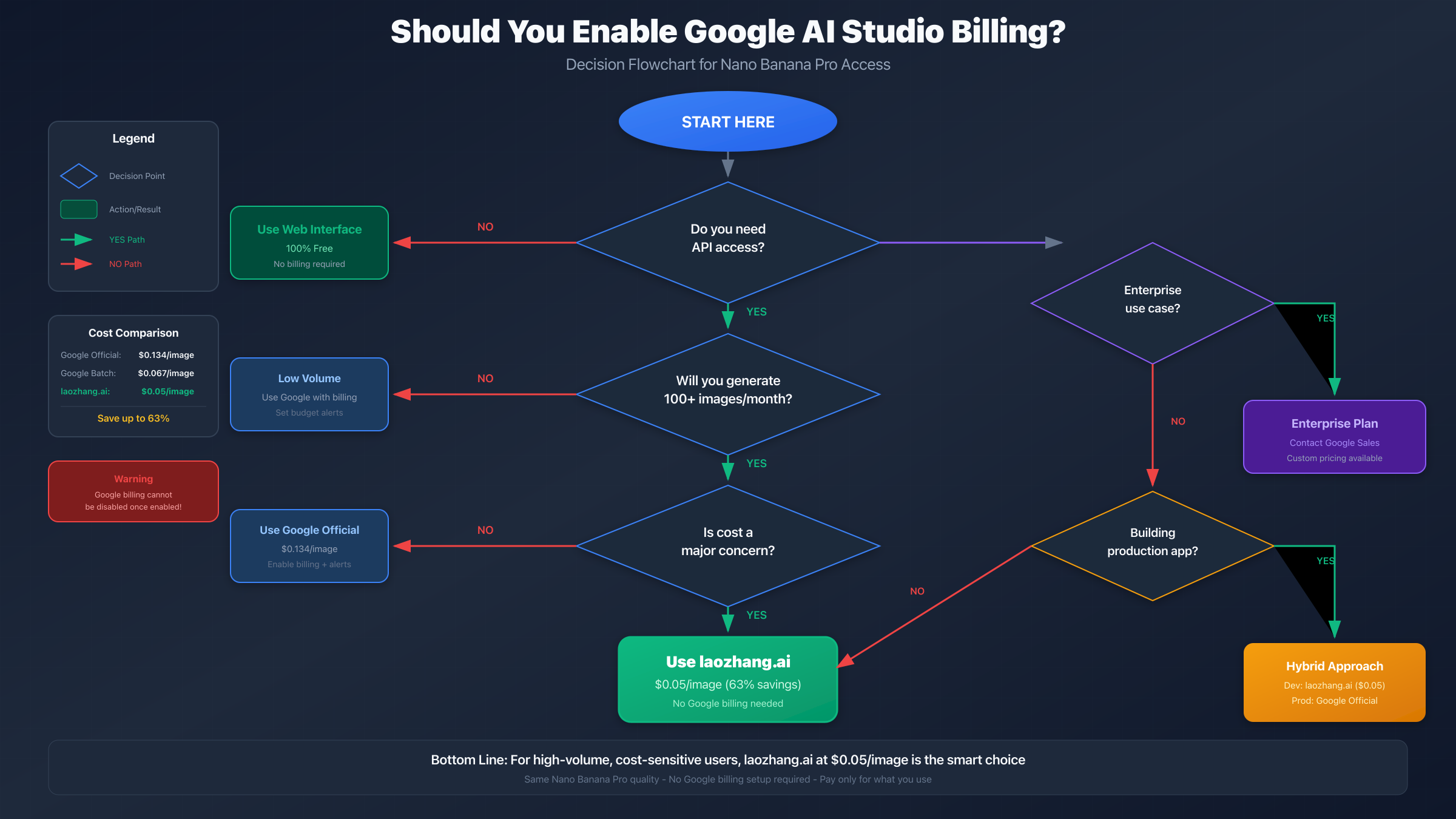
Decision Tree Logic
Question 1: Do you need API access?
- NO → Use the free Google AI Studio web interface. It provides full Nano Banana Pro capabilities through the browser. This is sufficient for experimentation, creating individual images, and learning the model's capabilities.
- YES → Continue to Question 2
Question 2: Will you generate more than 100 images per month?
- NO → Low volume usage. Google Official pricing at $0.134/image is acceptable for small-scale usage. Enable billing but set up strict budget alerts at $10 and $20 thresholds.
- YES → Continue to Question 3
Question 3: Is cost a major concern?
- NO → Use Google Official. The direct integration, guaranteed availability, and potential for enterprise support may be worth the premium. Enable billing and implement budget monitoring.
- YES → Use laozhang.ai at $0.05/image for 63% savings. The simplified billing and lower costs make it the clear choice for cost-conscious users.
Recommendations by User Type
Beginners (< 20 images/month)
- Start with the free web interface to learn prompting techniques
- Experiment extensively before considering API access
- No billing needed initially—take your time exploring
- When ready for API: consider laozhang.ai for simplicity and lower stakes
Developers Building Apps
- Use laozhang.ai during development ($0.05/image saves money during iteration)
- Set up Google billing for production only if compliance requires direct vendor relationship
- Implement budget alerts immediately upon enabling Google billing
- Monitor costs weekly and track per-feature spending
Content Creators (100+ images/month)
- laozhang.ai is clearly the better value at scale
- $0.05/image saves significant money that can be reinvested in content quality
- No complex Google Cloud setup means more time for creative work
- Predictable, pay-as-you-go pricing eliminates surprise bills
Enterprise Teams
- Evaluate both options against compliance requirements
- Google may be required for SOC2, HIPAA, or vendor management policies
- Negotiate enterprise pricing directly with Google for volume discounts
- Consider laozhang.ai for development/staging environments to reduce non-production costs
For free usage options and strategies, see our Nano Banana Pro free usage guide.
Emergency Response: What to Do If You Get Unexpected Charges
If you've already been hit with unexpected charges, here's how to respond quickly and minimize the damage.
Unexpected charges can happen to anyone. The key is responding quickly to stop further charges, understanding what caused the problem, and taking steps to prevent recurrence. Don't panic—most situations can be resolved or at least mitigated with the right approach.
Immediate Actions
-
Stop all API usage — Revoke or rotate your API keys immediately to prevent further charges. In the Cloud Console, go to APIs & Services > Credentials and delete or disable the affected API keys.
-
Review billing dashboard — Go to Billing > Reports to see exactly what generated the charges. Filter by date range to identify when the unexpected usage occurred. Look for spikes that correspond to specific events (deployment, code changes, etc.).
-
Check for compromised keys — If charges are unexplained, your API key may have been leaked. Check your Git history for accidentally committed keys, review any shared documentation, and search for your key on GitHub using tools like trufflehog.
-
Disable unnecessary APIs — In APIs & Services, disable any APIs you're not actively using. This prevents future charges from those services even if someone obtains your credentials.
-
Document everything — Take screenshots of your billing reports, note the timeline of events, and save any relevant logs. This documentation will be valuable if you need to dispute charges.
Disputing Charges
Google does occasionally grant refunds for unexpected charges, especially in cases of:
- Security breaches (leaked API keys)
- Technical errors (buggy code generating thousands of requests)
- First-time billing confusion (unclear documentation)
- Platform issues (incorrect billing for failed requests)
To request a refund:
- Go to Google Cloud Support
- Create a billing support case
- Explain the situation clearly and honestly
- Provide timestamps, logs, and any evidence of the issue
- Be polite but persistent—escalate if initial response is unhelpful
Success factors: First-time users, clear evidence of unintended usage, quick response (within 7 days of charges), and documented steps taken to prevent recurrence have better outcomes. Google's support team has discretion to issue credits for genuine mistakes.
Prevention for the Future
After resolving unexpected charges, implement these safeguards:
- Set budget alerts at multiple thresholds (as described above)
- Use environment variables for API keys—never hardcode or commit to repositories
- Implement comprehensive request logging for debugging and cost analysis
- Add rate limiting in your application code as a failsafe
- Consider using laozhang.ai for more predictable pricing and simpler billing
- Conduct regular security audits of your codebase and infrastructure
For rate limits and quota information, see our Nano Banana Pro rate limits guide.
Frequently Asked Questions
Can I use Nano Banana Pro completely free?
Only through the Google AI Studio web interface. API access always requires billing. If you need API access without Google Cloud billing, laozhang.ai offers Nano Banana Pro at $0.05/image with simple pay-as-you-go pricing.
What happens if my budget alert triggers?
Budget alerts only send notifications—they don't stop usage automatically. You'll receive an email when you hit your specified thresholds, but charges will continue unless you manually stop API usage or disable your API keys. For automatic stopping, you need to implement your own logic using Cloud Functions or similar.
Can I disable billing after enabling it?
No. Once billing is enabled on a Google Cloud project, you cannot revert to the free tier. You can close the billing account, which stops new charges, but the project will lose access to all paid services, not just image generation. Your only option is to create a new project if you want free tier access again.
Are failed API requests billed?
No. Requests that return 400 (client error), 429 (rate limit), or 500 (server error) status codes are not charged. However, requests that succeed but produce results you don't like are still billed. If the model generates an image, you pay—regardless of whether you use that image.
How do I prevent runaway costs from bugs?
Implement these safeguards in layers:
- Set budget alerts at 50%, 80%, and 100% of your expected spending
- Add request logging to track all API calls and identify unexpected patterns
- Implement application-level rate limiting more conservative than Google's limits
- Use a separate project for development and testing with stricter budgets
- Consider laozhang.ai's simpler pricing model where costs are more predictable
- Add circuit breakers in your code that stop API calls if error rates spike
Is laozhang.ai safe to use for production?
laozhang.ai provides the same Nano Banana Pro model through a proxy service with an OpenAI-compatible API. For most use cases, especially those that don't have strict vendor management requirements, it's perfectly suitable for production. If you have compliance requirements that mandate direct vendor relationships (common in healthcare, finance, and government), you may need to use Google directly. For startups, indie developers, and most businesses, laozhang.ai is a practical, cost-effective choice.
How long does it take for charges to appear?
API usage typically appears in your billing dashboard within 24-48 hours. Real-time cost tracking isn't available—there's always some delay between usage and billing visibility. This is why proactive budget alerts are so important; by the time you see charges in the dashboard, you may have already spent more.
What's the difference between AI Studio web interface and API?
The web interface is a browser-based playground where you can experiment with all models, including Nano Banana Pro, completely free. The API is a programmatic interface that allows you to integrate image generation into your applications, scripts, and workflows. The web interface is great for learning and occasional manual generation, while the API is essential for automation, integration, and scaling your image generation workflow. Only API usage requires billing—the web interface remains free regardless of your billing status.
Can I use Nano Banana Pro with other AI providers?
Yes, proxy services like laozhang.ai provide access to the same Nano Banana Pro model through their own infrastructure. This means you're using the actual Nano Banana Pro model—not a different model claiming similar capabilities. The main benefits of using a proxy service are lower pricing, simpler billing without Google Cloud setup, and often easier API integration using OpenAI-compatible endpoints. The generated images are identical to what you'd get from Google directly.
What happens if my API key gets leaked?
API key leaks are one of the most common causes of unexpected billing. If you discover or suspect a leak, immediately regenerate your API keys in the Cloud Console (APIs & Services > Credentials). Then review your billing dashboard for any unexpected usage. Check your Git history, shared documents, and public repositories for accidentally exposed keys. For the future, use environment variables instead of hardcoding keys, add your credentials files to .gitignore, and consider using Google's Secret Manager for production deployments.
Is there a way to test Nano Banana Pro before enabling billing?
Yes, use the Google AI Studio web interface at aistudio.google.com. You can generate images using Nano Banana Pro directly in your browser without any billing setup. This lets you evaluate the model's capabilities, test different prompts, and understand what kind of results you can expect—all before committing to API billing. Many users find this testing period valuable for refining their prompts and estimating their likely usage volume.
Conclusion: Protecting Yourself from Unexpected Charges
Using Nano Banana Pro effectively without billing surprises comes down to understanding three key principles:
-
Know the costs before you start — Nano Banana Pro has no free tier for API usage. Every image costs $0.134 at standard resolution. Factor in input tokens, retry costs, and resolution scaling for accurate projections.
-
Set up protection immediately — Budget alerts, API monitoring, and regular cost reviews are essential safeguards. Don't wait until you see unexpected charges to implement these measures.
-
Consider alternatives for volume usage — At $0.05/image, laozhang.ai offers the same Nano Banana Pro capabilities at 63% lower cost, without the complexity of Google Cloud billing.
Whether you choose Google's official service or an alternative like laozhang.ai, the key is making an informed decision before enabling billing—because once that switch is flipped, there's no going back. Take time to understand your usage patterns, implement cost controls, and choose the solution that best fits your needs and budget.
The best protection against unexpected charges is preparation. By reading this guide and understanding the billing landscape before committing to any service, you're already ahead of most users. Implement the safeguards we've discussed, monitor your usage regularly, and you'll be able to leverage Nano Banana Pro's powerful image generation capabilities without financial surprises.
Last updated: December 2025. Pricing and features may change. Always verify current rates on official documentation before making decisions.