
OpenClaw connects your personal AI assistant to Slack through Socket Mode or HTTP webhooks, but when the bot goes silent it can be genuinely difficult to pinpoint whether the issue lives in the gateway, the Slack app configuration, the model provider, or somewhere in between. The most reliable approach is to follow a systematic diagnostic ladder — running five specific commands in order — rather than guessing at random configuration changes. This guide documents every failure mode the community has encountered since OpenClaw v2026.1 and maps each one to a concrete fix, so you can get your bot responding again in minutes rather than hours.
TL;DR
If your OpenClaw Slack bot is not responding, run these five commands in order to narrow down the problem:
bashopenclaw status              # 1. Is the gateway running?
openclaw gateway status      # 2. Is Slack actually connected?
openclaw doctor              # 3. Auto-detect config issues
openclaw channels status --probe  # 4. Are events flowing?
openclaw logs --follow       # 5. Watch real-time errors
The most common causes are: gateway not running (restart it), missing OAuth scopes like im:write (reinstall the Slack app after adding scopes), DM pairing not approved (run openclaw pairing approve slack <code>), channel not in the allowlist (add it to channels.slack.channels), and model authentication failure (verify your API key or switch to a free-tier model). If openclaw doctor --fix doesn't resolve it automatically, read the targeted sections below for your specific symptom.
Quick Diagnostic — Identify Your Problem in 5 Commands
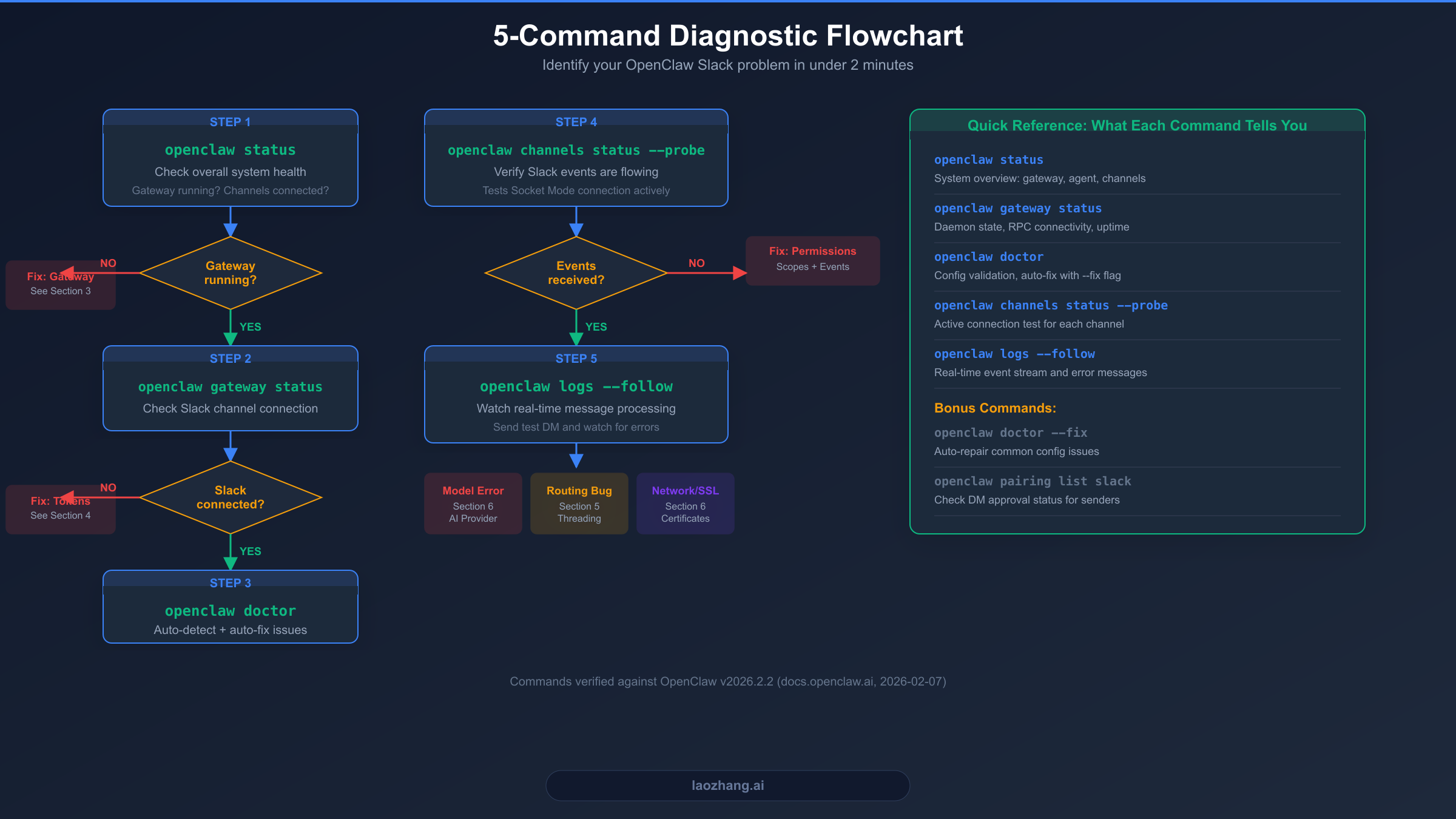
Before diving into specific fixes, you need to determine which component is actually broken. OpenClaw's architecture has several distinct layers — the gateway process, the Slack channel plugin, the agent runtime, and the model provider — and a failure at any layer produces the same visible symptom: silence. The diagnostic ladder below tests each layer in sequence so you can skip directly to the relevant fix section.
Command 1: openclaw status gives you the bird's-eye view. It reports whether the gateway daemon is running, how long it has been up, which channels are connected, and the agent's bootstrap state. If the output says the gateway is not running, jump to the Gateway and Connection Failures section. If it shows "Gateway: running" but lists zero connected channels, the issue is in your Slack configuration — proceed to Command 2.
Command 2: openclaw gateway status drills into the daemon specifically. It confirms RPC connectivity between the CLI and the gateway process, reports the gateway version, and shows per-channel connection status. Look for the line [Slack] Connected via Socket Mode in the output. If Slack shows as disconnected or missing entirely, your tokens are likely misconfigured — jump to the Token section. If it shows connected, the problem is downstream.
Command 3: openclaw doctor is the automated health checker. It validates your configuration file syntax, checks that required tokens exist, verifies that the Slack plugin is registered in plugins.allow, and tests basic connectivity. Running openclaw doctor --fix applies automatic repairs for common problems like permission mismatches, missing directories, and outdated configuration formats. The doctor command catches roughly 60% of issues without further investigation (OpenClaw docs, 2026-02-07).
Command 4: openclaw channels status --probe performs an active connection test. Unlike the passive status check, this command actually sends a probe through the Socket Mode WebSocket to verify that Slack events are flowing bidirectionally. If the probe fails, your Slack app's Event Subscriptions may be misconfigured, or you may be missing required bot event subscriptions like message.im or app_mention. Check the Token section for the complete event list.
Command 5: openclaw logs --follow streams real-time log output. With the logs flowing, send a test DM to your bot in Slack and watch what happens. You will see one of several outcomes: the message arrives and produces a model error (jump to Model Failures), the message arrives but gets routed incorrectly (jump to Threading Issues), or the message never appears at all (the Slack connection is broken at the WebSocket level — regenerate your App Token). This command is the most powerful diagnostic tool because it shows you exactly where the message pipeline breaks.
For a deeper reference on all OpenClaw error codes and their meanings, see our complete error code reference which covers errors beyond just the Slack channel.
Gateway and Connection Failures
Gateway failures are the most fundamental category — if the gateway process isn't running, nothing works. These issues typically manifest as complete silence from the bot with no entries in the Slack channel logs at all.
Port conflicts are the single most common gateway startup failure. OpenClaw's gateway listens on port 18789 by default, and if another process (or a previous gateway instance) holds that port, the new process exits immediately with EADDRINUSE. The fix is straightforward: identify the process with lsof -i :18789, terminate it, and restart. If you find a stale gateway.lock file at ~/.clawdbot/gateway.lock with no corresponding process, remove it. For persistent port conflicts, you can specify an alternative port with openclaw gateway --port 18790 or set it permanently in your configuration file. For a comprehensive walkthrough of port-related issues, see our port troubleshooting guide.
Node.js version incompatibility is another frequent cause. OpenClaw requires Node.js 22 or higher, and running it on an older version produces cryptic startup errors. The solution is to update Node.js — if you use nvm, run nvm install 22 && nvm use 22. After updating, verify with node --version and restart the gateway.
Stale process states occur when the gateway crashes without cleaning up. The symptoms include "Gateway already running" errors when you try to start it, despite no gateway process actually existing. The recovery sequence is: kill any orphaned processes with killall openclaw, remove the lock file if it exists, and restart with openclaw gateway restart. On macOS with launchd, you may also need to unload and reload the LaunchAgent plist.
Configuration syntax errors prevent the gateway from loading its config file at all. OpenClaw uses JSON for configuration (stored at ~/.openclaw/config.json or the legacy ~/.clawdbot/moltbot.json path), and a single misplaced comma or unclosed brace will cause a silent startup failure. Run openclaw doctor to validate the configuration syntax — it will report the exact line and character position of any JSON parsing error. If you have just migrated from ClawdBot or Moltbot, configuration paths and key names may have changed. Refer to our installation guide for the current directory structure.
Platform-specific startup issues deserve mention as well. On Linux systems using systemd, the gateway service file must be installed in the user scope (systemctl --user), not the system scope. On macOS, the LaunchAgent plist needs correct environment variable definitions — particularly NODE_EXTRA_CA_CERTS for SSL certificate resolution, which we cover in the Model Failures section below.
Token, Scope, and Permission Errors
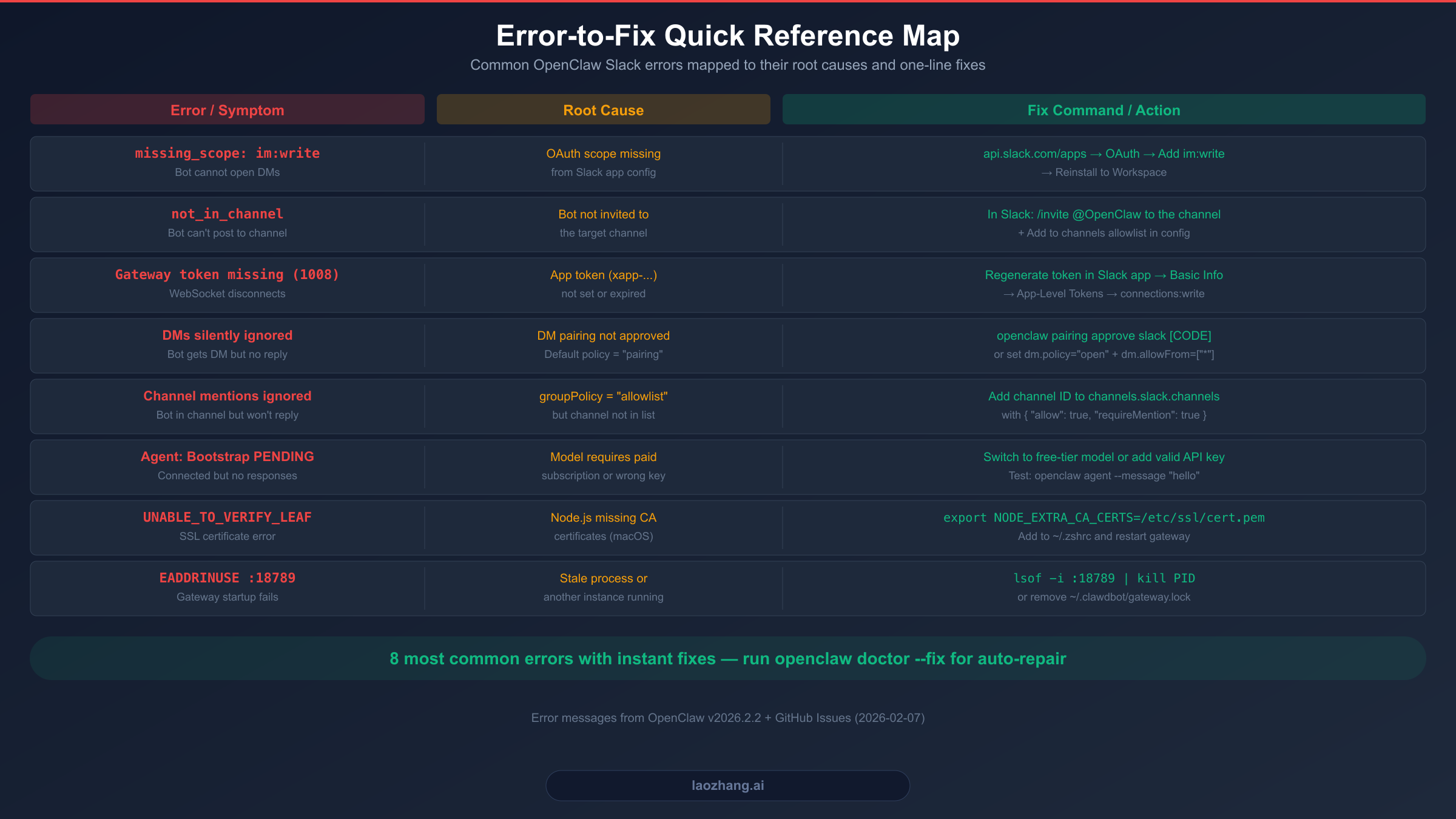
Token and permission errors account for roughly 40% of "bot not responding" reports in the OpenClaw community, and they can be particularly frustrating because the gateway appears to be running normally while messages are silently dropped. The Slack API returns specific error codes for each type of permission failure, so knowing which error maps to which scope is the fastest path to a fix.
Understanding the three token types is essential for troubleshooting. The App Token (xapp-...) authenticates the WebSocket connection in Socket Mode and requires the connections:write scope. The Bot Token (xoxb-...) authenticates all API calls — sending messages, reading history, adding reactions. The optional User Token (xoxp-...) enables read operations under the installing user's identity, useful for search and extended history access. If your App Token is expired or was generated before Socket Mode was enabled, the WebSocket will fail to connect. The fix is to regenerate the token in your Slack app's Basic Information page under App-Level Tokens, ensuring you select the connections:write scope.
The missing_scope error is the most common token-related failure. When OpenClaw tries to call a Slack API method without the required OAuth scope, Slack returns this error and OpenClaw logs it. The most frequently missing scope is im:write, which is needed to open DM conversations. Without it, the bot can receive DMs (via im:history) but cannot send replies. The fix: go to api.slack.com/apps, navigate to OAuth & Permissions, add the missing scope, and click "Reinstall to Workspace" — this is the critical step that many users skip, since adding a scope does not take effect until the app is reinstalled.
Here is the complete list of required bot token scopes as documented in the official Slack configuration page (docs.openclaw.ai, verified 2026-02-07):
| Scope | Purpose | What Breaks Without It |
|---|---|---|
chat:write | Send/update/delete messages | Bot cannot reply at all |
im:write | Open DM conversations | Cannot initiate DMs |
channels:history | Read public channel messages | No context in channels |
groups:history | Read private channel messages | No context in private channels |
im:history | Read DM history | No DM context |
mpim:history | Read group DM history | No group DM context |
users:read | Resolve user mentions | Cannot identify @mentions |
app_mentions:read | Detect @bot mentions | Bot ignores mentions |
reactions:read/write | React to messages | No ack reactions (users wonder if bot sees their message) |
files:write | Upload files | Cannot share images/files |
DM pairing is OpenClaw's security mechanism for controlling who can message the bot directly. By default, dm.policy is set to "pairing", which means any new DM sender receives a pairing code that must be approved on the server side before the bot will respond. If your users report that the bot ignores their DMs, check the pairing status with openclaw pairing list slack. If a user is listed as "pending", approve them with openclaw pairing approve slack <code>. For development or personal use, you can switch to open mode by setting dm.policy: "open" and dm.allowFrom: ["*"] in your configuration — though this is not recommended for shared workspaces.
Channel access policies are the second most common reason for silent failures. When groupPolicy is set to "allowlist" (which is the recommended production setting), the bot only responds in channels that are explicitly listed in channels.slack.channels. If you add the bot to a new Slack channel but forget to add that channel's ID to the allowlist, the bot will join the channel, receive messages, but never reply. The fix is to add the channel with { "allow": true, "requireMention": true } in your configuration.
Threading, Routing, and Message Delivery Issues
Threading and message routing problems are a distinct category where the bot is technically responding, but the responses appear in the wrong place or don't thread as expected. These issues are a mix of configuration mistakes and known software bugs, so understanding which is which saves significant debugging time.
Reply mode configuration controls whether the bot replies in the main channel or in threads. OpenClaw supports three modes: "off" (default — reply in main channel unless the triggering message was already threaded), "first" (first reply goes to a thread, subsequent replies go to the main channel), and "all" (all replies are threaded). The production-recommended configuration uses per-chat-type threading: replyToMode: "off" as the baseline, with replyToModeByChatType: { direct: "all", group: "first" } to thread DMs while keeping channel replies visible.
The App Home routing bug (Issue #2412) is a known defect in OpenClaw versions prior to the fix in PR #2414 where @mentioning the bot in a DM between two non-bot users causes the response to route to User A's private App Home instead of the original conversation. The root cause was that the routing logic used user:<id> delivery targets for DM contexts rather than preserving the original channel:<id>. If you encounter this, update to OpenClaw v2026.2.2 or later, which includes the fix. As a workaround in older versions, use the bot in 1:1 DMs or channels only.
The thread reply escape bug (Issue #4424) is a concurrency edge case where sending two rapid messages in a thread before the bot replies causes the second response to escape to the main channel. This happens because the queued response loses its thread_ts context during dispatch. The fix landed in v2026.2.2 via a patch that prevents opts closure reuse across messages. If you see thread replies appearing as top-level messages, upgrading to the latest version is the most reliable fix. As a temporary workaround, use replyToMode: "first" instead of "all" to reduce the impact.
DM threading limitations were documented in Issue #2411 and affected versions through January 2026. Setting replyToMode: "all" in the DM configuration or using the [[reply_to_current]] tag did not produce threaded replies in direct messages. The underlying cause was that the threading fix for channels (Issue #1388) did not extend to the DM code path. This has been progressively fixed through multiple patches, but if you are running an older version, DM threading may not work as expected. The practical workaround is to use non-threaded DMs (which is the default behavior and works reliably) or upgrade.
Bot-to-bot reply loops can cause the bot to appear unresponsive because it exhausts its rate limit responding to another bot. This occurs when allowBots: true is set without corresponding mention gating. The solution is to always combine allowBots with requireMention: true and define explicit user allowlists per channel. This ensures the bot only responds when directly @mentioned by an approved user.
Model and AI Provider Failures
When the gateway is running and Slack is connected but the bot still produces no output, the failure is almost always in the model layer — the AI provider that generates responses. The telltale sign is an agent status of "Bootstrap: PENDING" in the openclaw status output, which means the agent is waiting for a response from the model provider that never comes.
Model subscription requirements are the most common surprise. As documented in GitHub Discussion #4478, users who configure gemini-3-pro-preview discover that it requires a paid Google AI Studio subscription. On the free tier, the model silently fails — no error is returned, the agent just hangs in PENDING state. The fix is to switch to a model that supports your subscription level, such as gemini-3-flash-preview for free-tier users. You can test model connectivity independently with openclaw agent --message "hello", which bypasses the Slack channel entirely and confirms whether the model is responding.
API key validation failures produce similar symptoms. If your OpenAI, Anthropic, or Google API key is expired, revoked, or lacks sufficient quota, the model call fails silently in some configurations. Check your provider's dashboard for rate limit status and key validity. For OpenAI, ensure the key has the correct project permissions; for Anthropic, verify the key is associated with the right workspace.
SSL certificate errors are particularly insidious on macOS because they prevent all outbound HTTPS connections, including model API calls. The error typically appears as UNABLE_TO_VERIFY_LEAF_SIGNATURE in the logs. The root cause is that Node.js on macOS does not automatically use the system certificate store. The fix is to set the NODE_EXTRA_CA_CERTS environment variable:
bashexport NODE_EXTRA_CA_CERTS=/etc/ssl/cert.pem # Then restart the gateway openclaw gateway restart
If OpenClaw runs as a LaunchAgent, you also need to add the environment variable to the plist file. This single fix resolves a wide range of mysterious connectivity failures.
Rate limiting from model providers can cause intermittent non-responsiveness. If your bot works sometimes but occasionally goes silent for 30-60 seconds, you may be hitting rate limits. The solution is to configure multiple model providers as fallbacks in your OpenClaw configuration, or use an API aggregation service like laozhang.ai that provides unified access to multiple model providers with built-in rate limit management and automatic failover. This is particularly useful for production deployments where downtime from a single provider's rate limit is unacceptable.
Production-Ready Slack Configuration
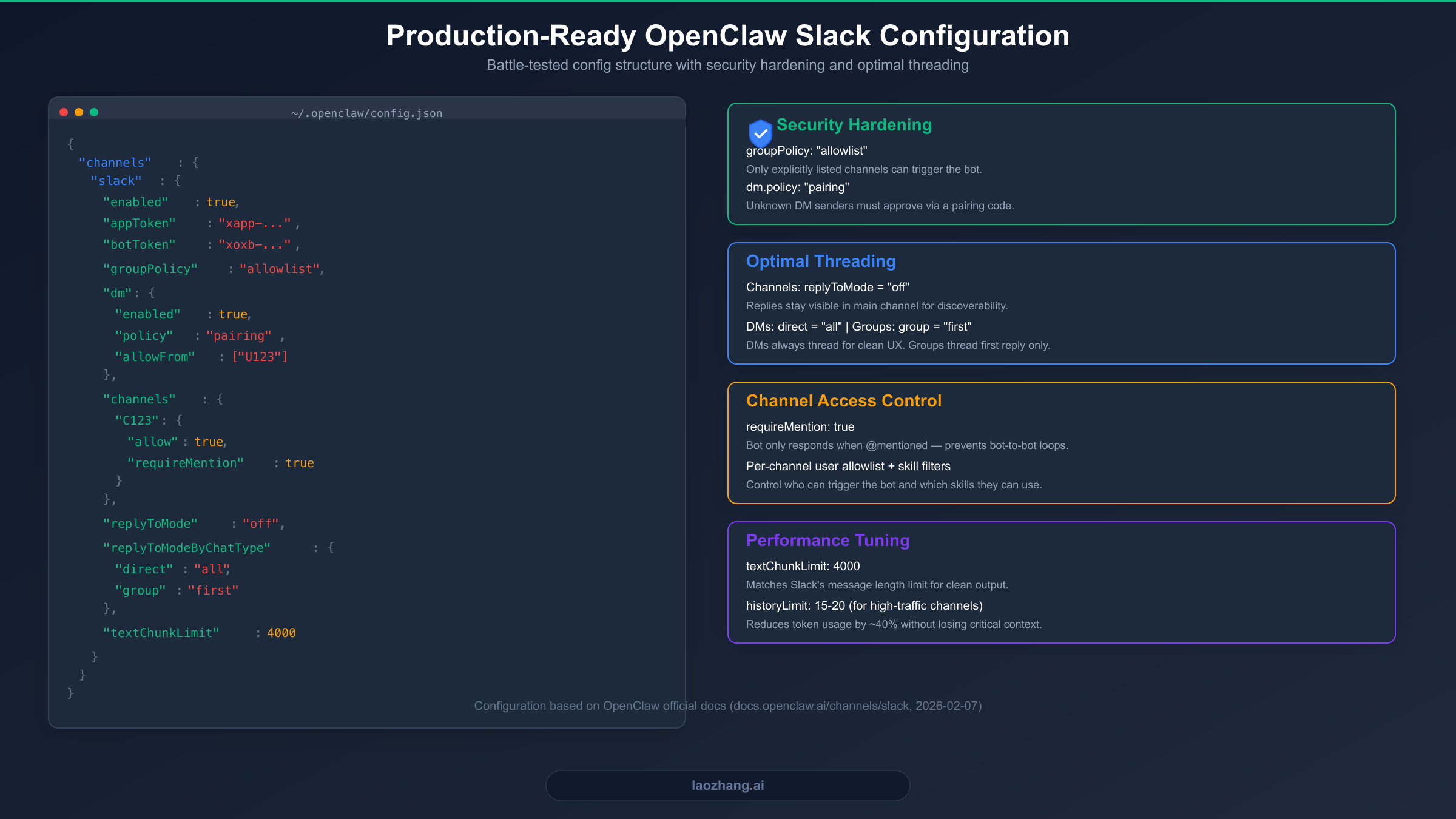
Most OpenClaw Slack issues in production trace back to using a minimal development configuration that lacks proper security boundaries and access controls. The configuration below represents a battle-tested production setup that prevents the most common failure modes while maintaining usability. Every line is annotated with its purpose and the problem it prevents.
json{
  "channels": {
    "slack": {
      "enabled": true,
      "appToken": "xapp-...",
      "botToken": "xoxb-...",

      "groupPolicy": "allowlist",

      "dm": {
        "enabled": true,
        "policy": "pairing",
        "allowFrom": ["U_YOUR_USER_ID"]
      },

      "channels": {
        "C_ENGINEERING": {
          "allow": true,
          "requireMention": true,
          "users": ["U_ADMIN_1", "U_ADMIN_2"],
          "skills": ["search", "docs"],
          "systemPrompt": "Keep answers concise and technical."
        },
        "C_GENERAL": {
          "allow": true,
          "requireMention": true
        }
      },

      "replyToMode": "off",
      "replyToModeByChatType": {
        "direct": "all",
        "group": "first"
      },

      "textChunkLimit": 4000,
      "mediaMaxMb": 20
    }
  }
}
The groupPolicy: "allowlist" setting is the single most important production configuration. Without it, the default is "open", which means the bot responds in every channel it's invited to — a significant security risk in large workspaces. With the allowlist, you explicitly control which channels can trigger the bot, which users are authorized, and which skills are available per channel.
The DM "pairing" policy requires each new DM sender to complete an approval flow before the bot responds. The allowFrom array pre-approves specific user IDs so designated administrators don't need to go through pairing. For personal use, listing your own user ID is sufficient; for team use, add the user IDs of team members who should have DM access.
The threading configuration replyToMode: "off" with per-chat-type overrides is the most reliable production setting. DMs use "all" threading to keep conversations organized, while channels use the default "off" so replies are visible to everyone without requiring thread navigation. The "first" mode for group DMs provides a middle ground — the first reply threads for context, but subsequent replies stay visible.
Setting requireMention: true on every channel prevents two classes of problems: bot-to-bot loops (where another bot's message triggers an infinite response chain) and accidental triggers from normal conversation. The bot only responds when explicitly @mentioned, which is the expected behavior for a shared workspace.
If you are migrating from the default development configuration, apply these changes incrementally — start with groupPolicy: "allowlist" and a single channel, verify it works, then add DM pairing and additional channels. This reduces the number of variables if something goes wrong during migration.
FAQ
Why does my OpenClaw Slack bot show "connected" but never reply to messages?
This is the most common and most confusing symptom because the gateway and Slack connection both appear healthy. The three most likely causes are: (1) The DM pairing policy is blocking your messages — run openclaw pairing list slack to check. (2) The channel is not in the allowlist if groupPolicy is set to "allowlist" — add the channel ID to channels.slack.channels. (3) The model provider is failing silently — run openclaw agent --message "test" to verify the AI model responds independently of Slack. If all three check out, examine openclaw logs --follow while sending a test message to see exactly where the pipeline breaks.
How do I fix "missing_scope" errors in OpenClaw Slack?
Navigate to your Slack app at api.slack.com/apps, go to OAuth & Permissions, add the missing scope (the error message tells you which one), and crucially, click "Reinstall to Workspace". Adding a scope alone does not take effect — the app must be reinstalled. The most commonly missing scopes are im:write (needed for DM replies), reactions:write (needed for acknowledgment reactions), and app_mentions:read (needed for @mention detection). For a complete setup, use the official manifest from the OpenClaw docs to create your Slack app, which includes all required scopes.
Can I use OpenClaw with multiple Slack workspaces?
Yes, OpenClaw supports multi-account Slack configuration. Use the channels.slack.accounts object with separate token sets per workspace. Each account can have its own appToken, botToken, optional userToken, and a friendly name. Channel policies, threading modes, and DM settings can be configured independently per account. This is documented in the gateway configuration section of the official docs. If you also use other messaging platforms like Telegram alongside Slack, see our Telegram setup guide for configuration details.
What is the difference between Socket Mode and HTTP mode for Slack?
Socket Mode (the default) maintains a long-lived WebSocket connection from OpenClaw to Slack, requiring no inbound network access — ideal for running behind a firewall or NAT. HTTP mode uses traditional webhook URLs where Slack sends events to a public HTTPS endpoint on your server. Socket Mode is simpler to set up and requires only an App Token plus Bot Token. HTTP mode requires a Signing Secret instead of an App Token and demands that your gateway is reachable from the internet. For most users running OpenClaw on a personal machine or internal server, Socket Mode is the recommended choice. HTTP mode is better suited for cloud server deployments where HTTPS is already configured.
How do I prevent my OpenClaw bot from getting stuck in bot-to-bot reply loops?
Bot-to-bot loops happen when another bot posts in a channel and your OpenClaw bot treats it as a message to respond to, creating an infinite chain. The prevention strategy has three layers: (1) Set requireMention: true on all channels so the bot only responds to direct @mentions. (2) Keep allowBots: false (the default) unless you specifically need bot-to-bot interaction. (3) If you must enable allowBots, combine it with a per-channel users allowlist that only includes human user IDs. Additionally, set clear behavioral guardrails in your AGENTS.md and SOUL.md files instructing the agent to never respond to automated or bot messages unless explicitly invoked.